

The basics
New to the system, or not used to computers? Start here. Every other page in this guide builds on these few ideas.
What you need
Section titled “What you need”- A computer, tablet or phone with internet.
- A web browser — the program you use for websites, such as Google Chrome, Microsoft Edge or Safari.
- Your email address and password for the system. The school office gives you these.
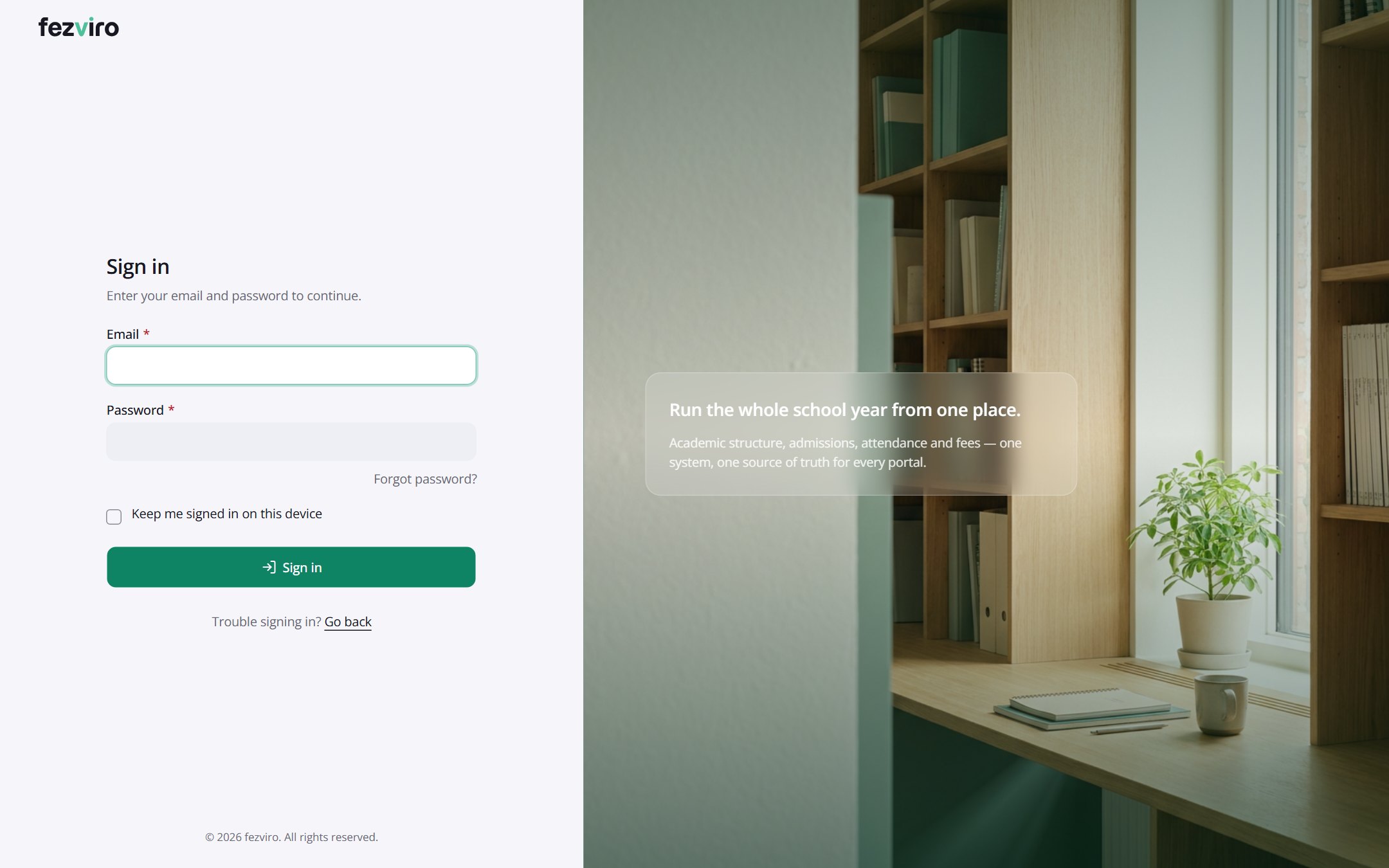
Signing in
Section titled “Signing in”- Open your web browser.
- Click the address bar at the very top, type your school’s address, and press Enter on the keyboard.
- Type your email in the first box and your password in the second box.
- Click Sign in.
The screen at a glance
Section titled “The screen at a glance”- Left menu — the list of areas you can use. Click a name to open it; click it again to close it. You only see what your job allows.
- Top bar — search, the school year, your messages, notifications and your name.
- Page title — the big heading tells you where you are. Buttons for the page sit on the right of the title.
- The ? button — next to the title, opens the help page for that screen.
Most screens show a list — rows of records, like a spreadsheet.
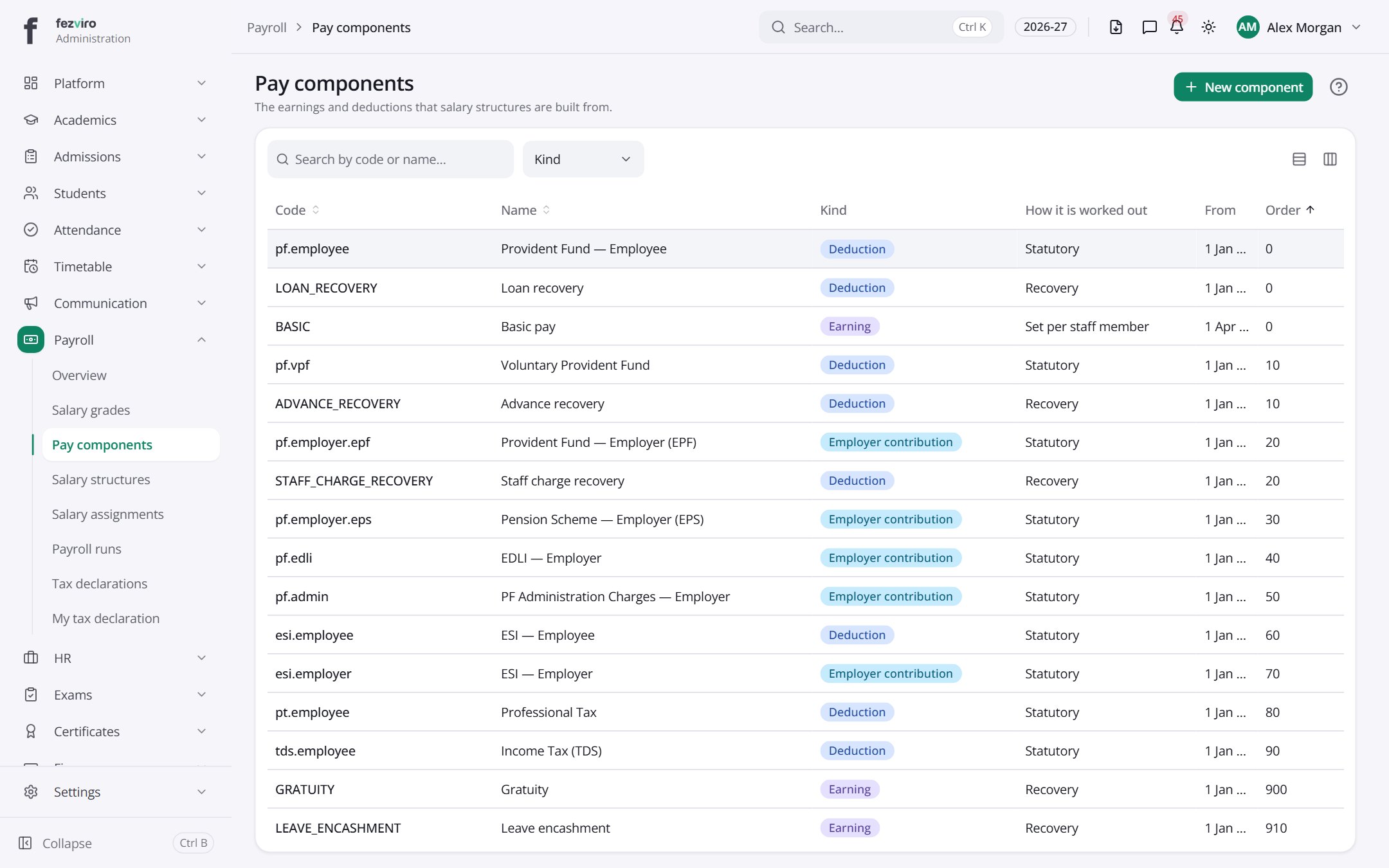
- Search box — type a few letters of a name or number; the list shrinks to matching rows.
- Filters — the small drop-down buttons above the list narrow it, for example to one class or one status.
- Sorting — click a column name to sort by it; click again to reverse.
- More pages — when the list is long, use the page arrows at the bottom.
- Open a row — click it to see all its details.
Adding something new
Section titled “Adding something new”- Click the green button at the top right (for example New student or Add room).
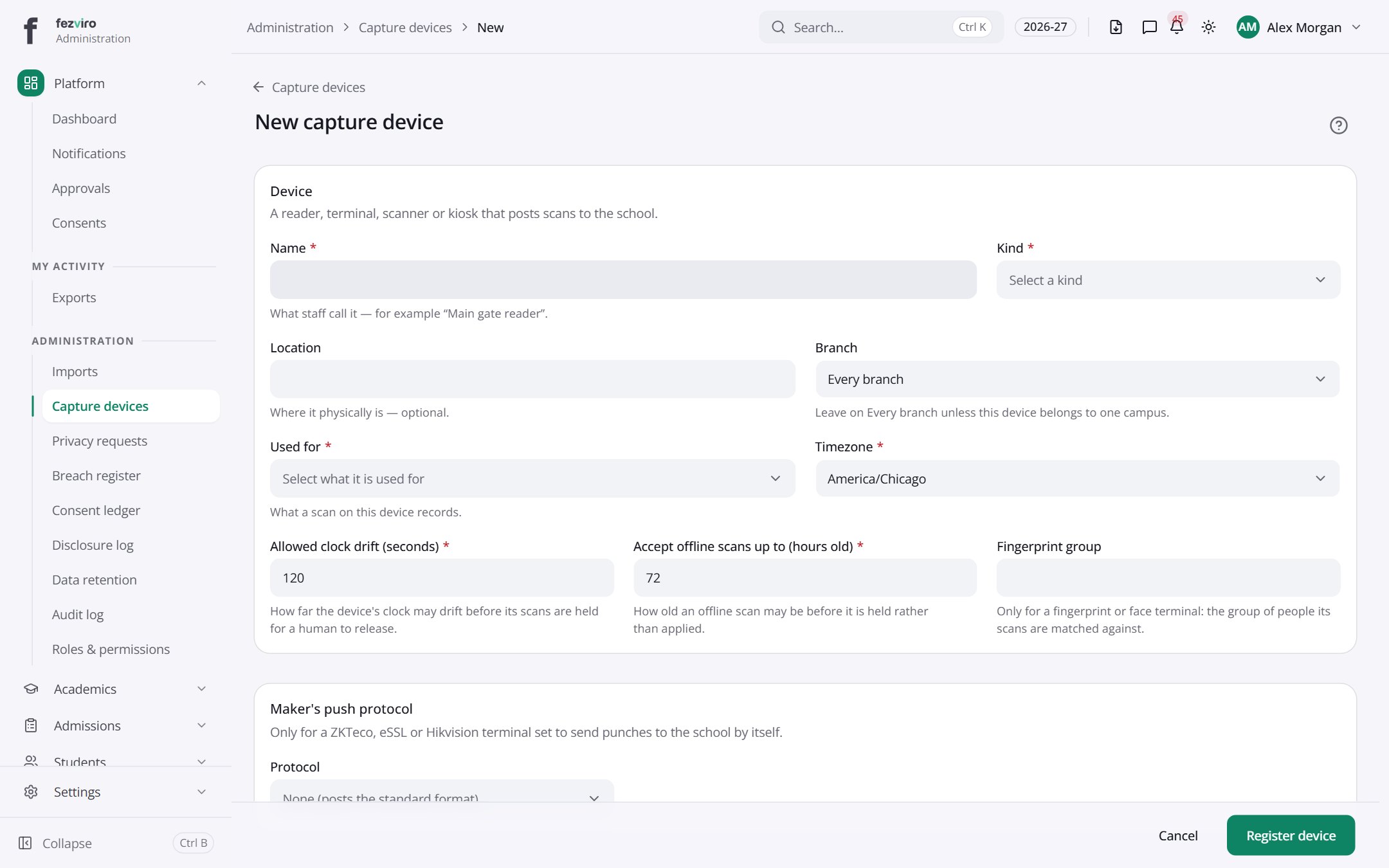
- A form opens — a page of boxes to fill in.
- Fill in each box. A red * means the box must be filled in.
- Click Save. If anything is wrong, the box turns red and says what to fix.
Kinds of boxes
Section titled “Kinds of boxes”| Text | Click inside and type. |
| Number | Type digits only. |
| Date | Click it; a small calendar opens. Click the day you want. |
| Choose | Click it; a list opens. Click your choice. You can type to search the list. |
| Pick one | Round buttons — click one option. |
| Switch / tick box | Click to turn on (green or ticked) or off. |
| Long text | A bigger box for notes; type as much as you need. |
| File | Click it, then pick the file from your computer. |
Changing or removing
Section titled “Changing or removing”- Change — open the record, click Edit, change the boxes, click Save.
- Remove — open the record and click Delete. Nothing is lost for good: the system remembers who removed it, and an administrator can bring it back.
Saving and printing
Section titled “Saving and printing”- Export saves a list to an Excel file on your computer.
- Print or PDF opens a printable page in a new browser tab. Use your browser’s print button there.
Finding anything quickly
Section titled “Finding anything quickly”Press Ctrl and K together (on a Mac, ⌘ and K), then type a name — a student, a staff member, an invoice number or a screen name — and press Enter.
Signing out
Section titled “Signing out”Click your name at the top right, then Sign out. Always sign out on a shared computer.
Getting help
Section titled “Getting help”- Click the ? next to any page title to open its help page.
- In this guide, press Ctrl + K (or click Search at the top) and type your question.
- New words? See the Glossary.