

Transfer certificates
What it is
A register of transfer certificates for pupils leaving the school.
Why it matters
Records each transfer, with checks on any outstanding dues.
When to use it
Office staff issue transfers and print duplicates when needed.
Who uses it
Administrator
How to get here
Section titled “How to get here”- Sign in as Administrator (see Signing in).
- In the left menu, click Certificates to open it.
- Click Transfer certificates.
What you see
Section titled “What you see”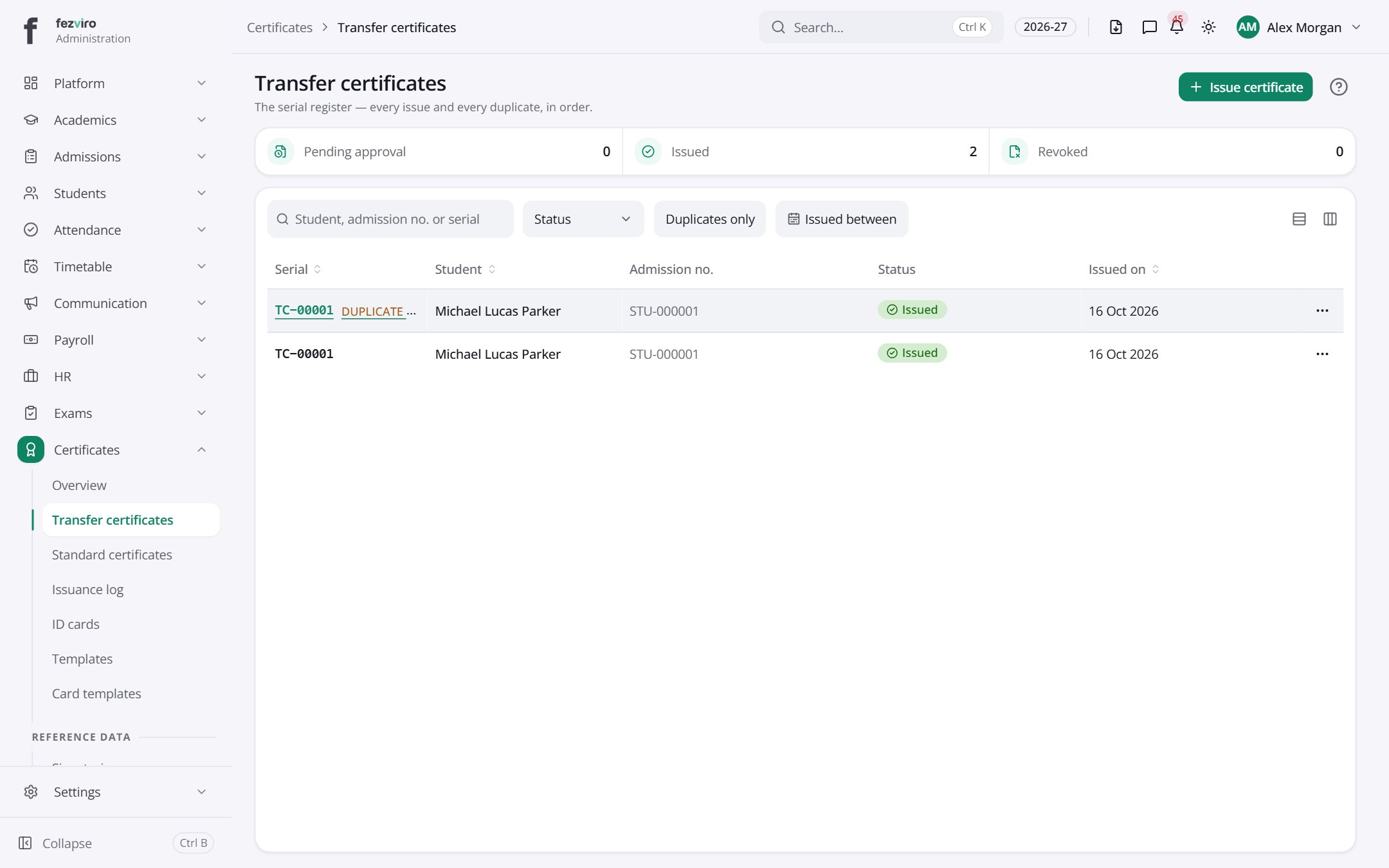
- The list has these columns: Serial, Student, Admission no., Status, Issued on, Actions. Click a column name to sort by it.
Buttons on this screen
Section titled “Buttons on this screen”- Issue certificate — opens a form to add a new one. See Filling in the form below.
Opening a record
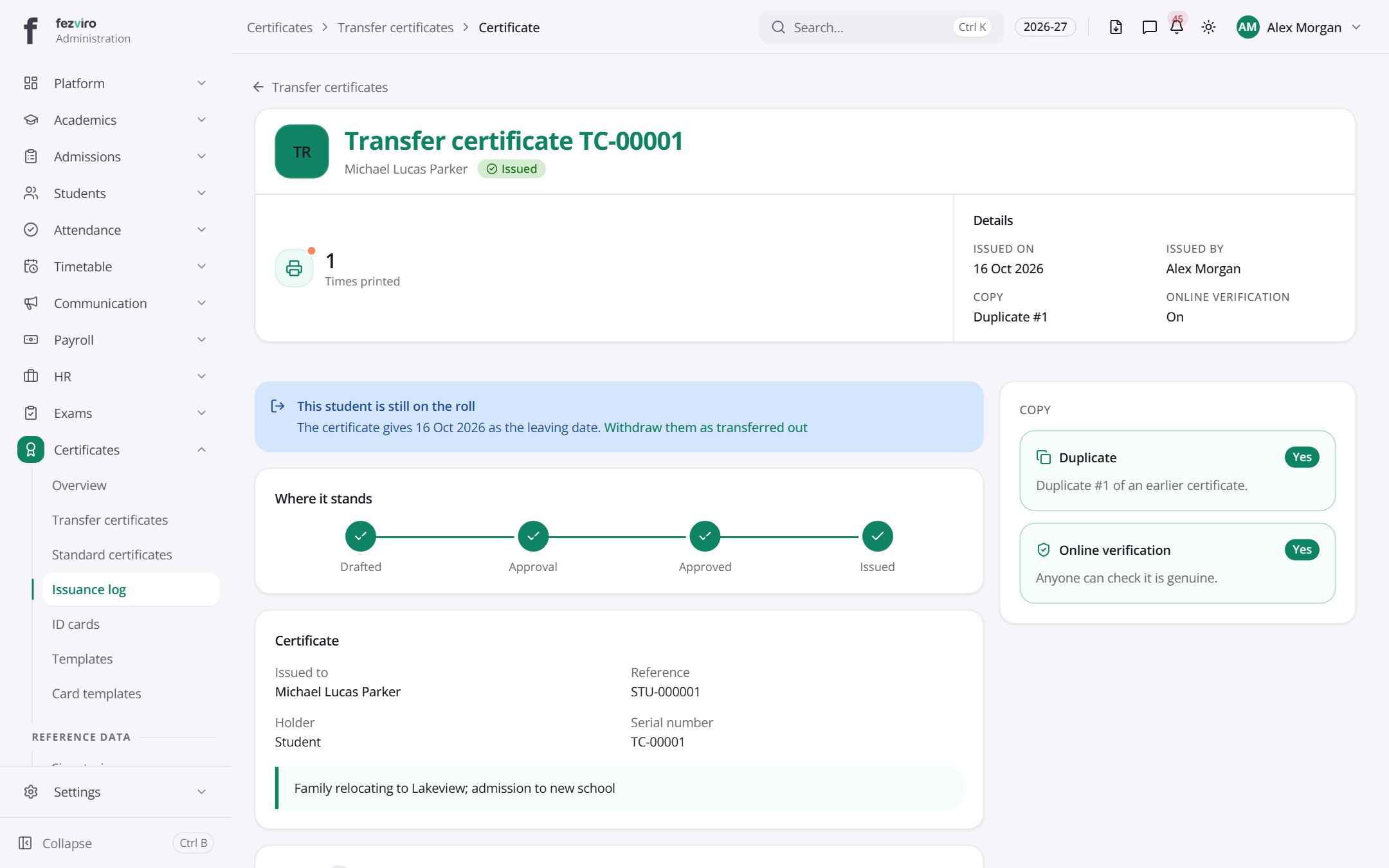
Section titled “Opening a record”Click any row in the list to see everything about it on one page.
Filling in the form
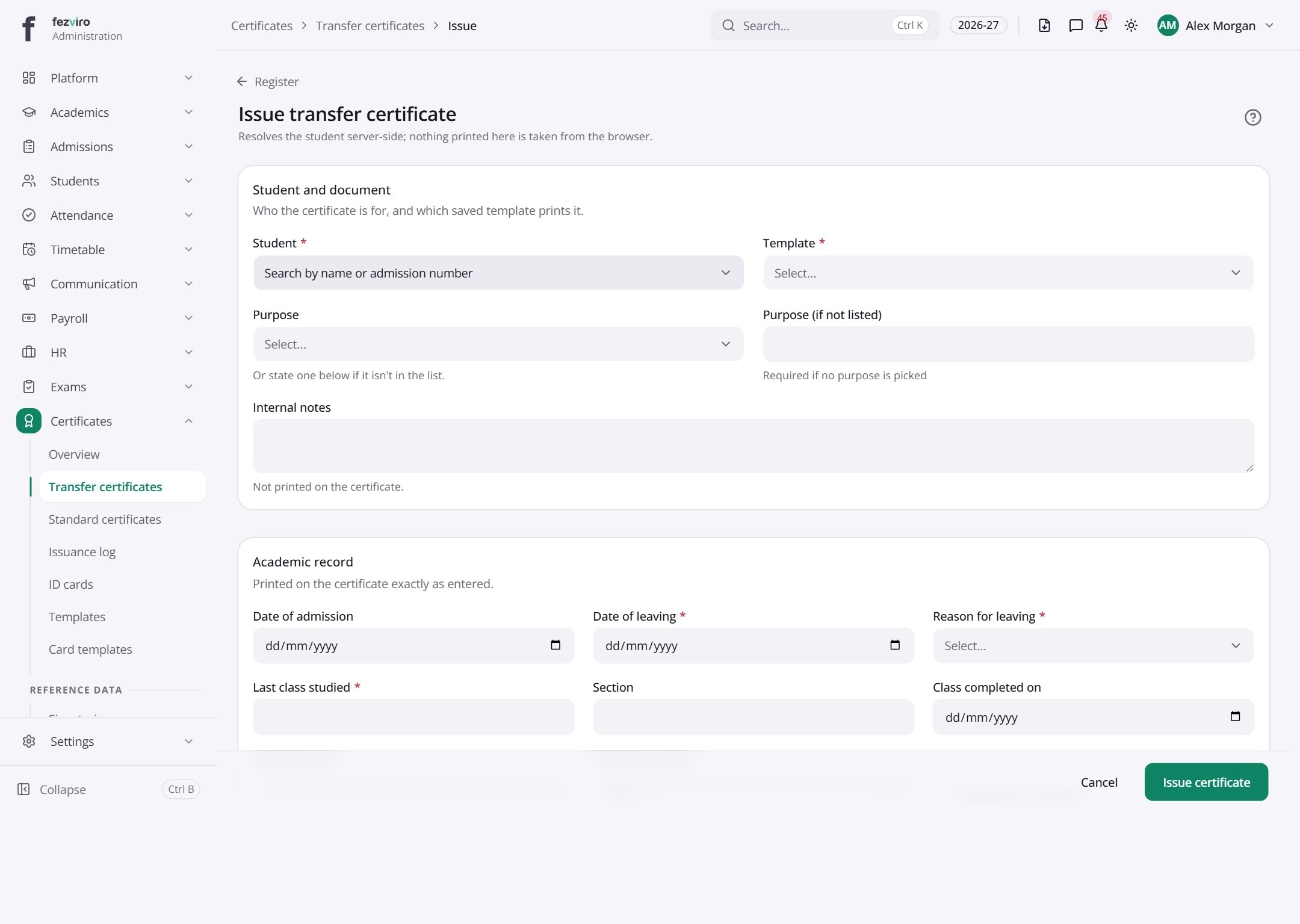
Section titled “Filling in the form”- Click the Issue certificate button at the top right.
- Fill in the boxes. Boxes marked with a red * must be filled in (8 on this form).
- Click Save at the bottom. If something is missing, the box turns red and tells you what to fix.
The fields
Section titled “The fields”| Field | Type | What to enter, and why |
|---|---|---|
| Student * | choose | Choose the student. Their name and details come from their record. |
| Template * | choose | Choose the saved design that prints this certificate. |
| Purpose | choose | Choose why the certificate is needed, from the list. |
| Purpose (if not listed) | text | Only if the reason is missing. Type the ending, such as bank loan. |
| Internal notes | long text | Optional. For the office only. This is not printed on the certificate. |
| Date of admission | date | The day the student first joined the school. Pick it from the calendar. |
| Date of leaving * | date | The day the student left the school. Pick it from the calendar. |
| Reason for leaving * | choose | The main reason the student is leaving, such as a family move. |
| Last class studied * | text | The grade the student last studied in, such as Grade 7. |
| Section | text | The class section the student last studied in, such as 7-A. |
| Class completed on | date | The date the student completed their last class. Pick from the calendar. |
| Academic year * | text | The school year the student left in, as it should print, such as 2025-2026. |
| Promotion status * | choose | Whether the student moved up a grade, as it should print on the certificate. |
| Qualified for promotion | tick box | Tick if the student is eligible to move up to the next grade. |
| Conduct * | choose | The student's behavior record, as the school wants it printed, such as Good. |
| Days present | number | The number of school days the student attended. |
| Working days | number | The total number of school days in the period. |
| Subjects studied | long text | The subjects the student studied, one per line. |
| Transferring to | text | Optional. The name of the school the student is moving to. |
| Remarks | long text | Optional. Any extra notes to print on the certificate. |
| Issue despite outstanding dues | long text | Only if the student owes fees and the certificate must still be issued. The reason is kept with the certificate. |
Types: text — type it in · number — digits only · date — click and pick from the calendar · choose — click and pick one from the list · pick one — click one of the options · switch / tick box — click to turn on or off · long text — type as much as you need · file — click to attach a file from your computer.
← Back to Certificates & ID Cards overview