

New: New staff chat
What it is
Pick one colleague for a direct chat, or several to start a staff group.
Who uses it
Administrator
How to get here
Section titled “How to get here”- Sign in as Administrator (see Signing in).
- In the left menu, click Communication to open it.
- Click Messages.
What you see
Section titled “What you see”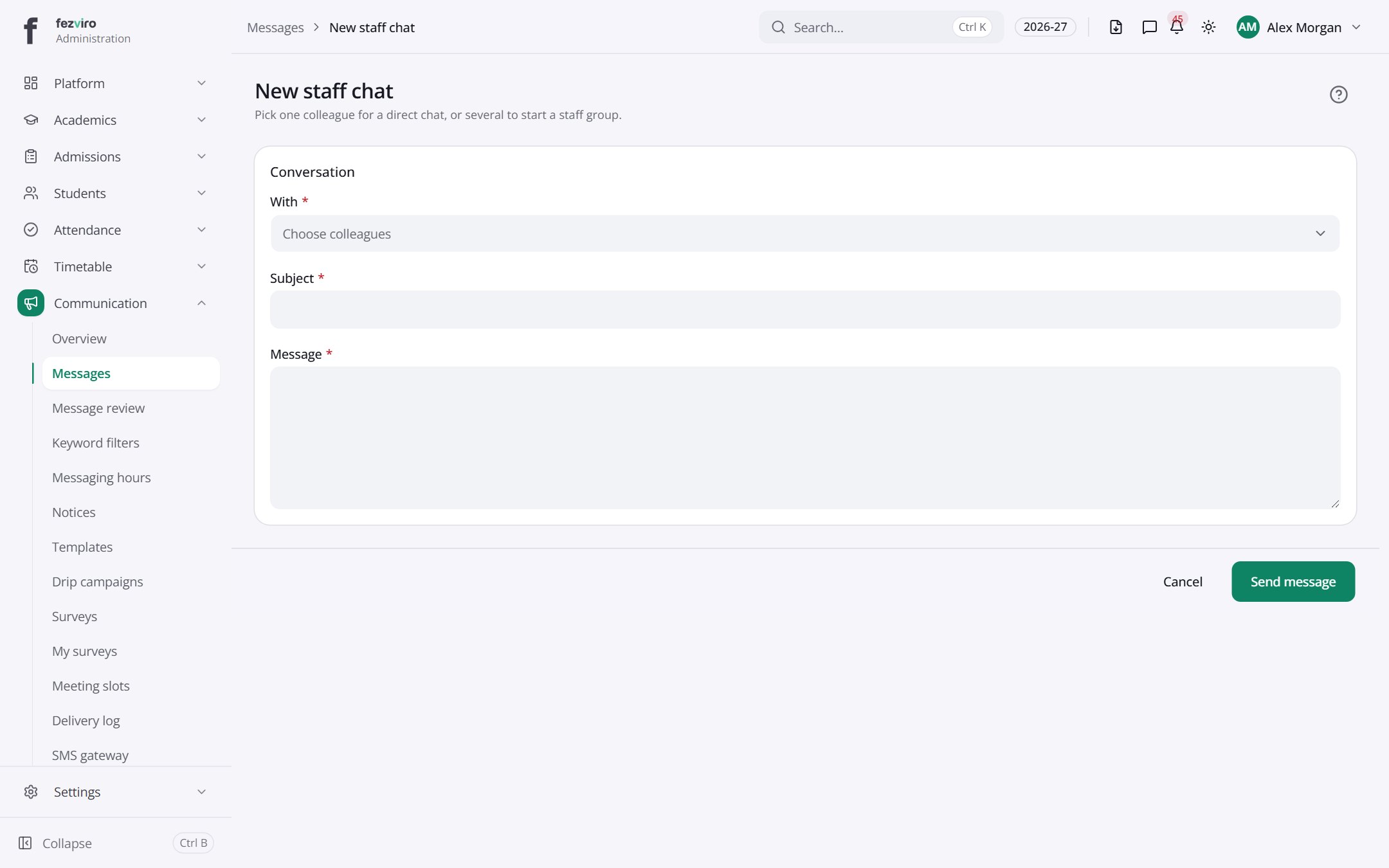
- Sections on the page: Conversation.
Filling in the form
Section titled “Filling in the form”- Click the New button at the top right.
- Fill in the boxes. Boxes marked with a red * must be filled in (3 on this form).
- Click Save at the bottom. If something is missing, the box turns red and tells you what to fix.
The fields
Section titled “The fields”| Field | Type | What to enter, and why |
|---|---|---|
| With * | choose | Pick one colleague to chat with, or several to start a group. |
| Subject * | text | A short title for your message, used when writing to one person. |
| Message * | long text | Type your message to your colleague or group. |
Types: text — type it in · number — digits only · date — click and pick from the calendar · choose — click and pick one from the list · pick one — click one of the options · switch / tick box — click to turn on or off · long text — type as much as you need · file — click to attach a file from your computer.
← Back to Communication overview