

Settlements
What it is
Payout reports from payment providers and bank statements.
Why it matters
Confirms that the money a provider sent matches the payments received.
When to use it
Finance staff import each payout and match its lines to individual payments.
Who uses it
Administrator
How to get here
Section titled “How to get here”- Sign in as Administrator (see Signing in).
- In the left menu, click Fees to open it.
- Click Settlements.
What you see
Section titled “What you see”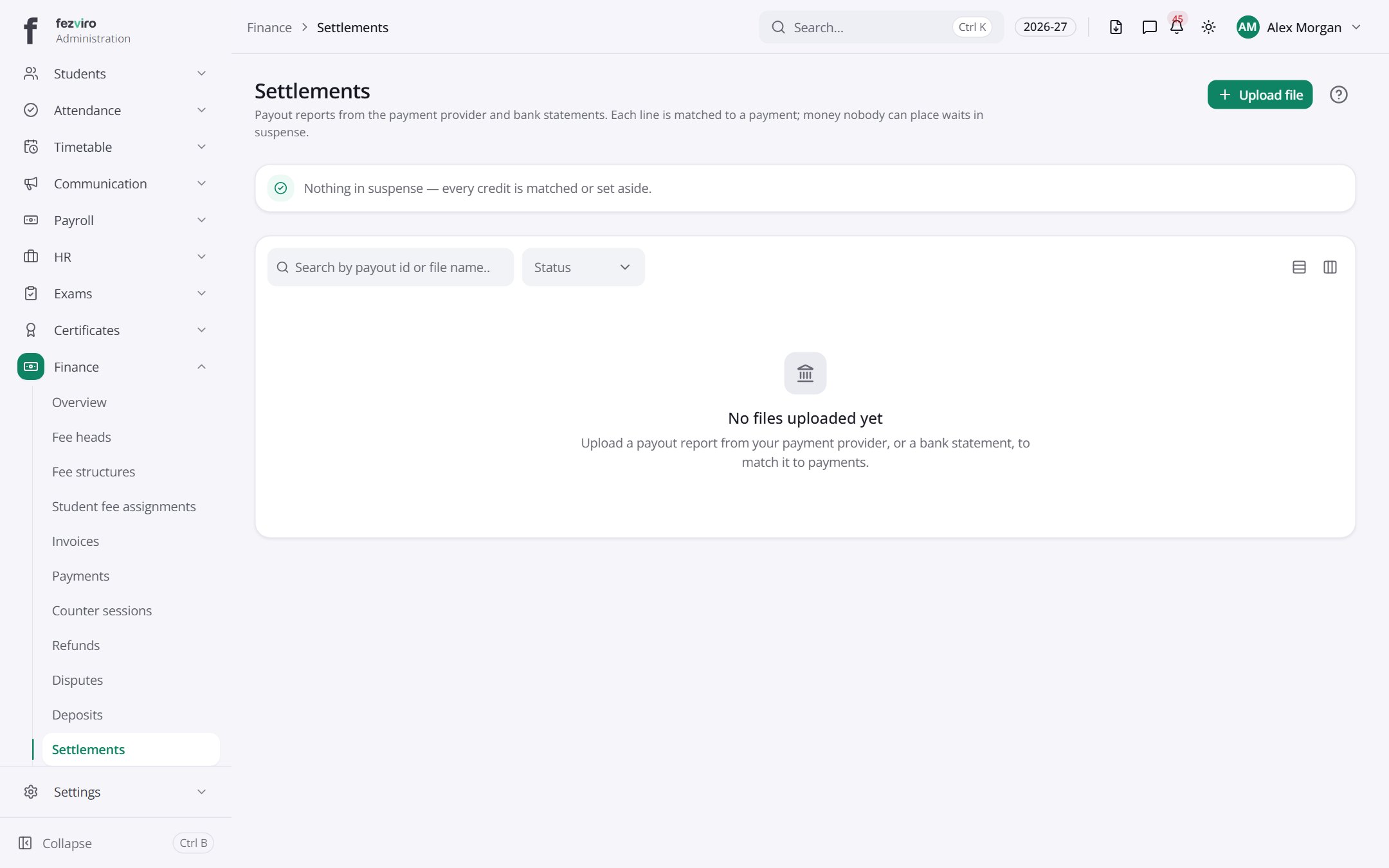
Buttons on this screen
Section titled “Buttons on this screen”- Upload file — adds many records at once from a spreadsheet.
Filling in the form
Section titled “Filling in the form”- Click the New button at the top right.
- Fill in the boxes. Boxes marked with a red * must be filled in (6 on this form).
- Click Save at the bottom. If something is missing, the box turns red and tells you what to fix.
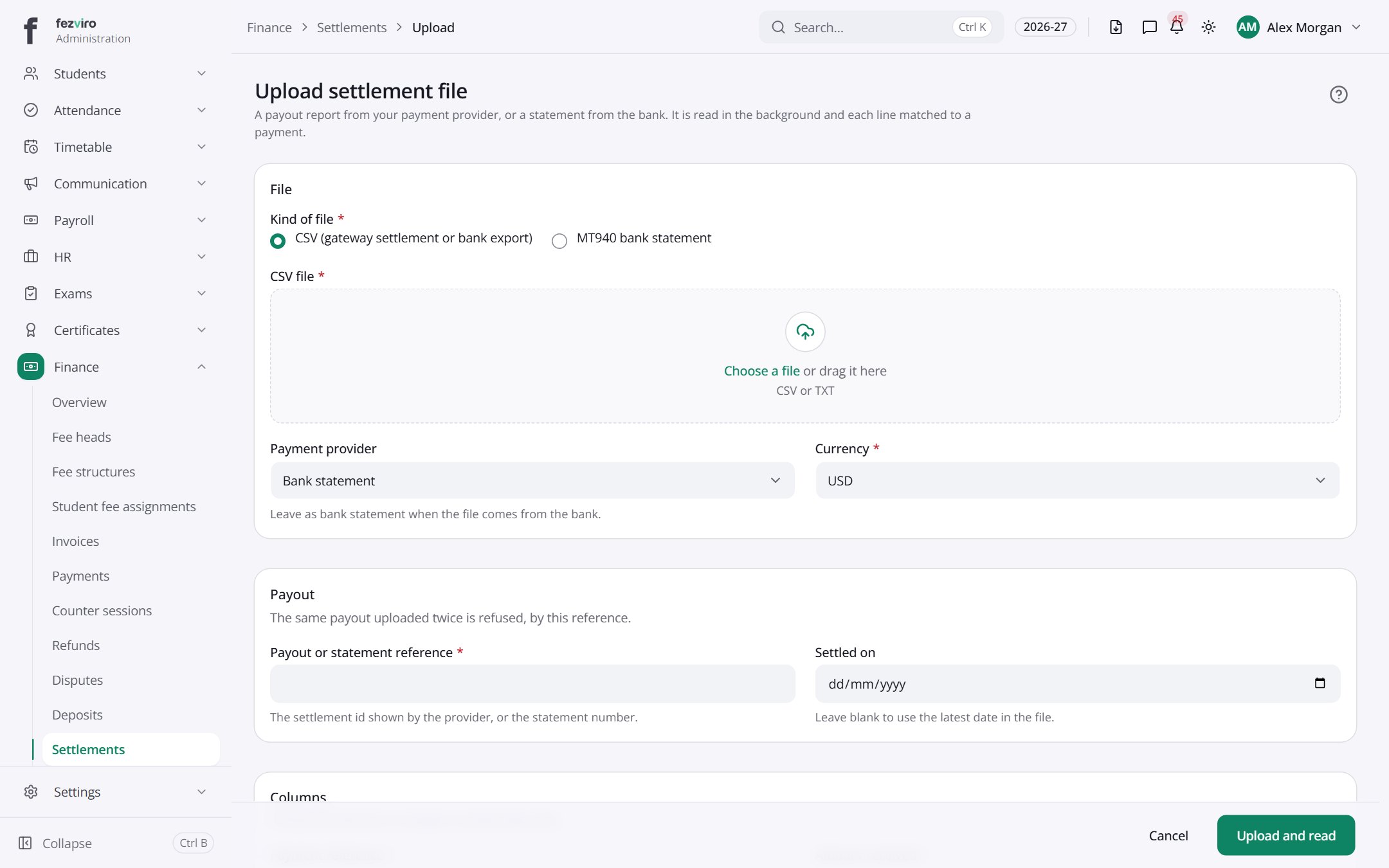
The fields
Section titled “The fields”| Field | Type | What to enter, and why |
|---|---|---|
| Kind of file * | choose | Pick the type of file you are loading, such as a bank statement. |
| CSV file * | file | |
| Payment provider | choose | Pick the company that handled the card or online payments. |
| Currency * | choose | Pick the currency the payments were made in. |
| Payout or statement reference * | text | The reference number printed on the payout or statement. |
| Settled on | date | The date the money reached the school's bank account. |
| Payment reference * | choose | The provider payment id or the receipt reference. |
| Amount received * | choose | The gross amount the family paid. |
| Fee | choose | What the provider kept. Leave blank if the file has none. |
| Tax on fee | choose | Tax charged on the fee, if shown separately. |
| Amount paid in | choose | Optional — checked against amount less fee and tax. |
| Date | choose | When the payment was made or settled. |
| Description | choose | Any narrative column worth keeping. |
Types: text — type it in · number — digits only · date — click and pick from the calendar · choose — click and pick one from the list · pick one — click one of the options · switch / tick box — click to turn on or off · long text — type as much as you need · file — click to attach a file from your computer.
← Back to Fees & Finance overview