

Platform & Security
The foundation every other module stands on: sign-in, roles and permissions, approvals, audit trail, imports, documents, notifications, privacy and school-wide settings.

What it does
Section titled “What it does”- Separate sign-in area for each role
- Role-based permissions, configurable per role
- Two-step sign-in for sensitive roles
- Sign in with Google or Microsoft
- Multi-campus support, switch campus view
- Academic year switcher, year-wise records
- Full audit trail — who created, changed, deleted
- Deleted records recoverable, never lost
- Deactivate leavers without losing history
- Approval workflows with multi-step sign-off
- Nobody can approve their own request
- Bulk import from spreadsheets, with undo
- Export any list to Excel
- PDFs open instantly in a new tab
- Smart filters and count strips on every list
- Read-only detail pages with action buttons
- Mobile-friendly screens throughout
- Accessible for keyboard and screen readers
- Right-to-left language support
- First-run setup wizard with progress tracker
- One-click standard setup data
- Demo school with realistic sample data
Its screens
Section titled “Its screens”Each screen has its own page: what it is for, how to reach it, a picture, its buttons and its form.
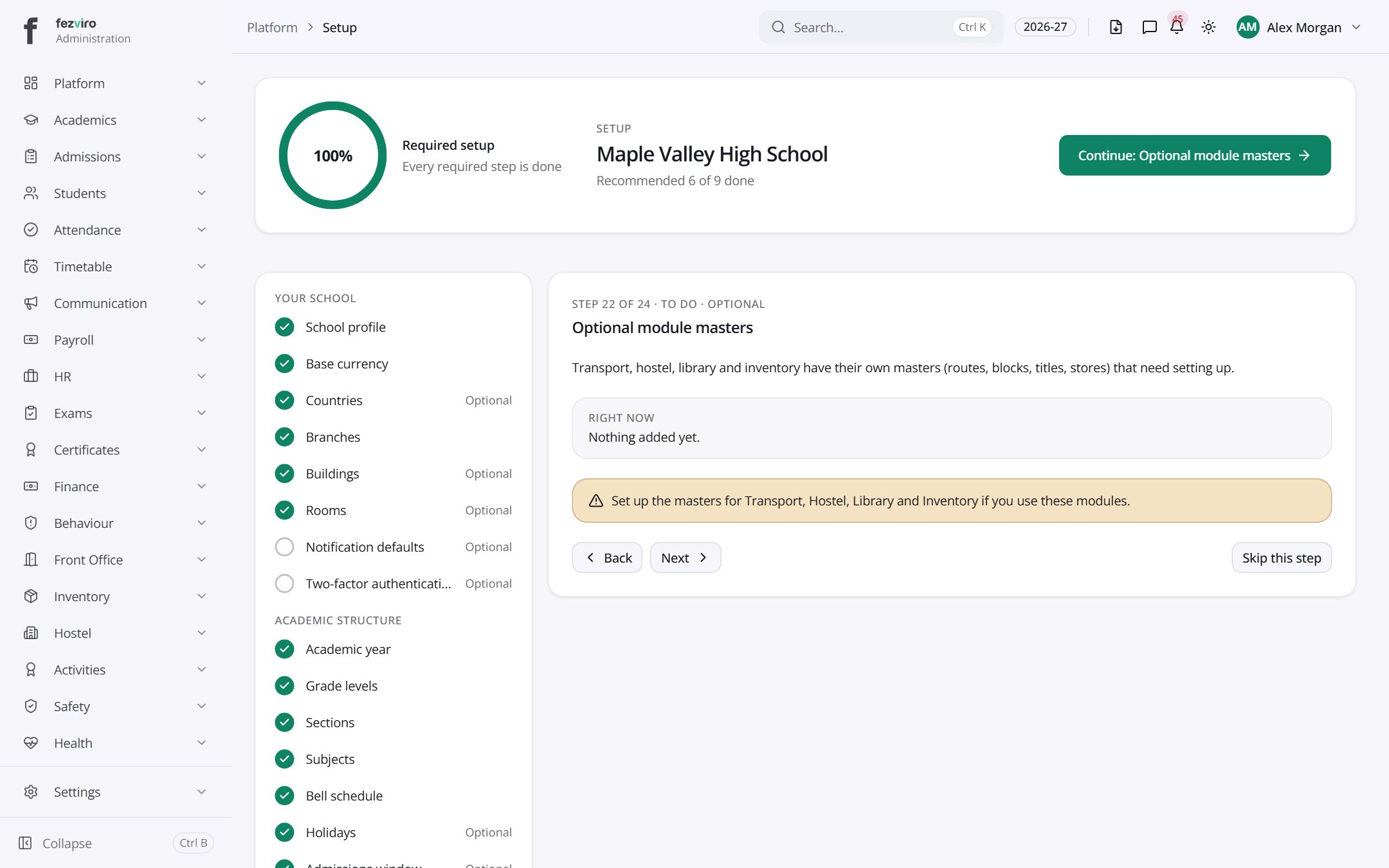 Setup checklistThe first-run checklist for setting up a new school.
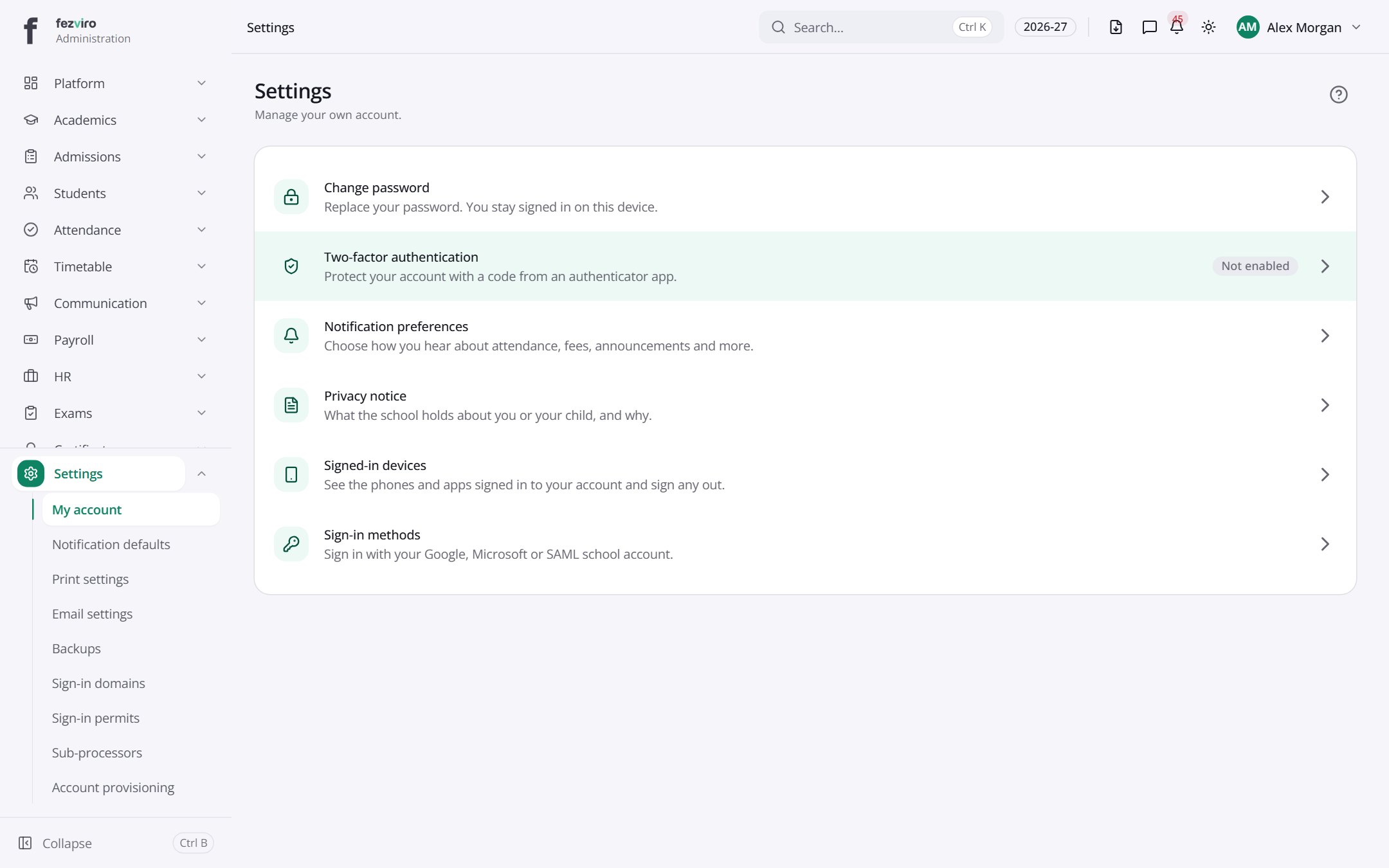 SettingsYour own account settings, such as security and notification choices.
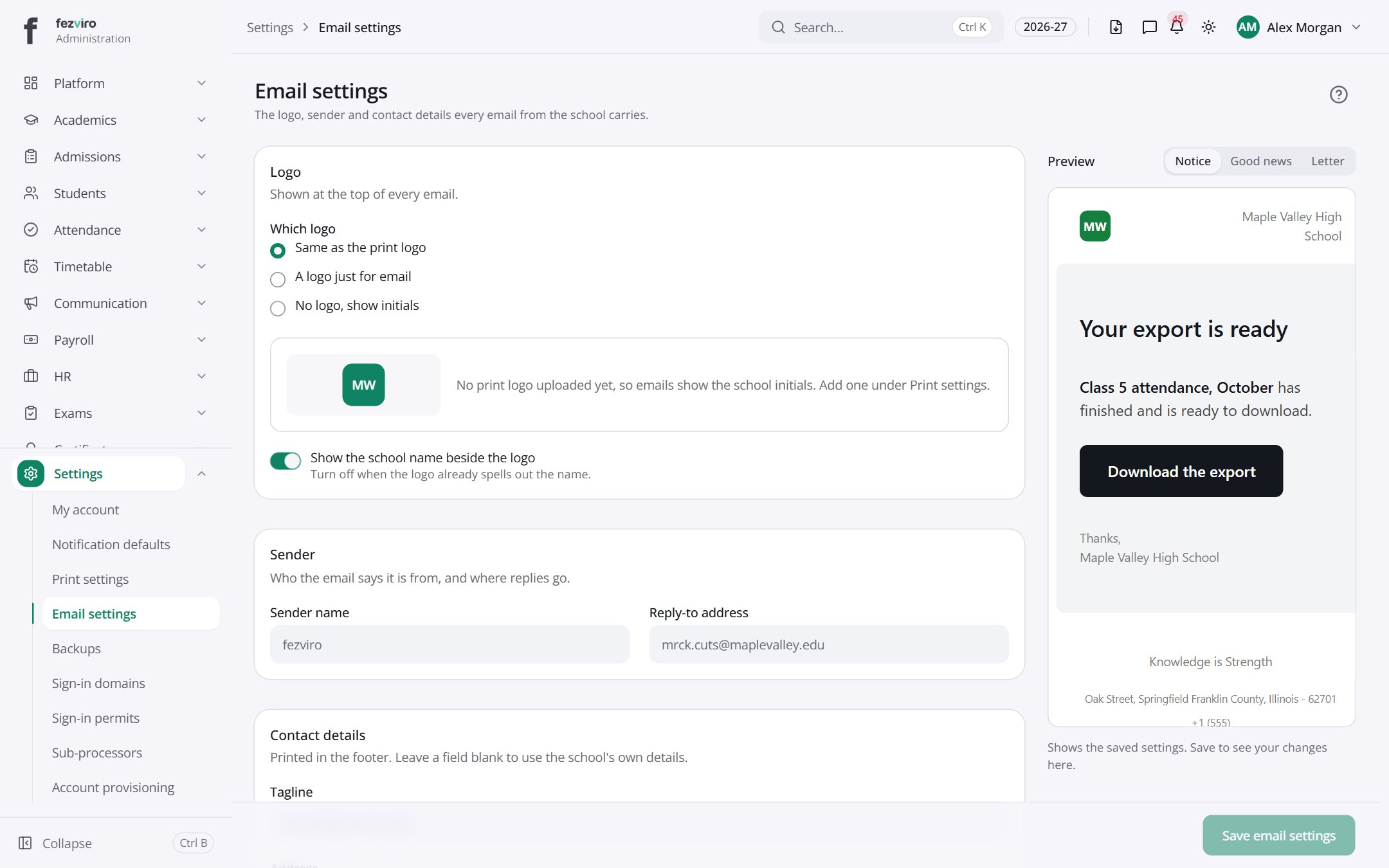 Email settingsThe school's email settings, showing how messages are sent.
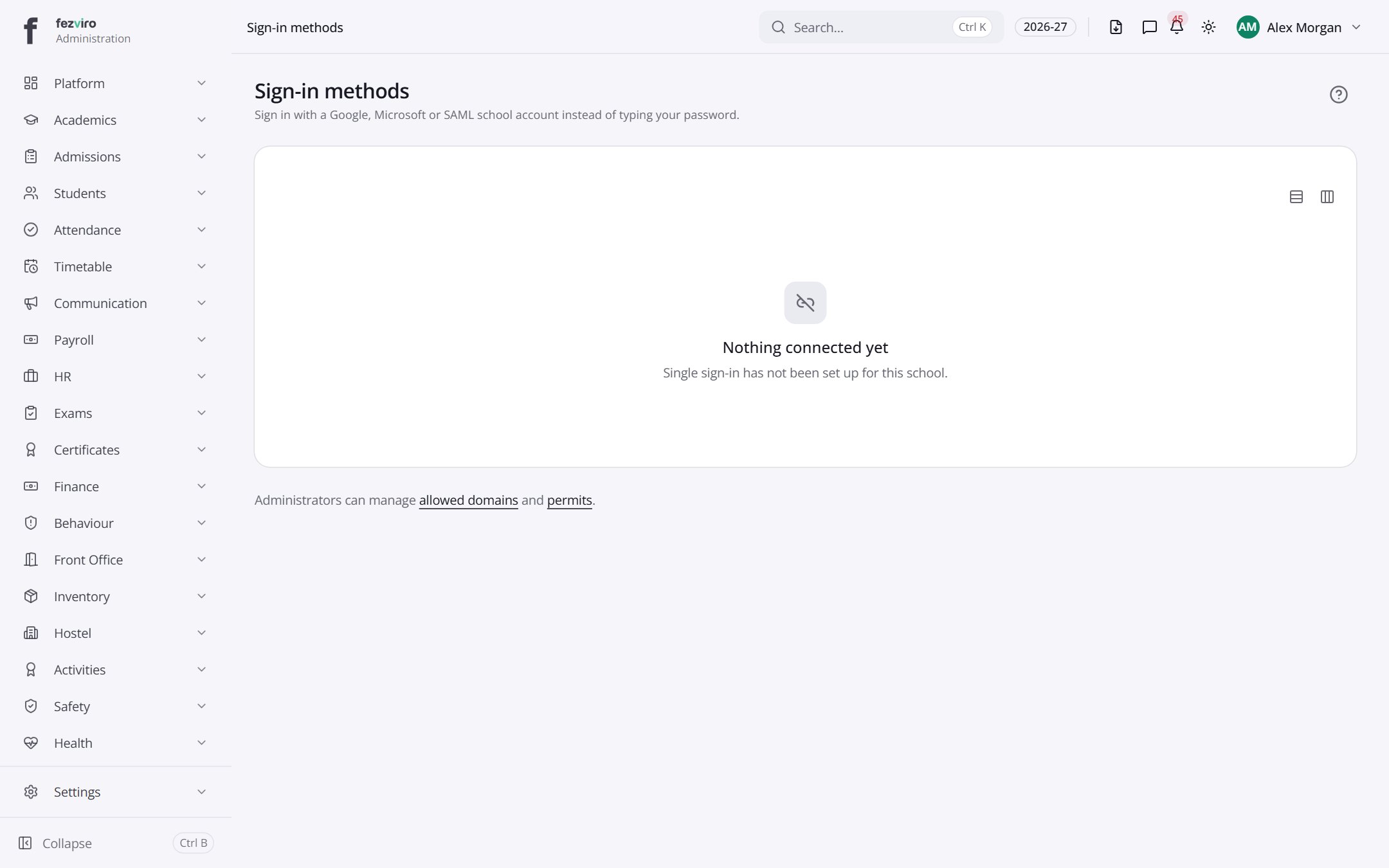 Sign-in methodsThe Google or Microsoft accounts linked to your login.
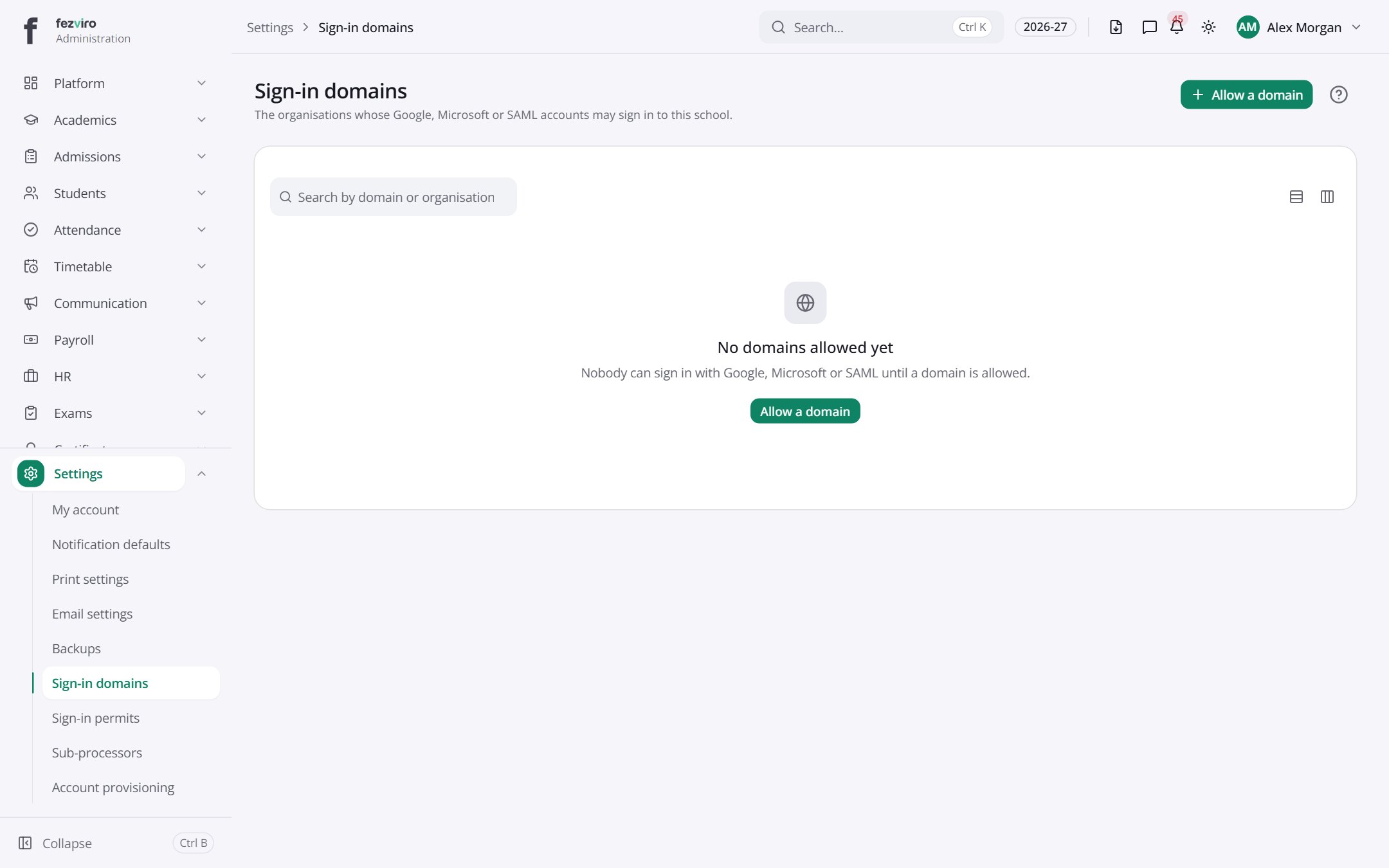 Sign-in domainsThe email domains that may sign in with Google or Microsoft.
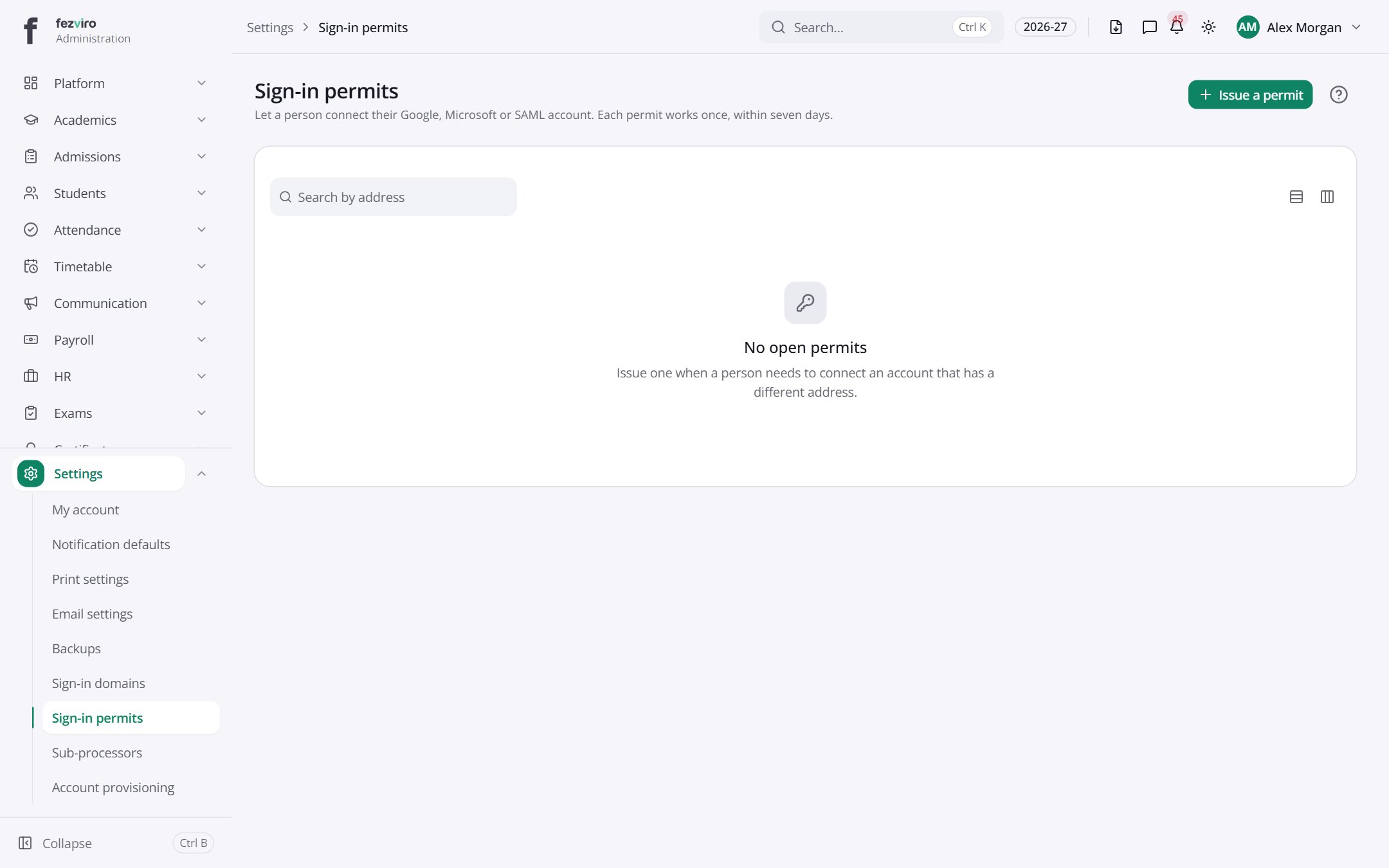 Sign-in permitsPermissions allowing a person to connect a Google or Microsoft account.
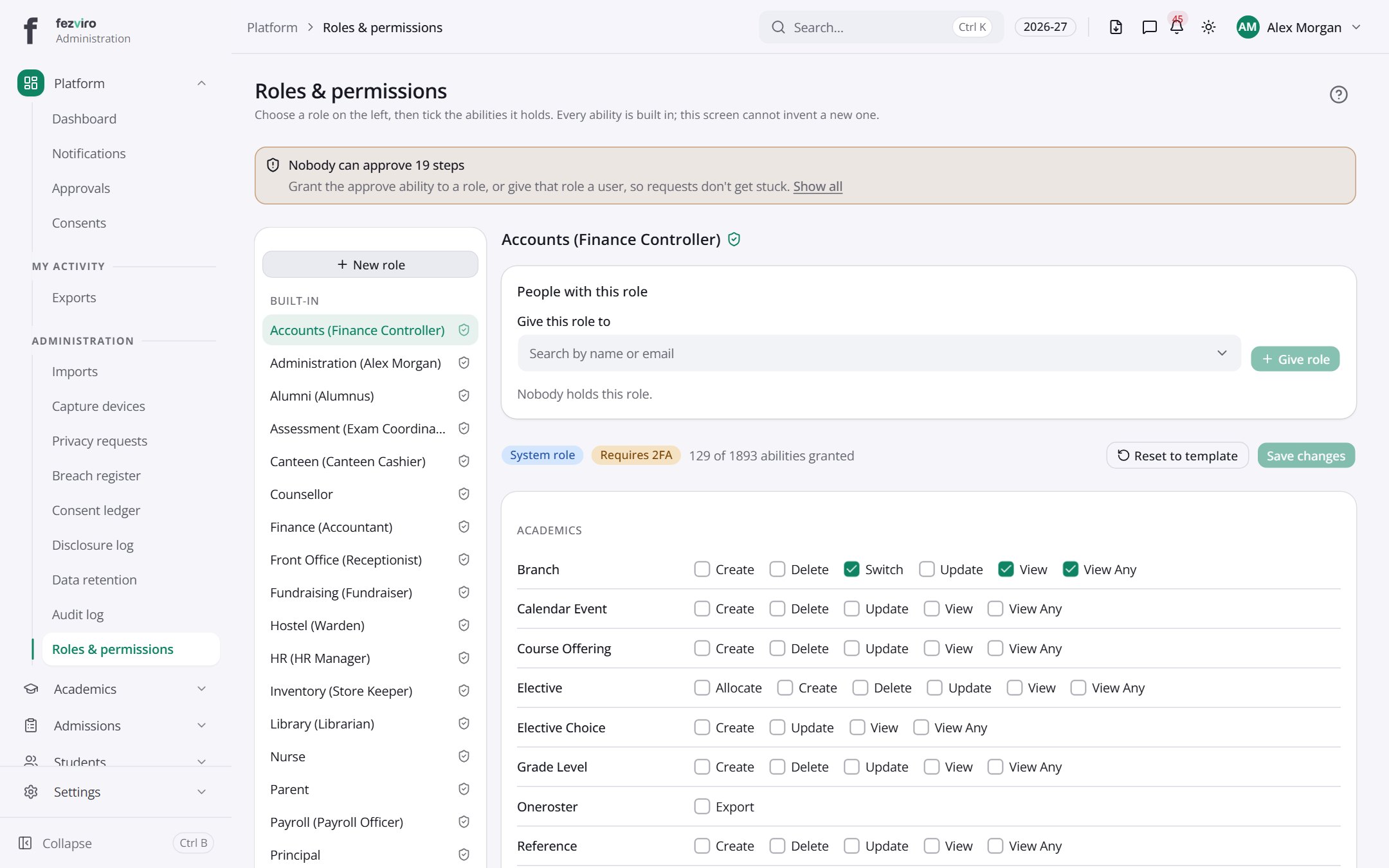 Roles & permissionsThe sets of permissions that decide what each role can do.
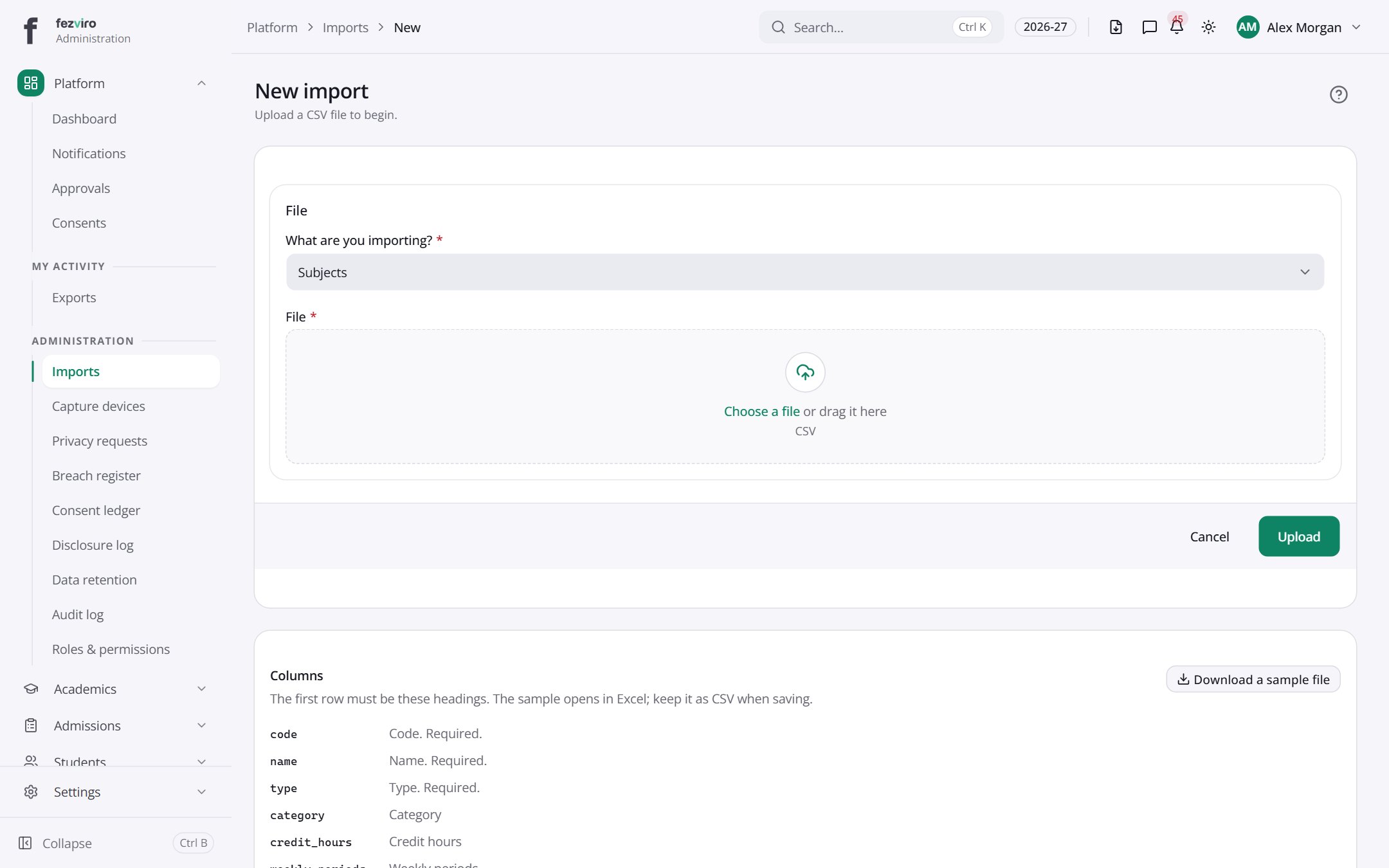 New: New importUpload a CSV file to begin.has a form
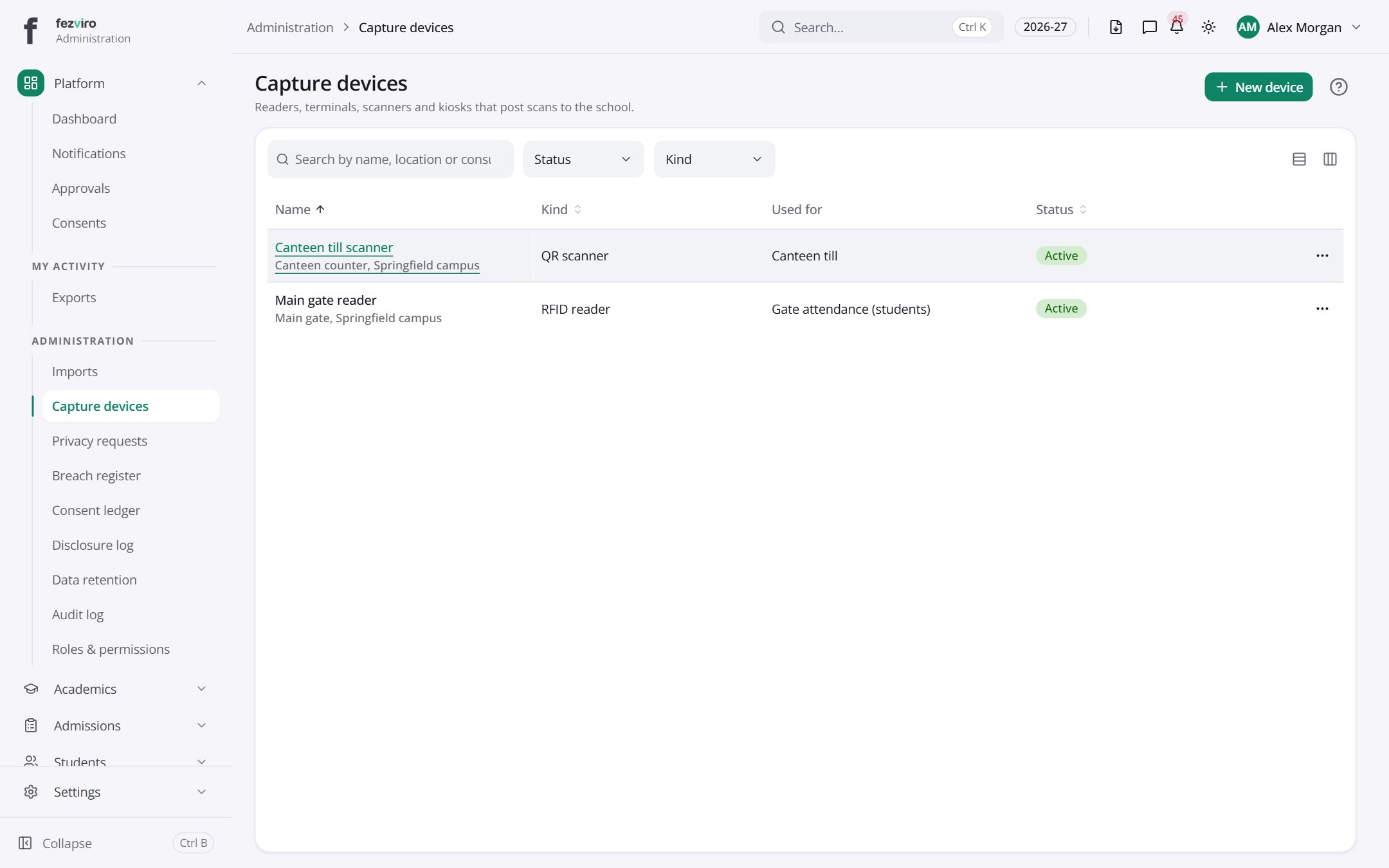 Capture devicesThe gate readers, card readers and scanners that record entry and attendance.has a form
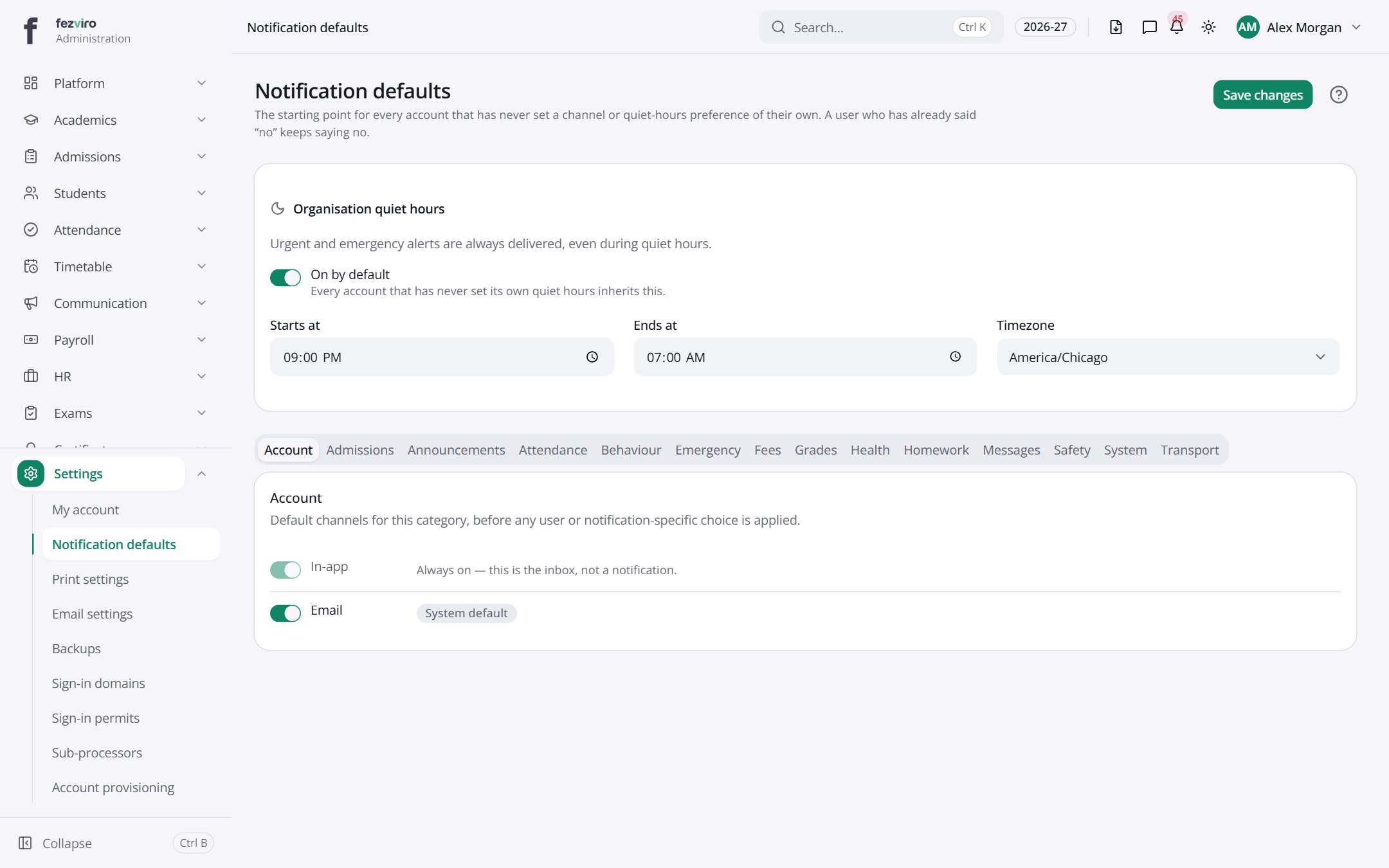 Notification defaultsSchool-wide defaults for how notifications reach people.
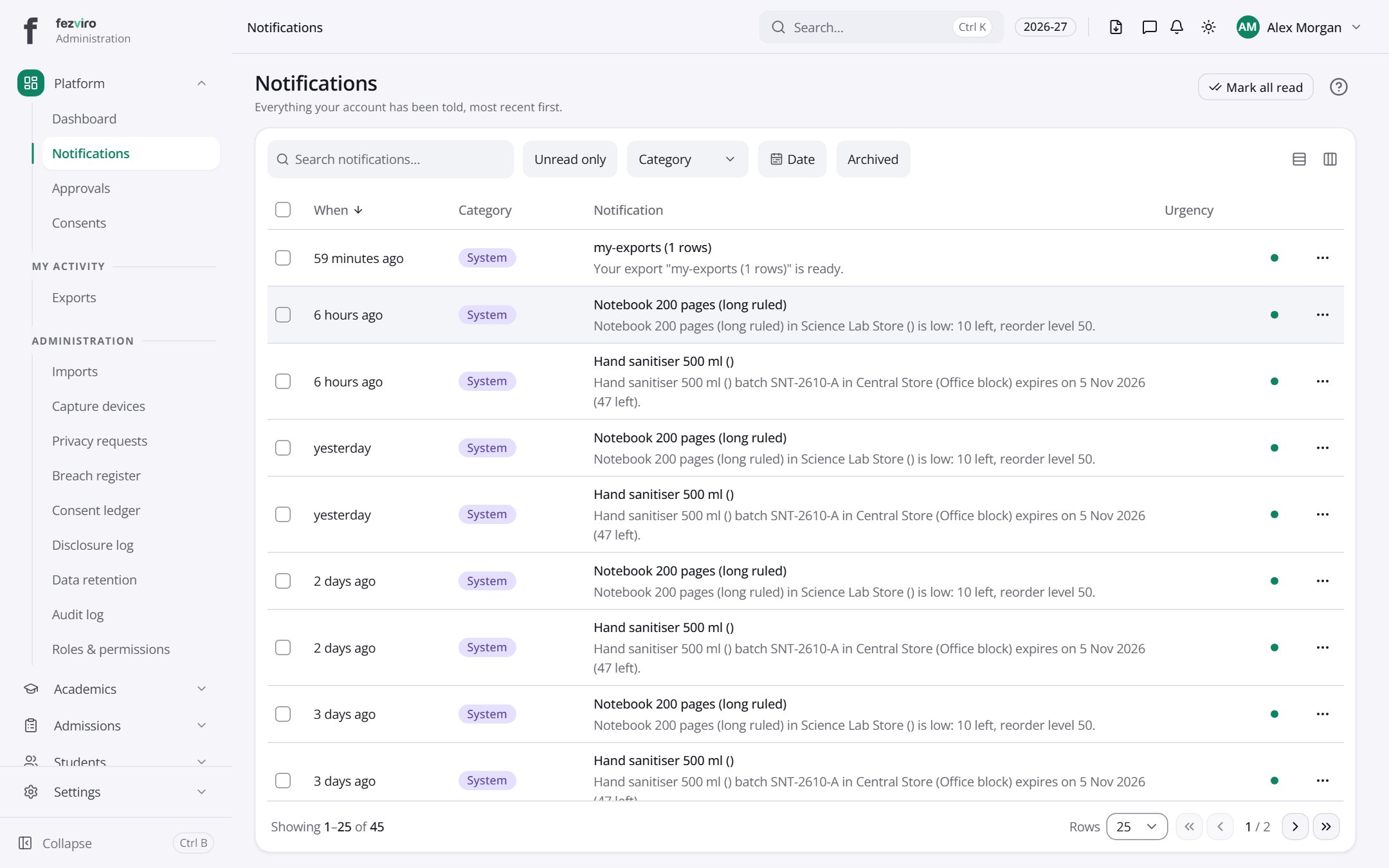 NotificationsYour inbox of school messages and alerts.
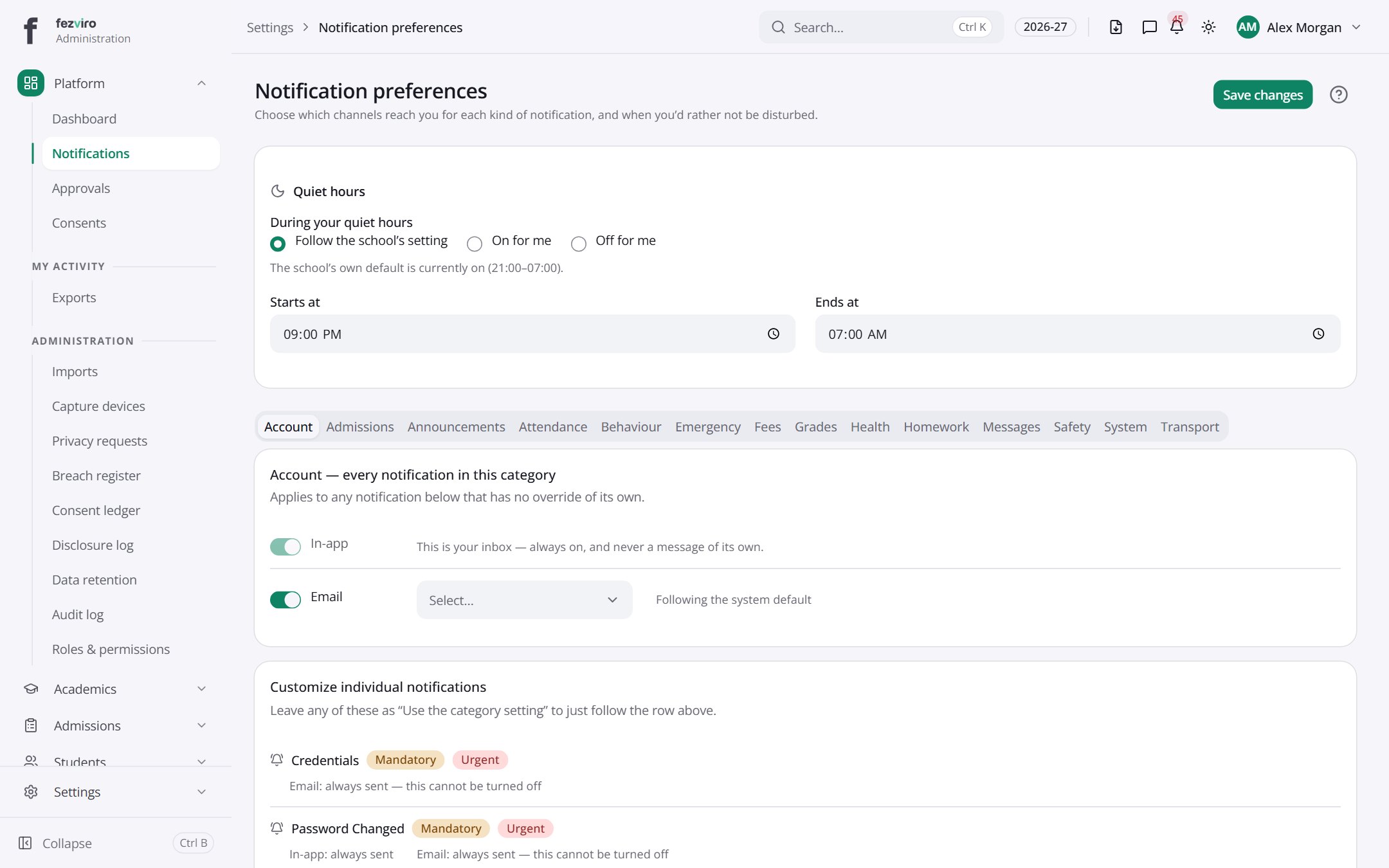 Notification preferencesChoose how and when you receive school messages.
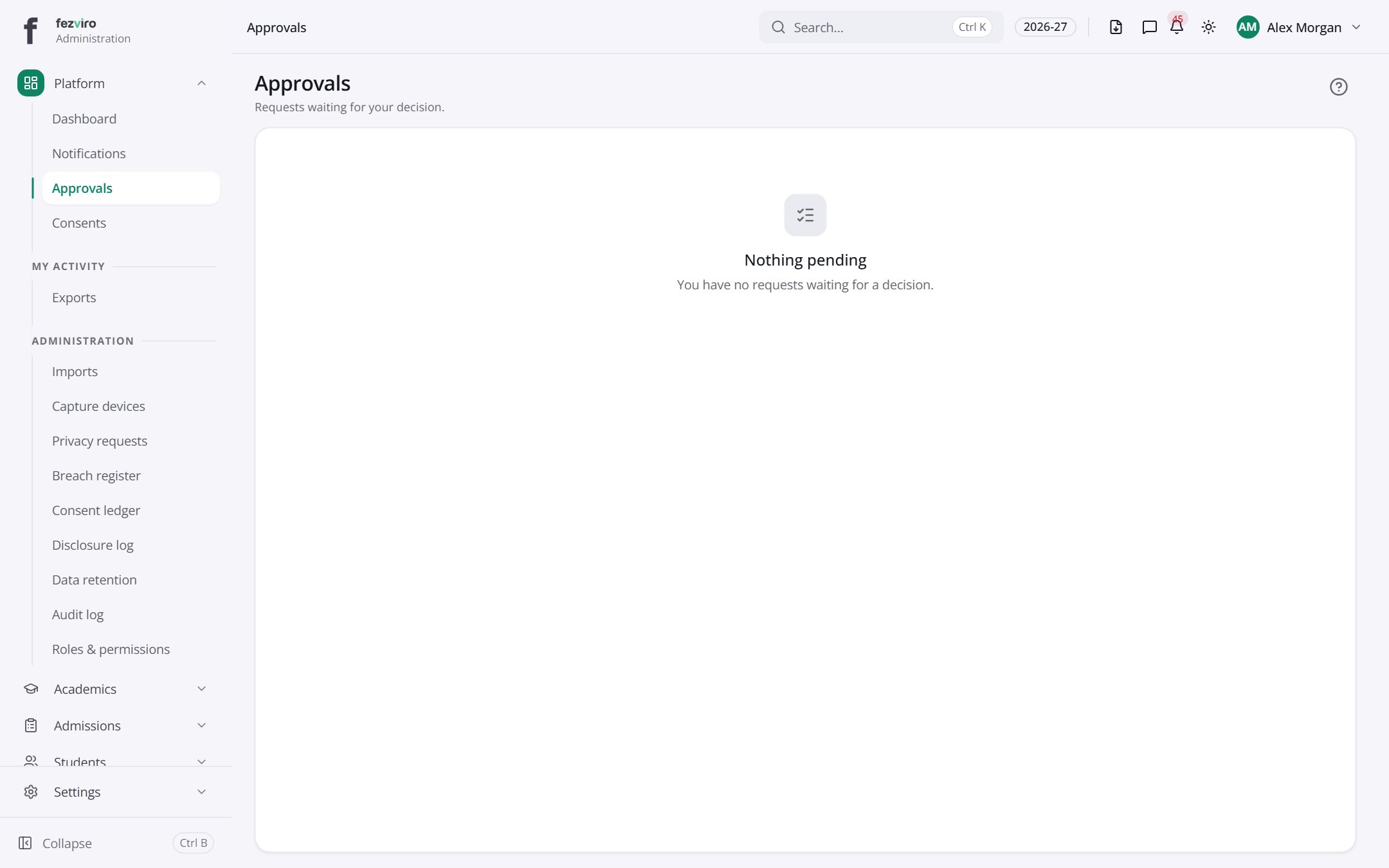 ApprovalsEverything waiting for your decision, across all areas of the school.
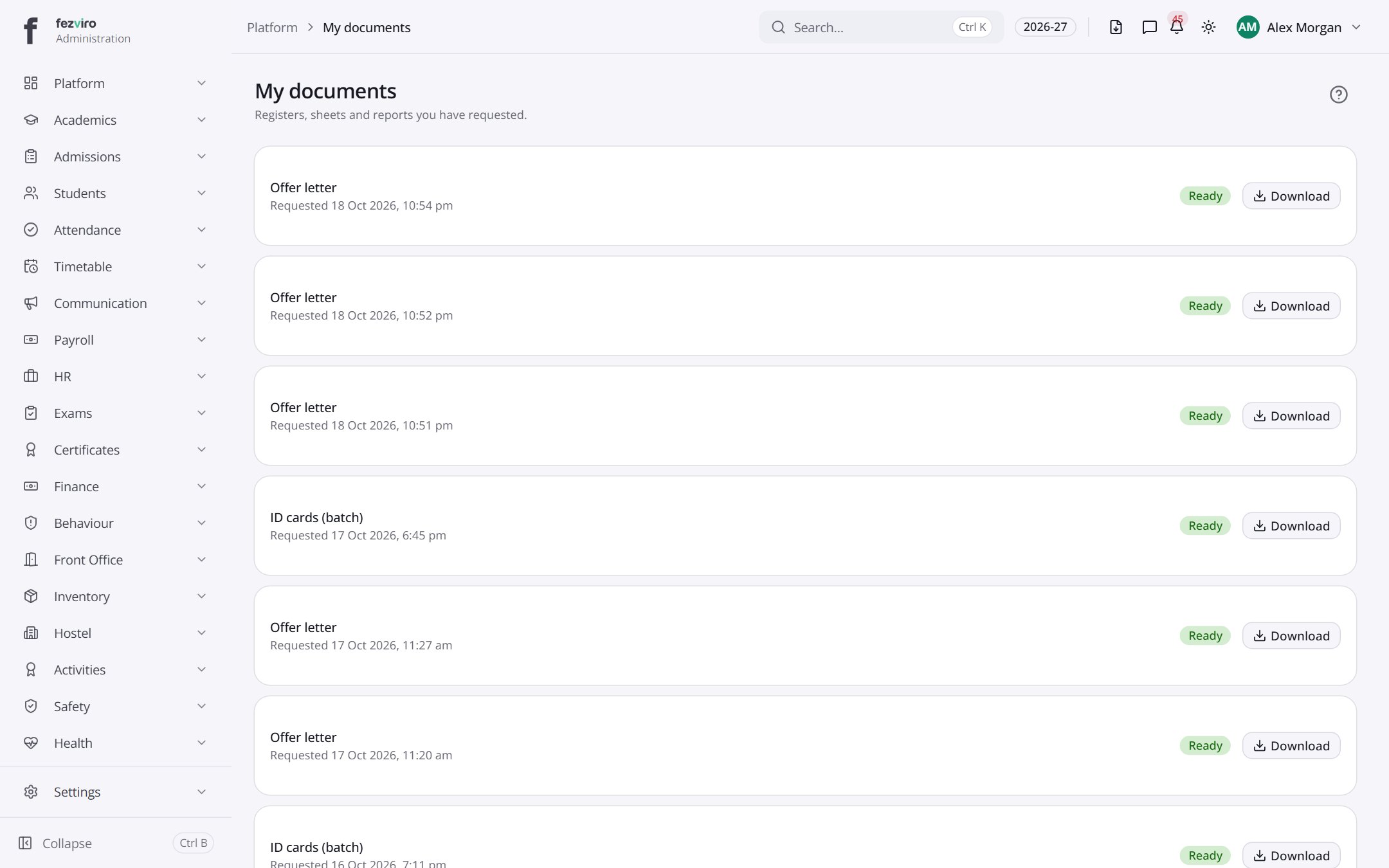 My documentsYour requested documents, from reports to receipts, in one list.
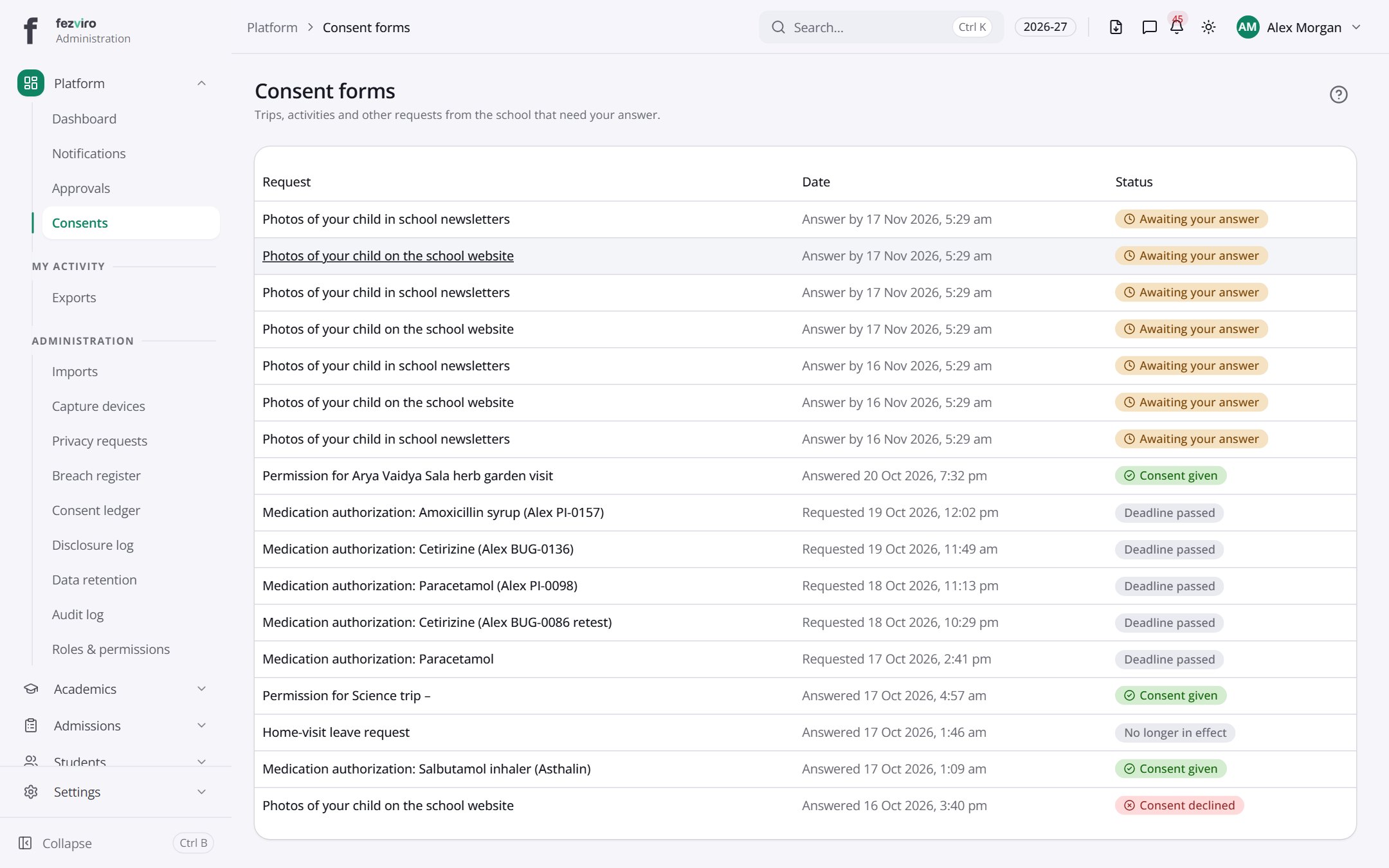 Consent formsConsent forms sent to you for your children to sign.
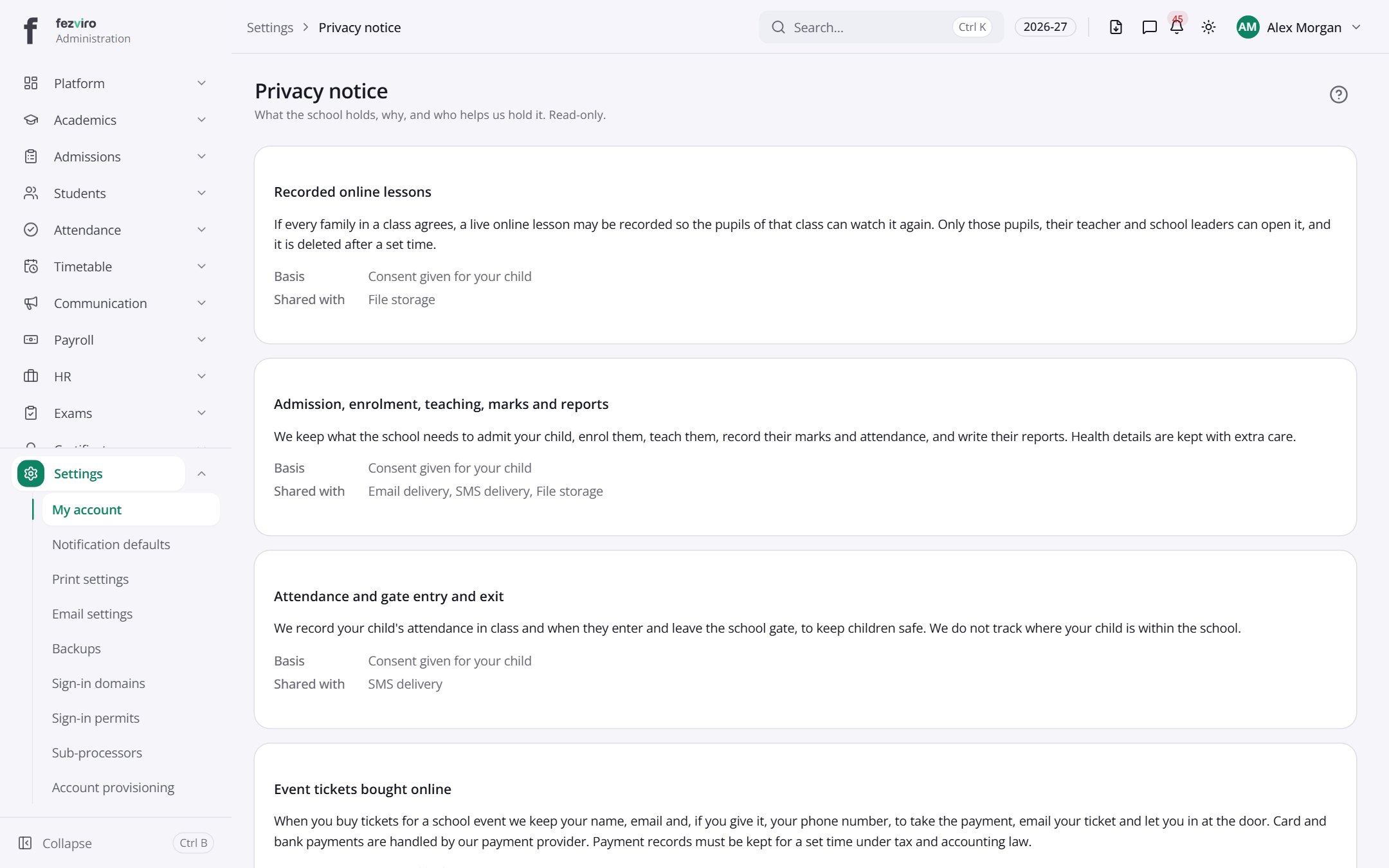 Privacy noticeThe school's privacy notice, shown for each reason it holds data.
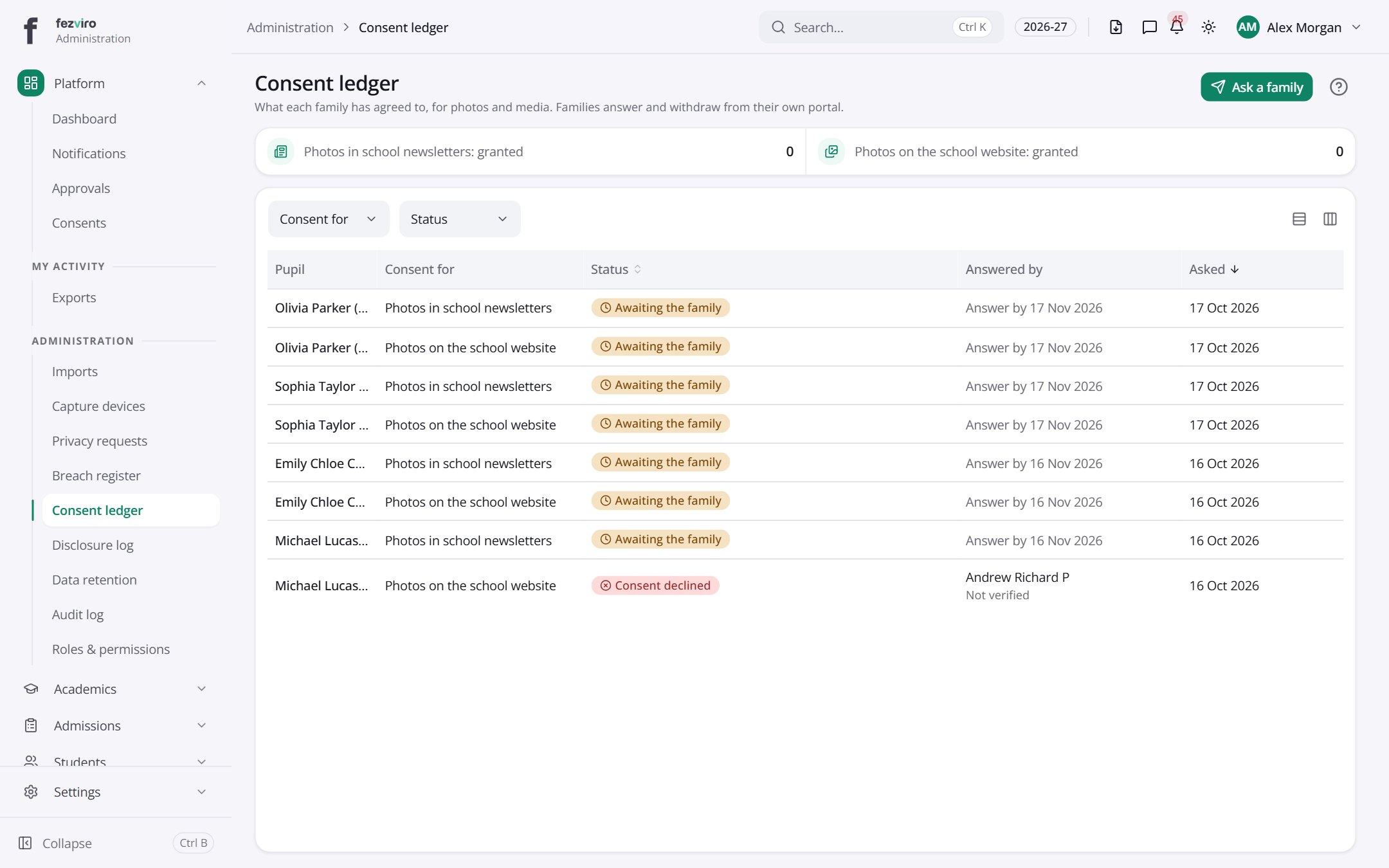 Consent ledgerEvery permission the school holds for a pupil, such as photo use.
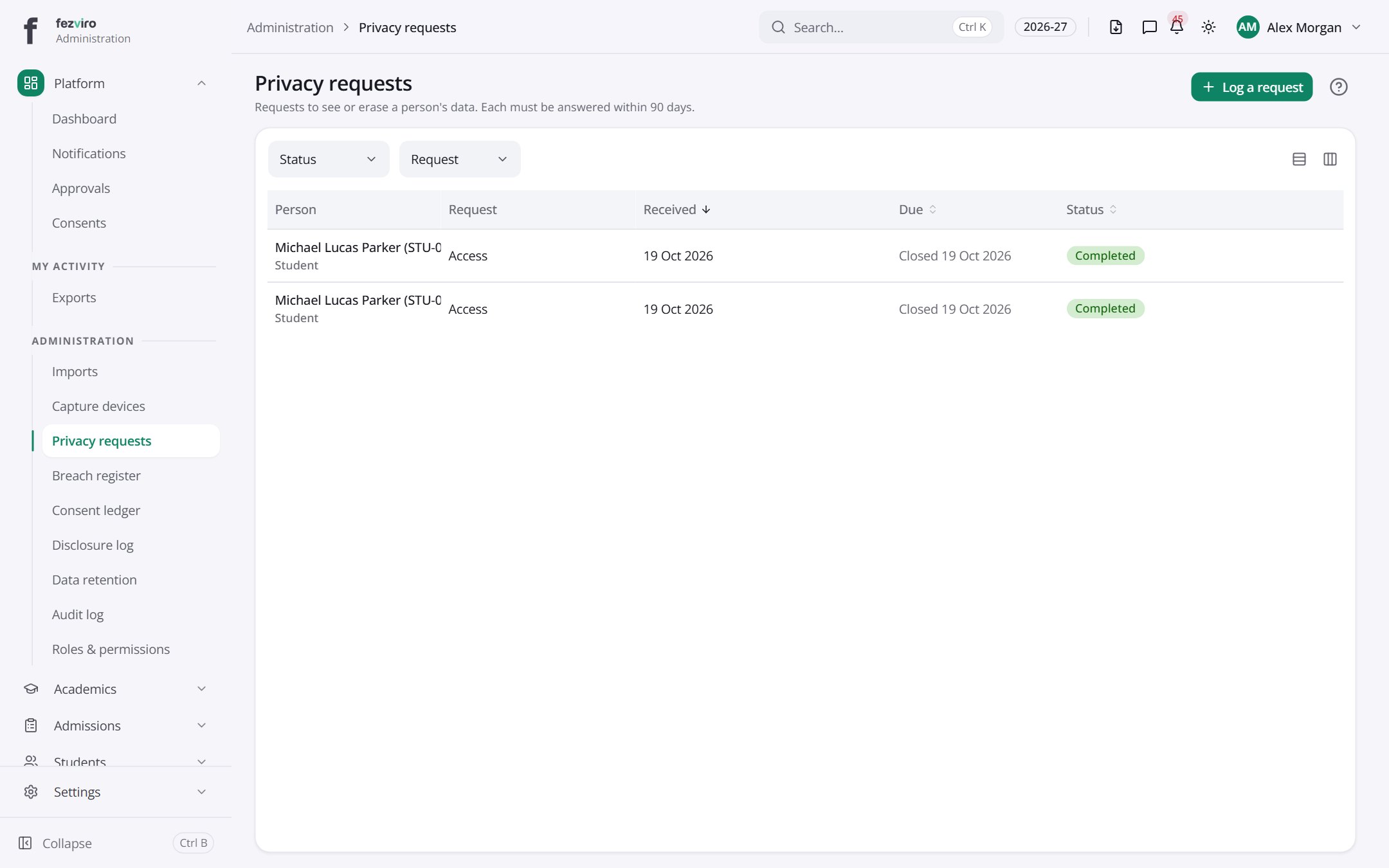 Privacy requestsRequests from people asking to see or delete their personal data.has a form
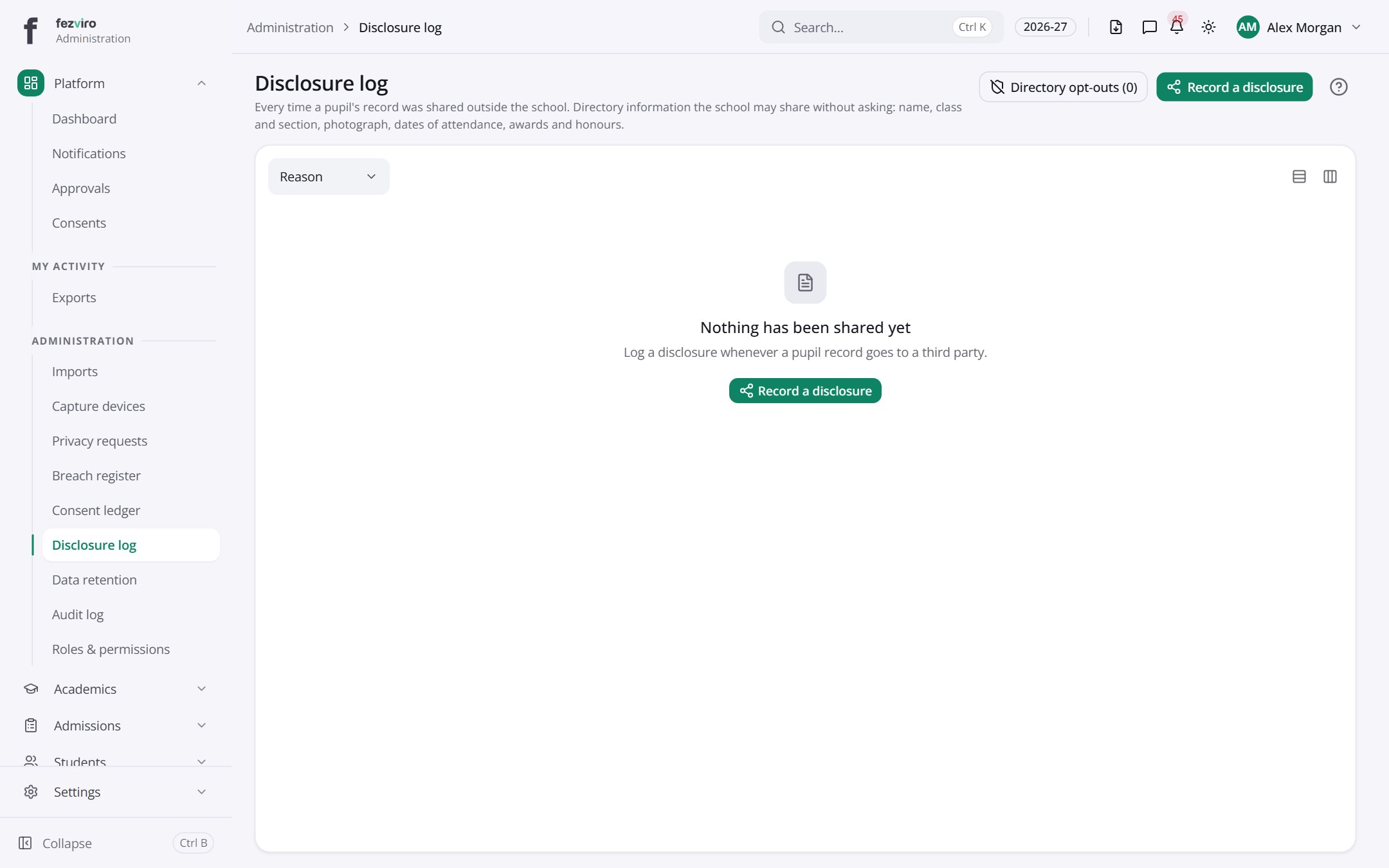 Disclosure logA record of each time a pupil's information went outside the school.
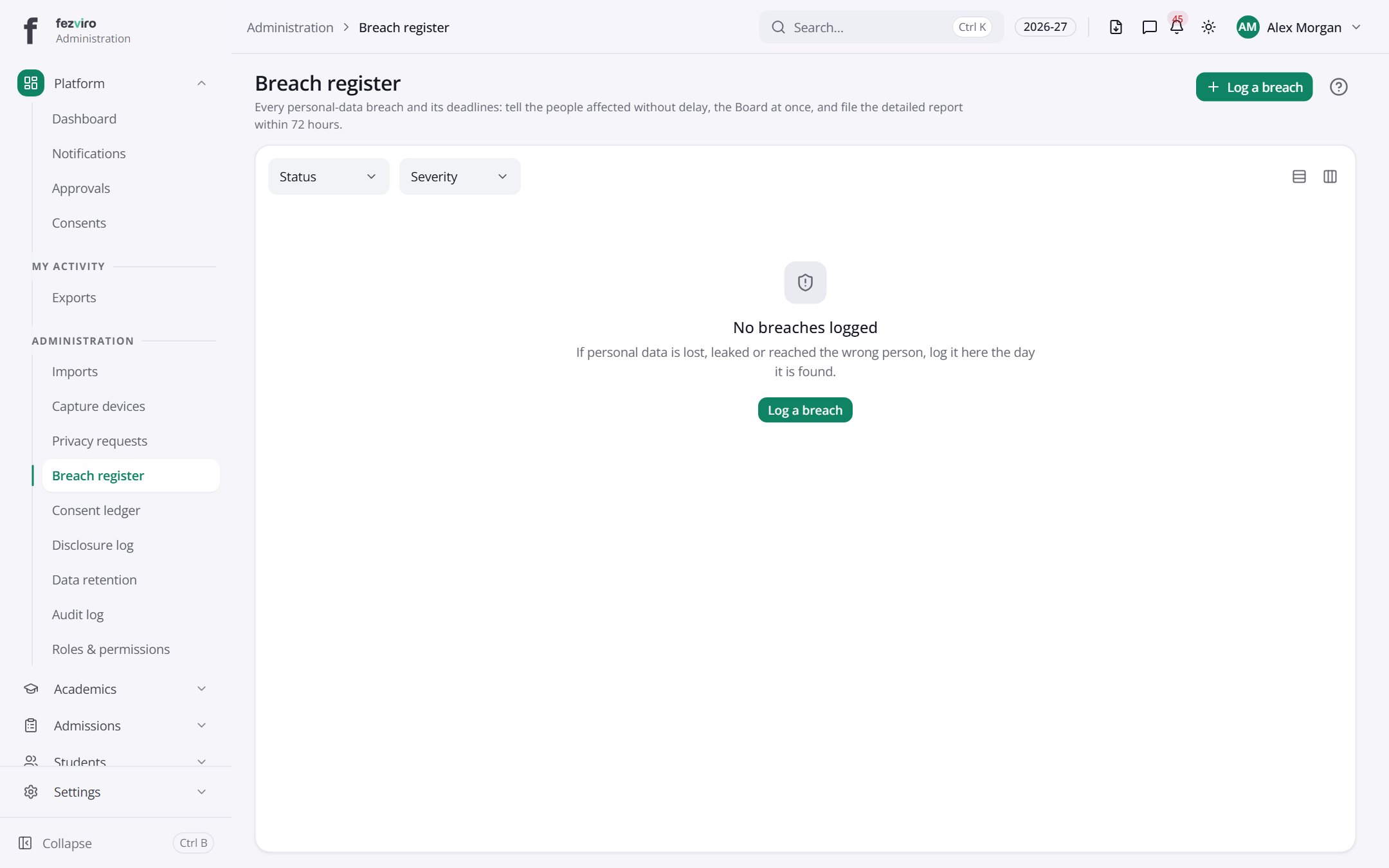 Breach registerA register of any personal-data breach, with the deadlines for each step.has a form
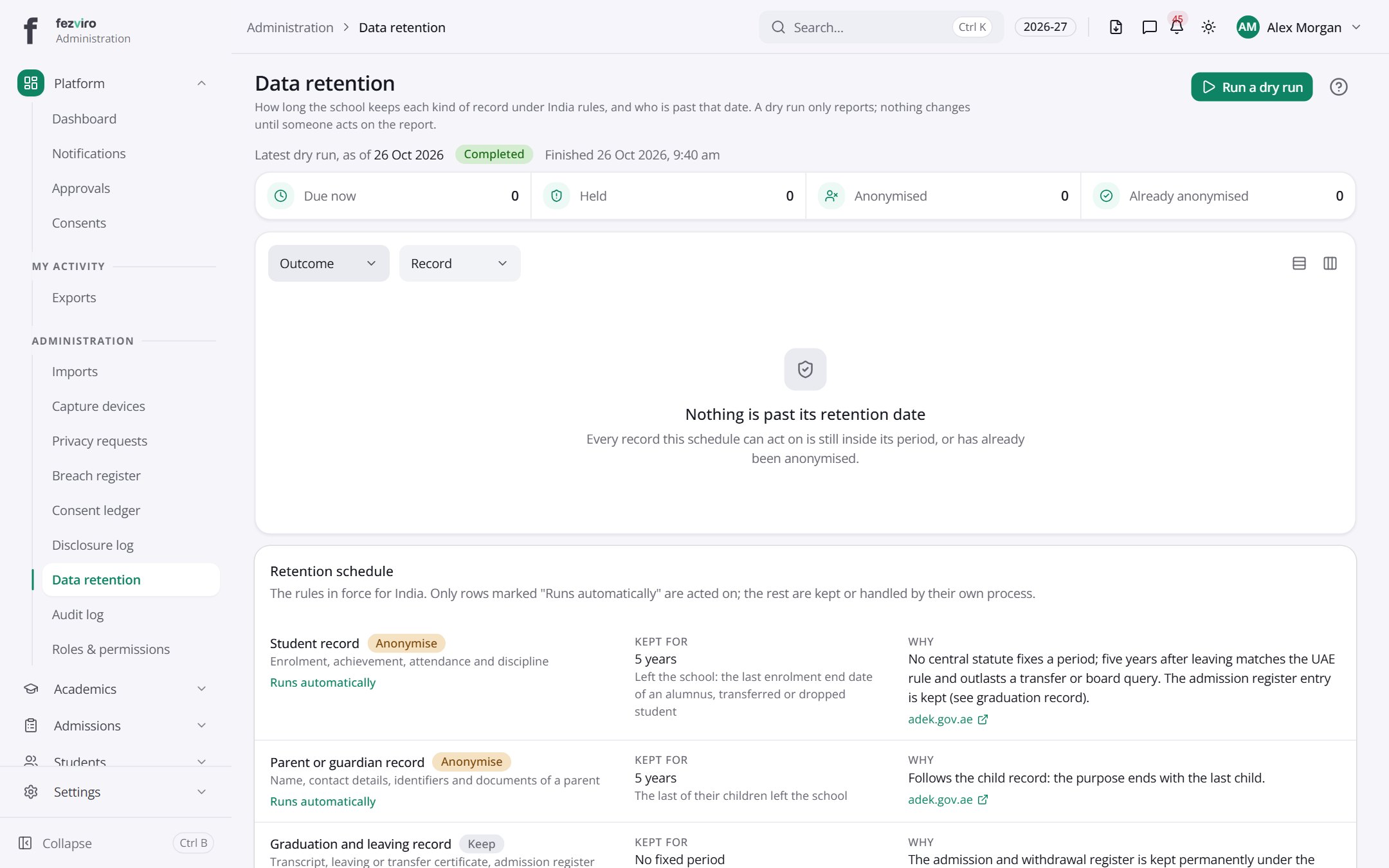 Data retentionHow long each kind of school record is kept, and the reason.
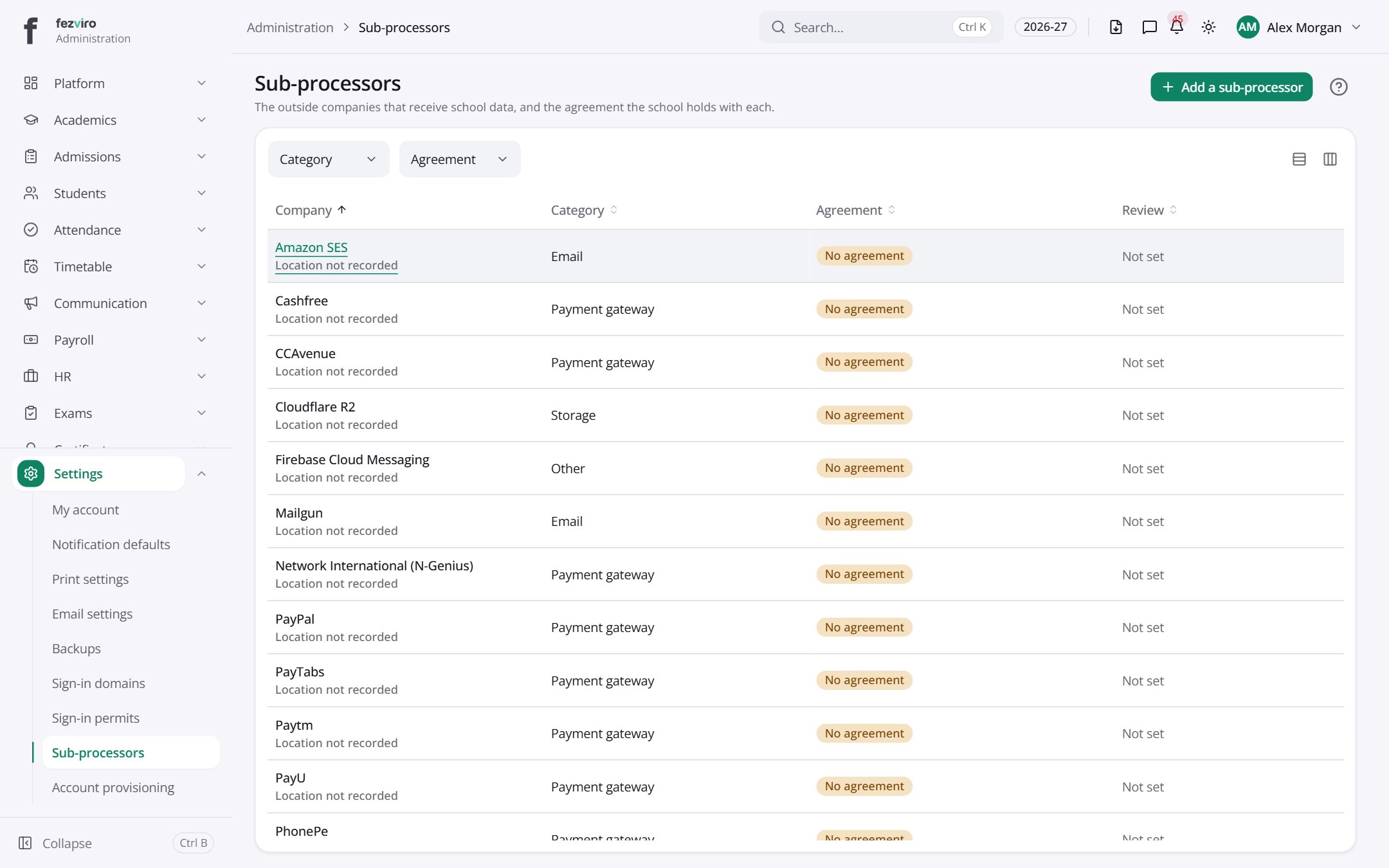 Sub-processorsEvery outside company that handles school data, with its agreement.has a form
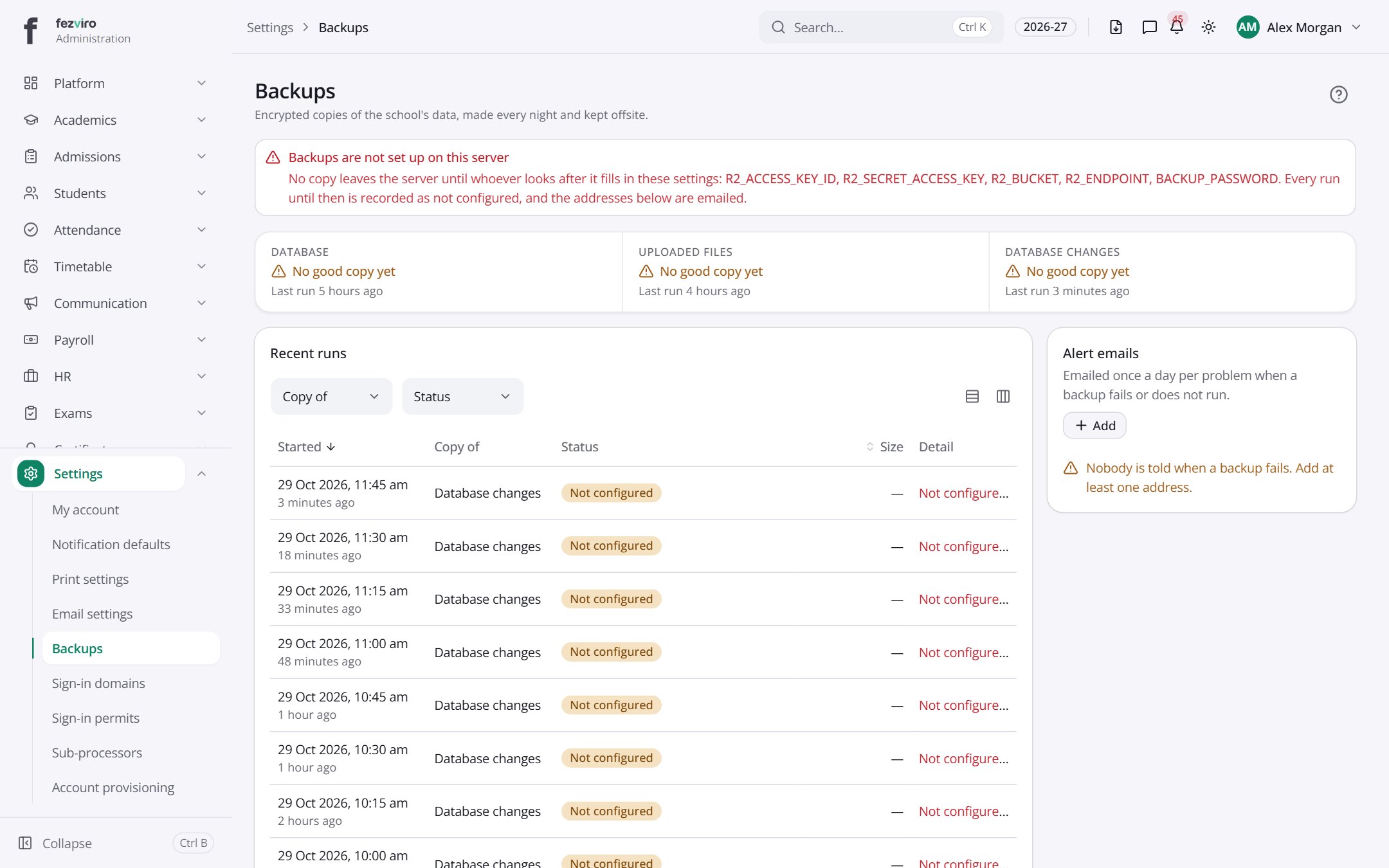 BackupsThe off-site copies of school data, and who is alerted when one fails.
 Signed-in devicesThe phones and apps signed in to an account.
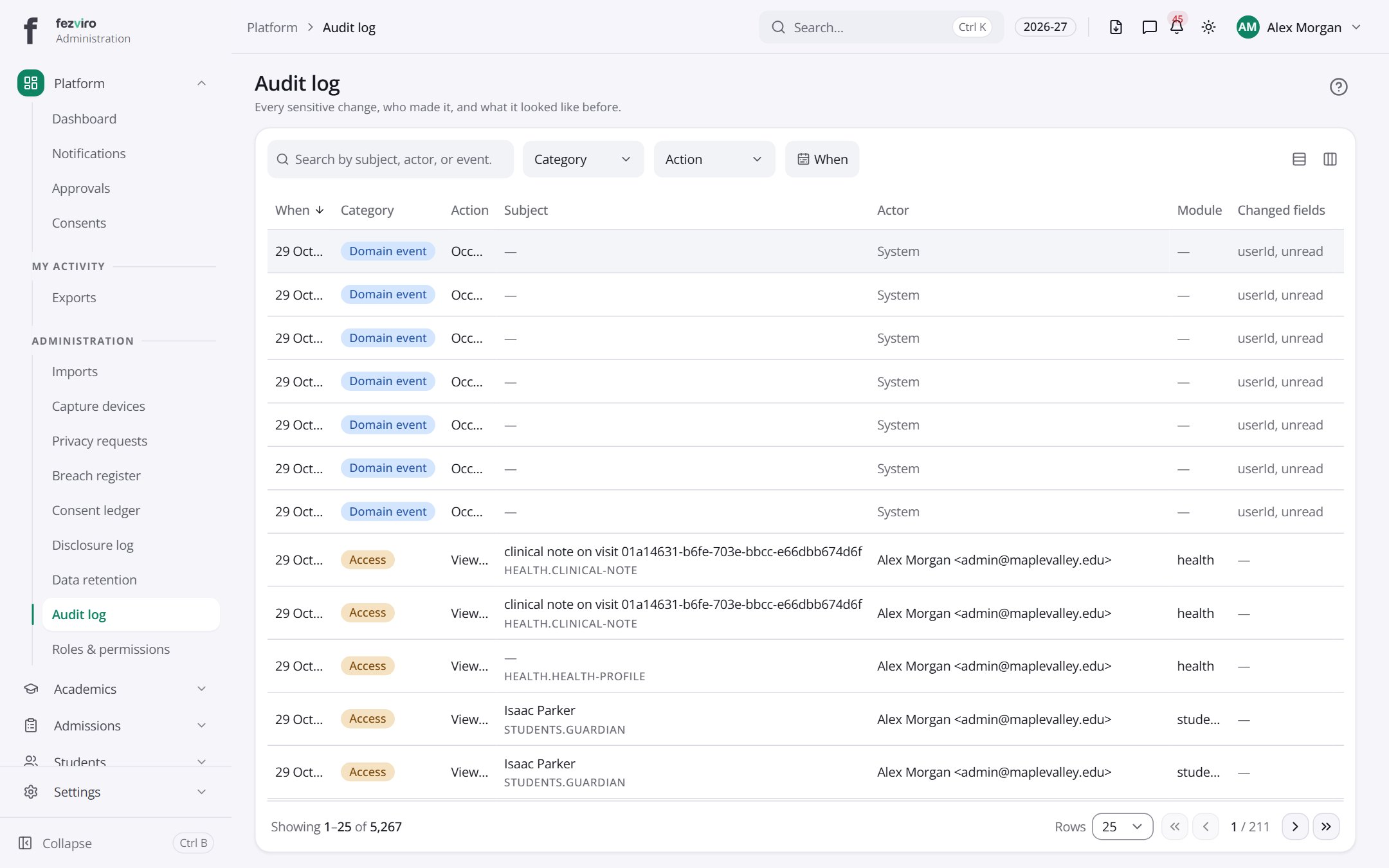 Audit logA record of who changed what in the system, and when.
Step by step
Section titled “Step by step”Give a staff member access
Section titled “Give a staff member access”- Open Platform → Roles and pick the role that matches the job (Teacher, Accountant, Receptionist…).
- Review which permissions the role holds; tick or untick to adjust what that role may see and do.
- Assign the role to the person from their user record. They see a portal for that role the next time they sign in.
- If a person holds two roles (e.g. Teacher and Parent), they switch between portals from the account menu.
Approve pending requests
Section titled “Approve pending requests”- Open Platform → Approvals. Every request waiting for you (leave, discounts, certificates, purchases…) is listed in one inbox.
- Open a request to see the details and the full approval trail.
- Approve or reject with a comment. Multi-step workflows move to the next approver automatically; nobody can approve their own request.
Import data from a spreadsheet
Section titled “Import data from a spreadsheet”- Open Platform → Imports and choose what you are importing (students, guardians, staff, marks…).
- Download the sample sheet, fill it in, and upload it.
- The system checks every row and shows errors before anything is saved. Fix and re-upload, or confirm.
- A finished import can be undone in one click if something was wrong.
Find out who changed a record
Section titled “Find out who changed a record”- Open Platform → Audit logs.
- Filter by person, module, record or date.
- Each entry shows who did it, when, and the before and after values.
Questions
Section titled “Questions”Can a deleted record be recovered?
Yes. Records are never physically erased; deleting hides them and keeps who deleted them and when. An administrator can restore them.
Can staff sign in with Google or Microsoft?
Yes. Single sign-on with Google Workspace or Microsoft 365 is set up under Platform → Settings → Sign-in methods, and can be limited to your school’s email domains.
Is two-step sign-in supported?
Yes. Two-factor sign-in with an authenticator app can be required for sensitive roles such as administrators and accountants.
What happens when a staff member leaves?
Their login is suspended, not deleted. All history they created stays intact and attributed to them.
Can we run several campuses?
Yes. One school, many branches. Staff can be tied to one branch or see all, and lists can be filtered by branch.
Where are backups configured?
Under Platform → Settings → Backups. Backups go offsite automatically and alert emails are editable.