

Question bank
What it is
A store of test questions that teachers write and share.
Why it matters
Saves time by reusing good questions for future tests.
When to use it
Teachers add, edit and reuse questions when building test papers.
Who uses it
Administrator
How to get here
Section titled “How to get here”- Sign in as Administrator (see Signing in).
- In the left menu, click Online Learning to open it.
- Click Question bank.
What you see
Section titled “What you see”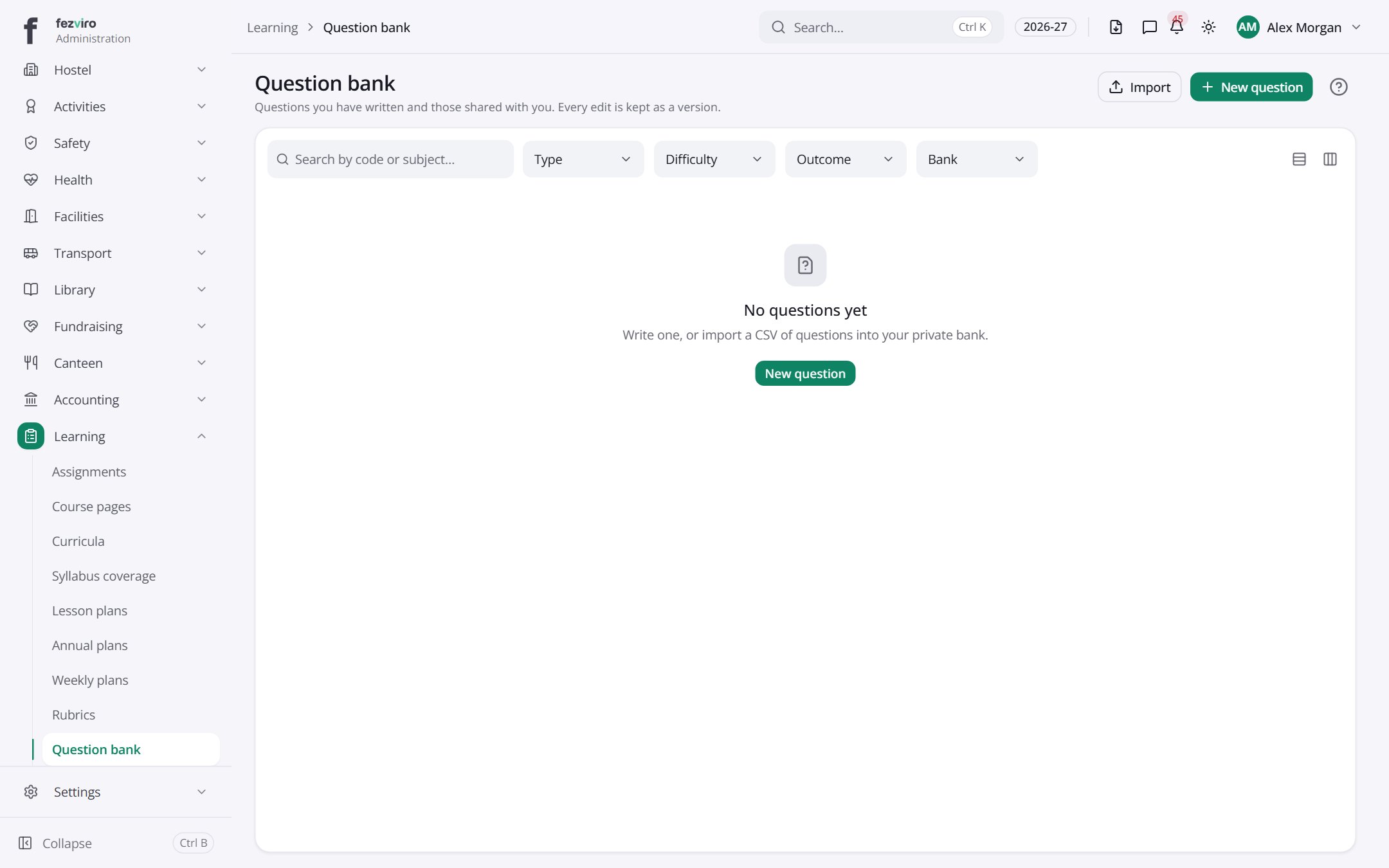
Buttons on this screen
Section titled “Buttons on this screen”- Import — adds many records at once from a spreadsheet.
- New question — opens a form to add a new one. See Filling in the form below.
Filling in the form
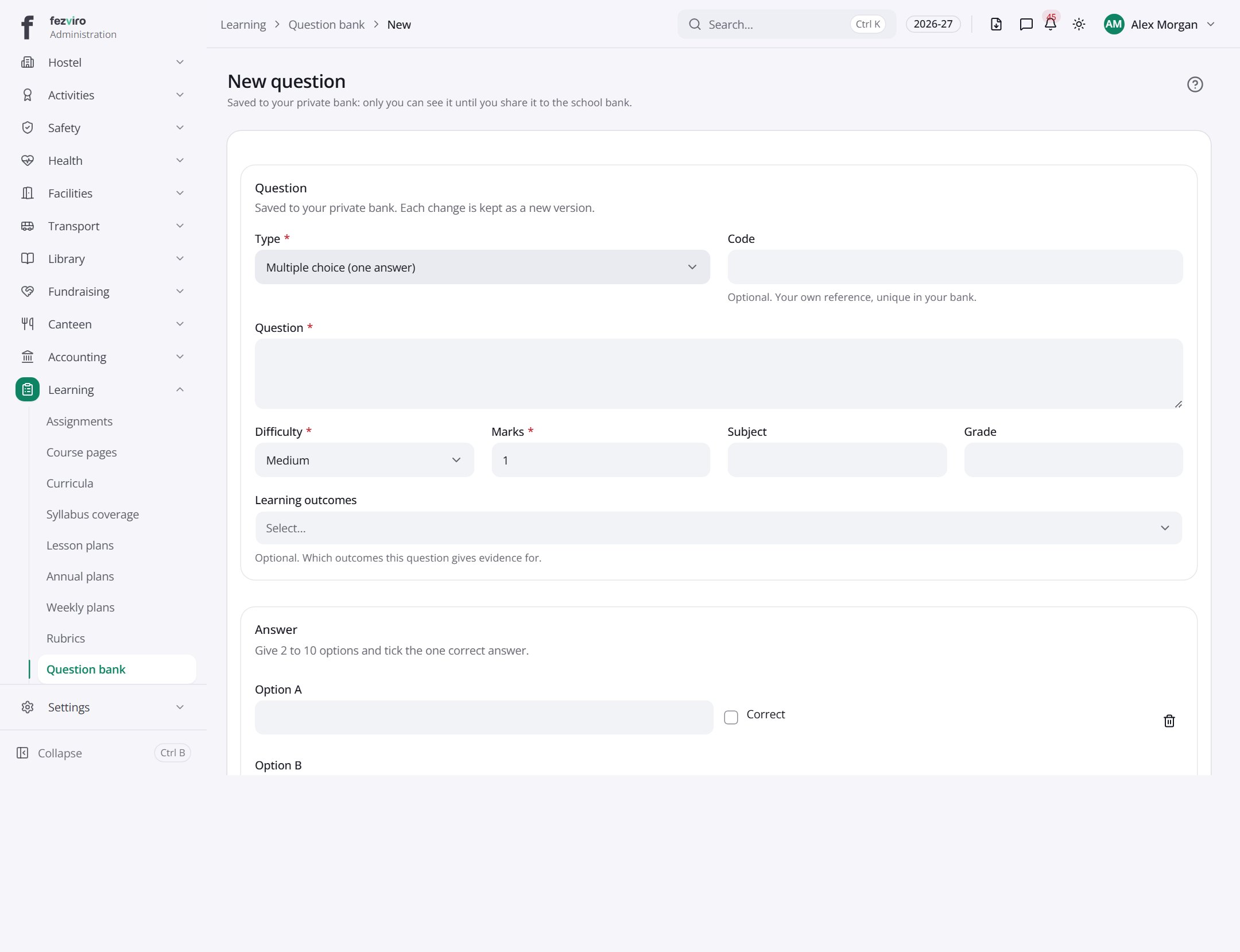
Section titled “Filling in the form”- Click the New question button at the top right.
- Fill in the boxes. Boxes marked with a red * must be filled in (4 on this form).
- Click Save at the bottom. If something is missing, the box turns red and tells you what to fix.
The fields
Section titled “The fields”| Field | Type | What to enter, and why |
|---|---|---|
| Type * | choose | Choose the kind of question, such as multiple choice or short answer. |
| Code | text | Optional. Your own short reference for this question, unique in your bank. |
| Question * | long text | The question text that pupils will read. |
| Difficulty * | choose | Choose how hard the question is, such as easy, medium or hard. |
| Marks * | number | How many marks the question is worth. |
| Subject | text | Optional. The subject this question is for. |
| Grade | text | Optional. The grade this question is for. |
| Learning outcomes | choose | Optional. Pick the outcomes this question gives evidence for. |
| Option A | text | |
| Correct | tick box | Tick each answer choice that is correct. |
| Option B | text | |
| Option C | text | |
| Option D | text | |
| Explanation | long text | Optional. Explain the answer. Shown to pupils after marking. |
Types: text — type it in · number — digits only · date — click and pick from the calendar · choose — click and pick one from the list · pick one — click one of the options · switch / tick box — click to turn on or off · long text — type as much as you need · file — click to attach a file from your computer.
← Back to Online Learning overview