

Stock takes
What it is
Physical counts of a store, compared with what the records show.
Why it matters
Finds missing or broken stock that the records do not show.
When to use it
Store staff count the shelves; differences go to the principal for approval.
Who uses it
Administrator
How to get here
Section titled “How to get here”- Sign in as Administrator (see Signing in).
- In the left menu, click Inventory to open it.
- Click Stock takes.
What you see
Section titled “What you see”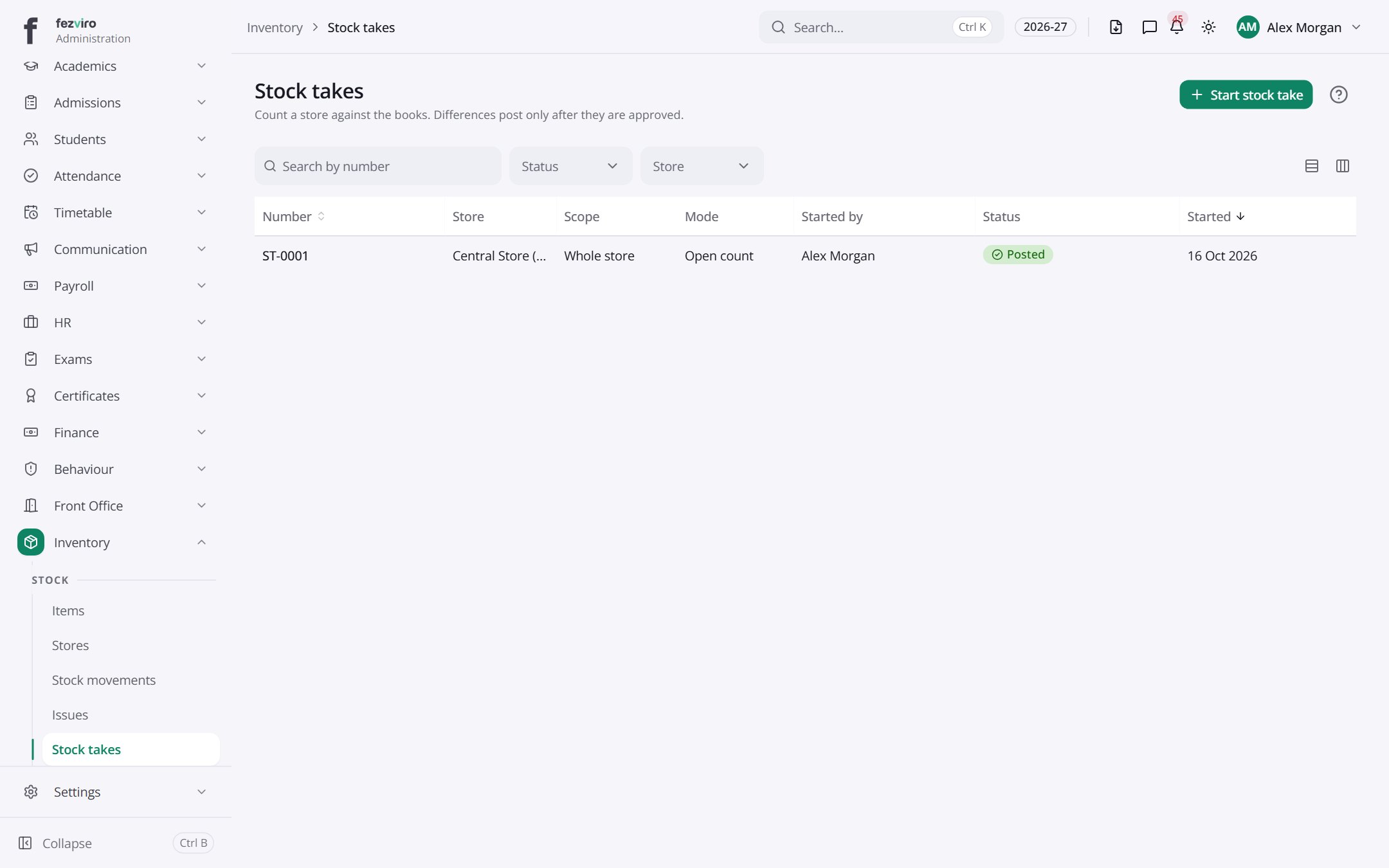
- The list has these columns: Number, Store, Scope, Mode, Started by, Status, Started. Click a column name to sort by it.
Buttons on this screen
Section titled “Buttons on this screen”- Start stock take — opens a form to add a new one. See Filling in the form below.
Filling in the form
Section titled “Filling in the form”- Click the New button at the top right.
- Fill in the boxes. Boxes marked with a red * must be filled in (1 on this form).
- Click Save at the bottom. If something is missing, the box turns red and tells you what to fix.
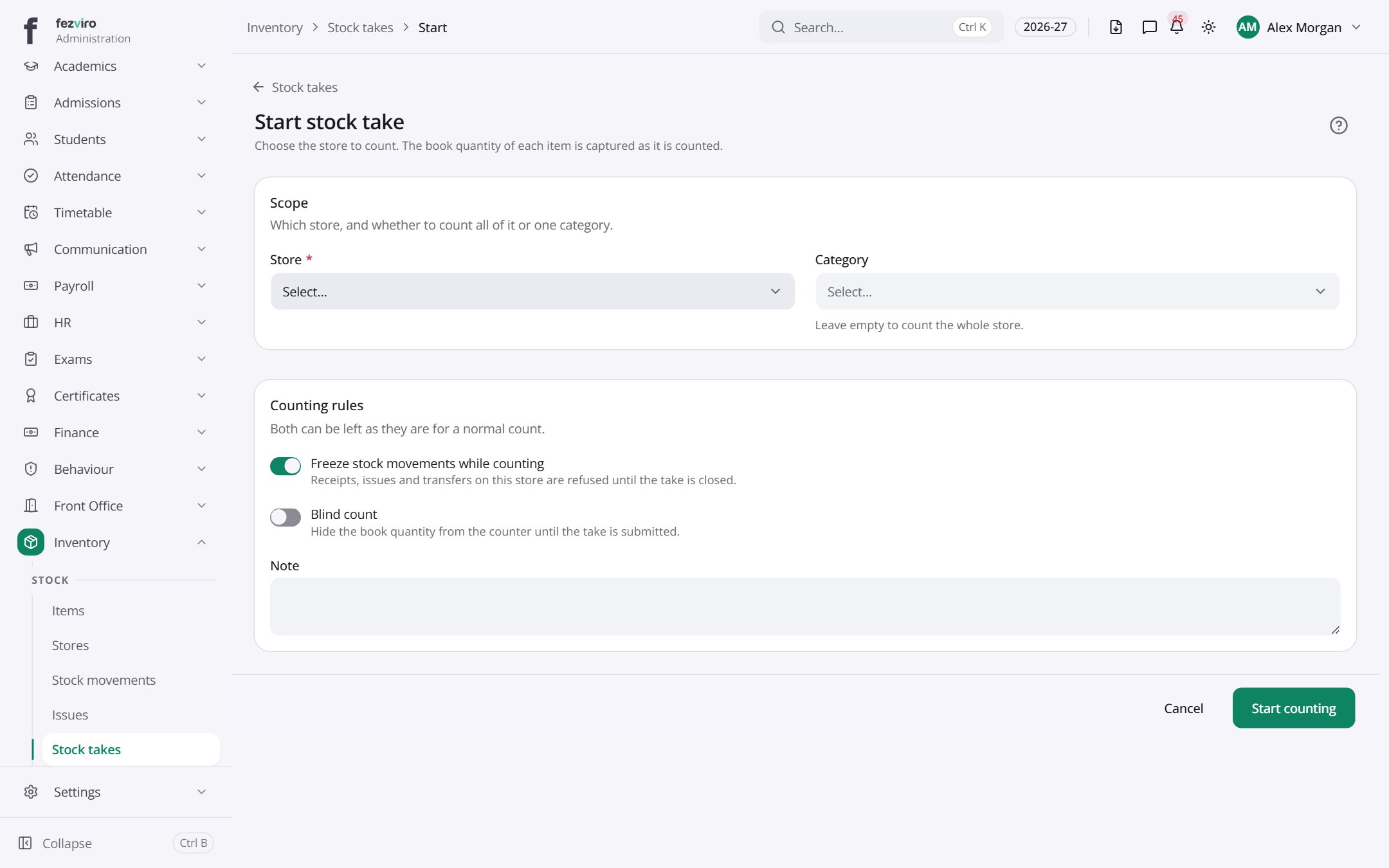
The fields
Section titled “The fields”| Field | Type | What to enter, and why |
|---|---|---|
| Store * | choose | Pick the store to count. |
| Category | choose | Pick a group of items to count, or leave blank to count all. |
| Freeze stock movements while counting | switch | Tick to stop stock being moved in or out while you count. |
| Blind count | switch | Tick to hide the expected numbers so counters count honestly. |
| Note | long text | Any detail about this count. Optional. |
Types: text — type it in · number — digits only · date — click and pick from the calendar · choose — click and pick one from the list · pick one — click one of the options · switch / tick box — click to turn on or off · long text — type as much as you need · file — click to attach a file from your computer.
← Back to Inventory & Assets overview