

Outcome frameworks
What it is
The school's list of learning outcomes, with a version for each change.
Why it matters
Gives one agreed set of skills to measure all progress against.
When to use it
Leaders set up and update the outcomes; teachers link tasks to them.
Who uses it
Administrator
How to get here
Section titled “How to get here”- Sign in as Administrator (see Signing in).
- In the left menu, click Online Learning to open it.
- Click Outcome frameworks.
What you see
Section titled “What you see”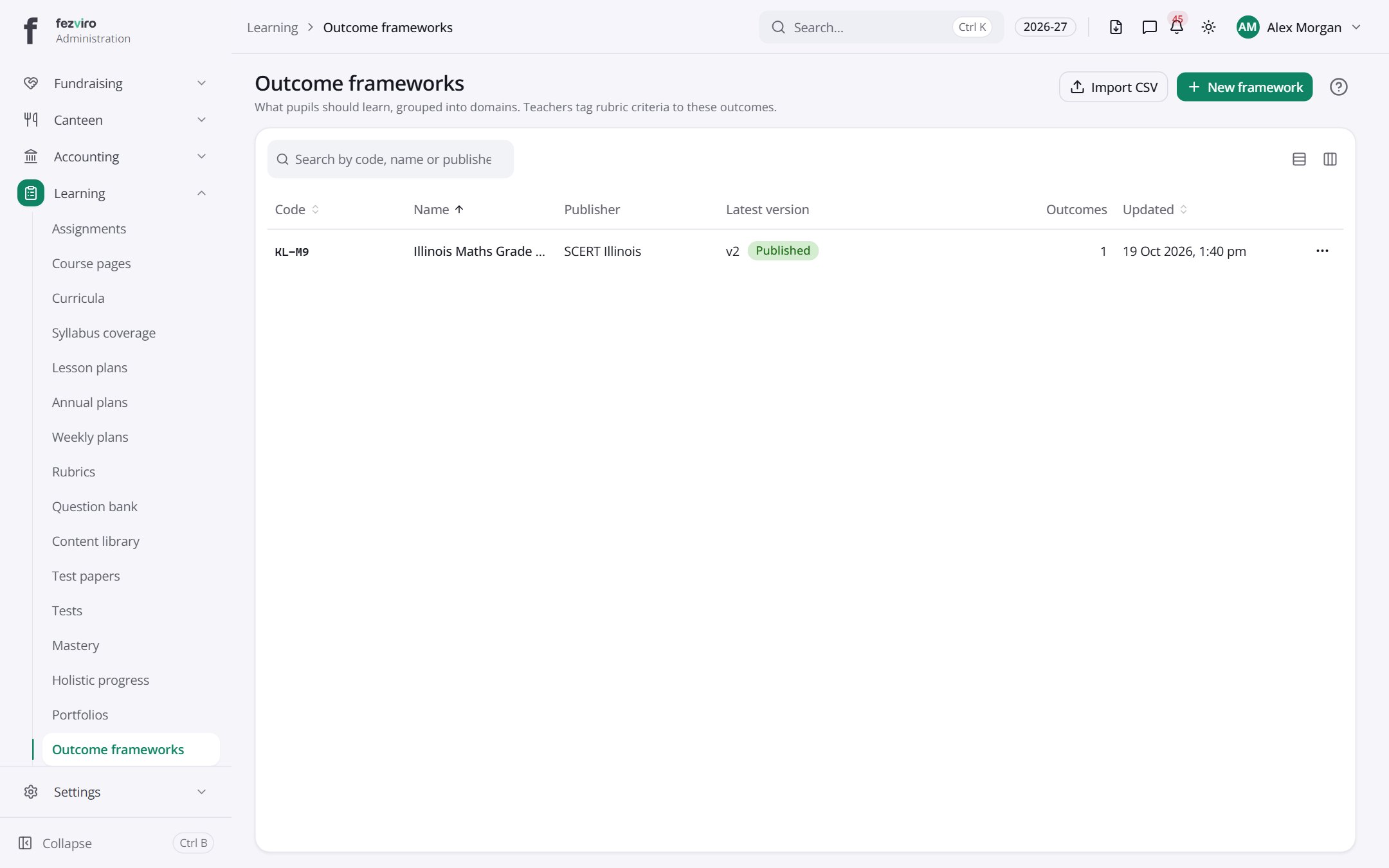
- The list has these columns: Code, Name, Publisher, Latest version, Outcomes, Updated, Actions. Click a column name to sort by it.
Buttons on this screen
Section titled “Buttons on this screen”- Import CSV — saves this list to a file on your computer (Excel or CSV).
- New framework — opens a form to add a new one. See Filling in the form below.
Filling in the form
Section titled “Filling in the form”- Click the New framework button at the top right.
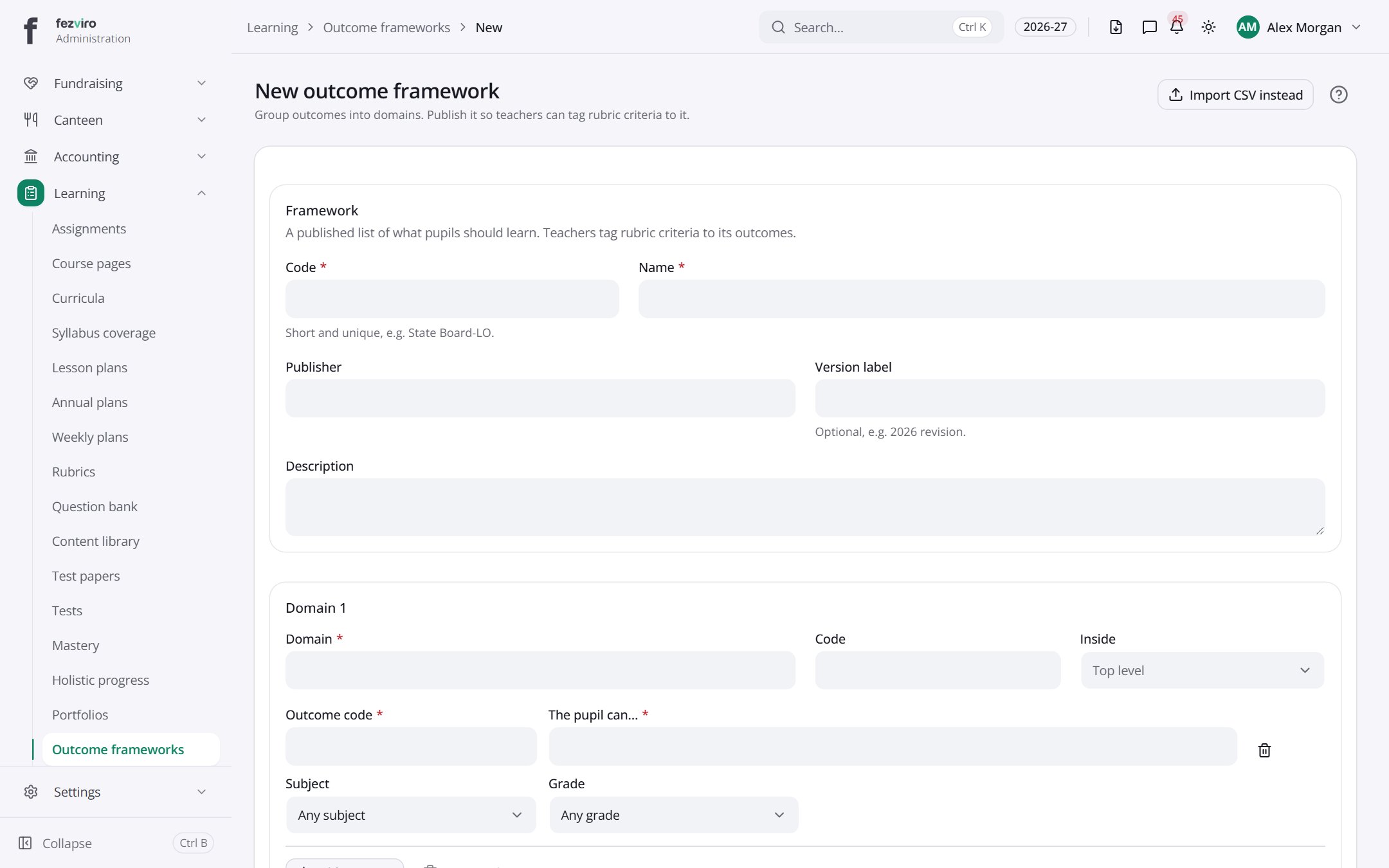
- Fill in the boxes. Boxes marked with a red * must be filled in (5 on this form).
- Click Save at the bottom. If something is missing, the box turns red and tells you what to fix.
The fields
Section titled “The fields”| Field | Type | What to enter, and why |
|---|---|---|
| Code * | text | A short code to identify this item, such as State Board-LO or D1. |
| Name * | text | The full name of this framework, as teachers will recognize it. |
| Publisher | text | The organization that published this list of outcomes, if any. |
| Version label | text | Optional, such as 2026 revision, to tell versions apart. |
| Description | long text | Optional notes on what this framework covers. |
| Domain * | text | The name of a group of outcomes, such as Number Sense. |
| Code | text | A short code to identify this item, such as State Board-LO or D1. |
| Inside | choose | Optional. Pick the group this domain sits inside, or leave it at top level. |
| Outcome code * | text | A short code for this outcome, such as N1.1. |
| The pupil can… * | text | Write what the pupil should be able to do, starting with a verb. |
| Subject | choose | Pick the subject this outcome belongs to. |
| Grade | choose | Pick the grade this outcome is for. |
Types: text — type it in · number — digits only · date — click and pick from the calendar · choose — click and pick one from the list · pick one — click one of the options · switch / tick box — click to turn on or off · long text — type as much as you need · file — click to attach a file from your computer.
← Back to Online Learning overview