

Messages
What it is
The inbox for conversations between staff, parents and students.
Why it matters
Keeps school conversations in one place, not on personal phones.
When to use it
Staff and families open a thread, read it and reply inside the school system.
Who uses it
Administrator
How to get here
Section titled “How to get here”- Sign in as Administrator (see Signing in).
- In the left menu, click Communication to open it.
- Click Messages.
What you see
Section titled “What you see”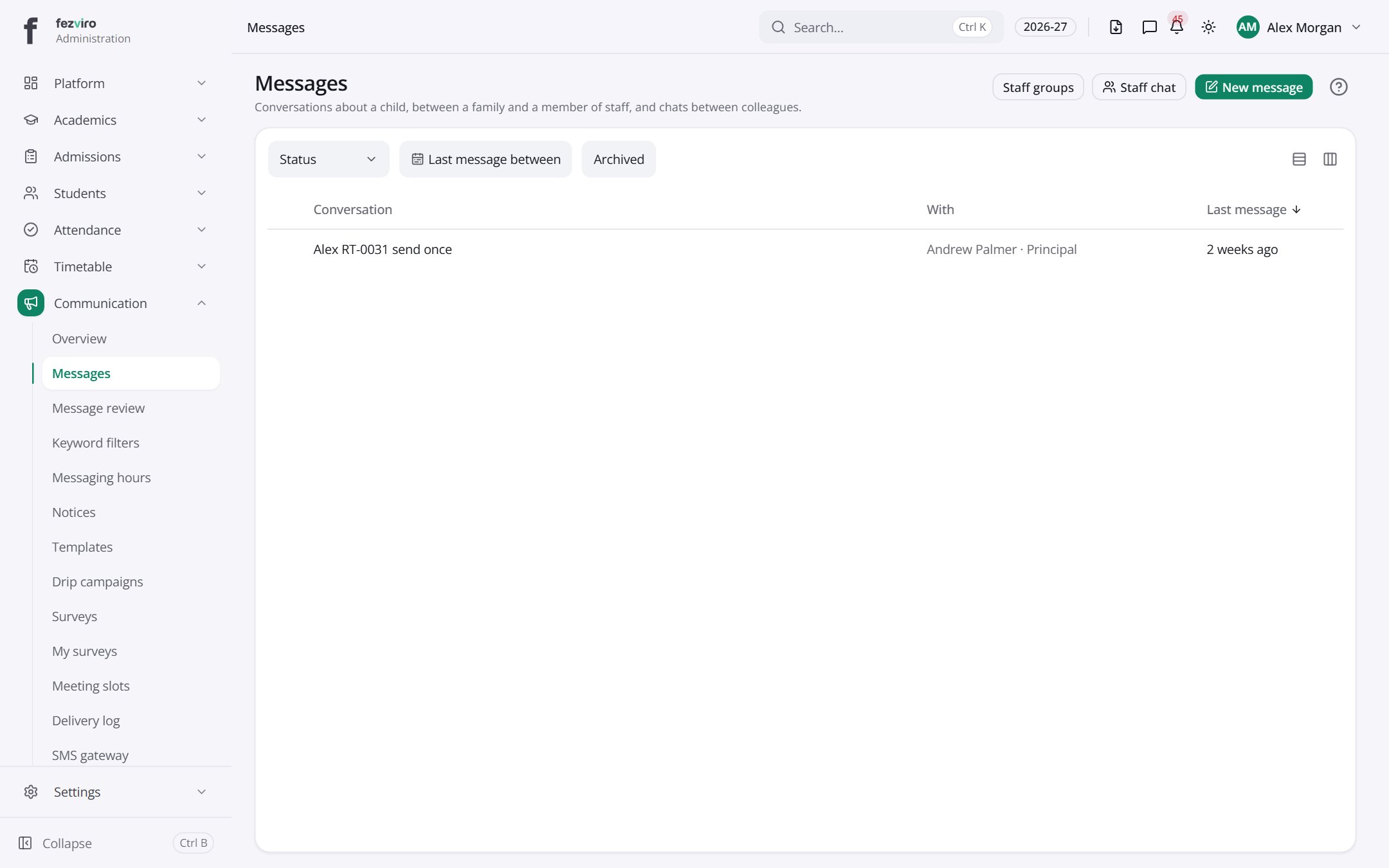
- The list has these columns: Actions, Conversation, With, Last message. Click a column name to sort by it.
Buttons on this screen
Section titled “Buttons on this screen”- Staff groups — does what it says on the button.
- Staff chat — does what it says on the button.
- New message — opens a form to add a new one. See Filling in the form below.
Filling in the form
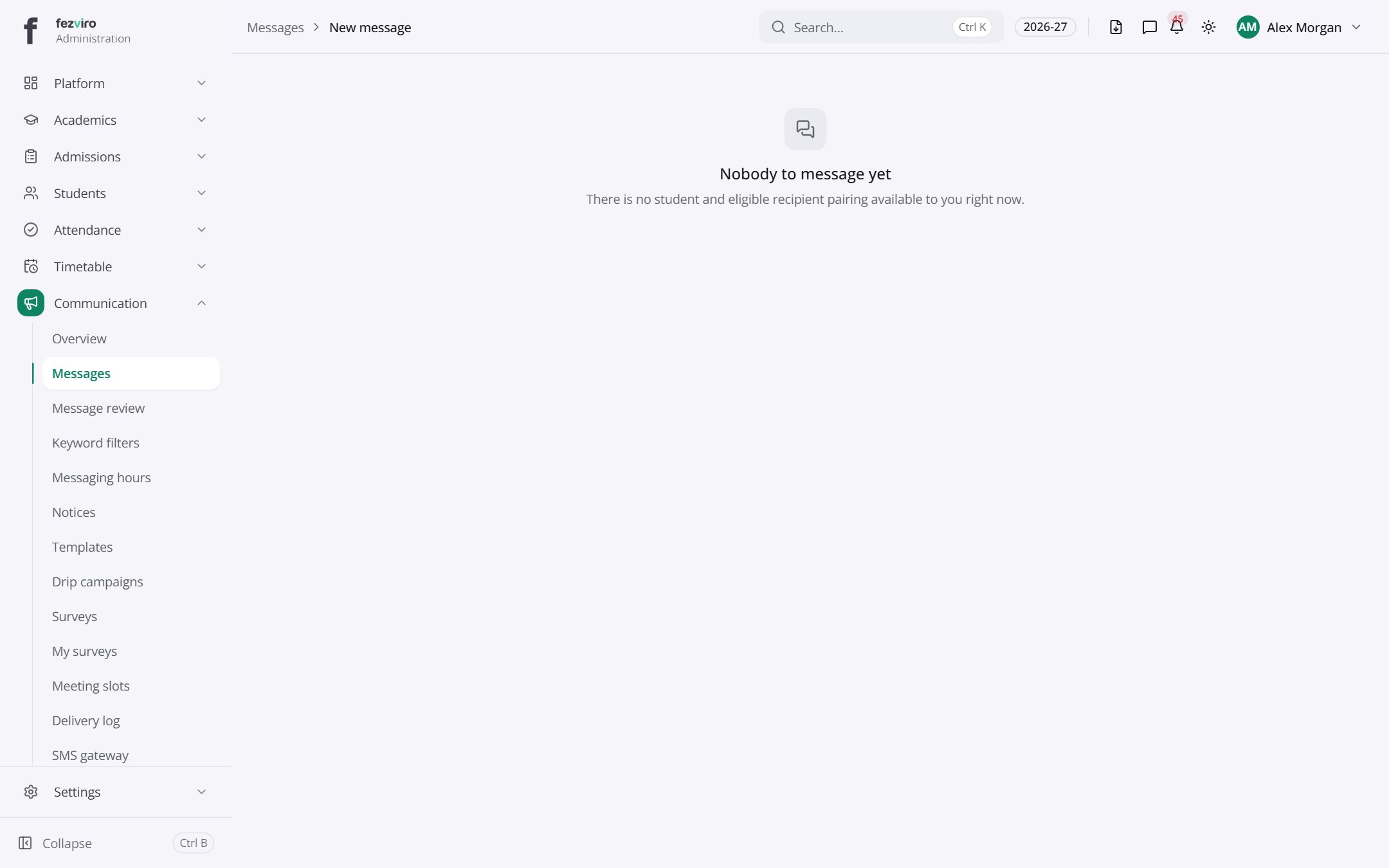
Section titled “Filling in the form”- Click the New message button at the top right.
- Fill in the boxes.
- Click Save at the bottom. If something is missing, the box turns red and tells you what to fix.
← Back to Communication overview