

OneRoster export
What it is
Export of this year's classes, pupils, staff and published results.
Why it matters
Lets an approved learning platform receive the school's records in one file.
When to use it
The office requests a download, then collects it once it is ready.
Who uses it
Administrator
How to get here
Section titled “How to get here”- Sign in as Administrator (see Signing in).
- In the left menu, click Academics to open it.
- Click OneRoster export.
What you see
Section titled “What you see”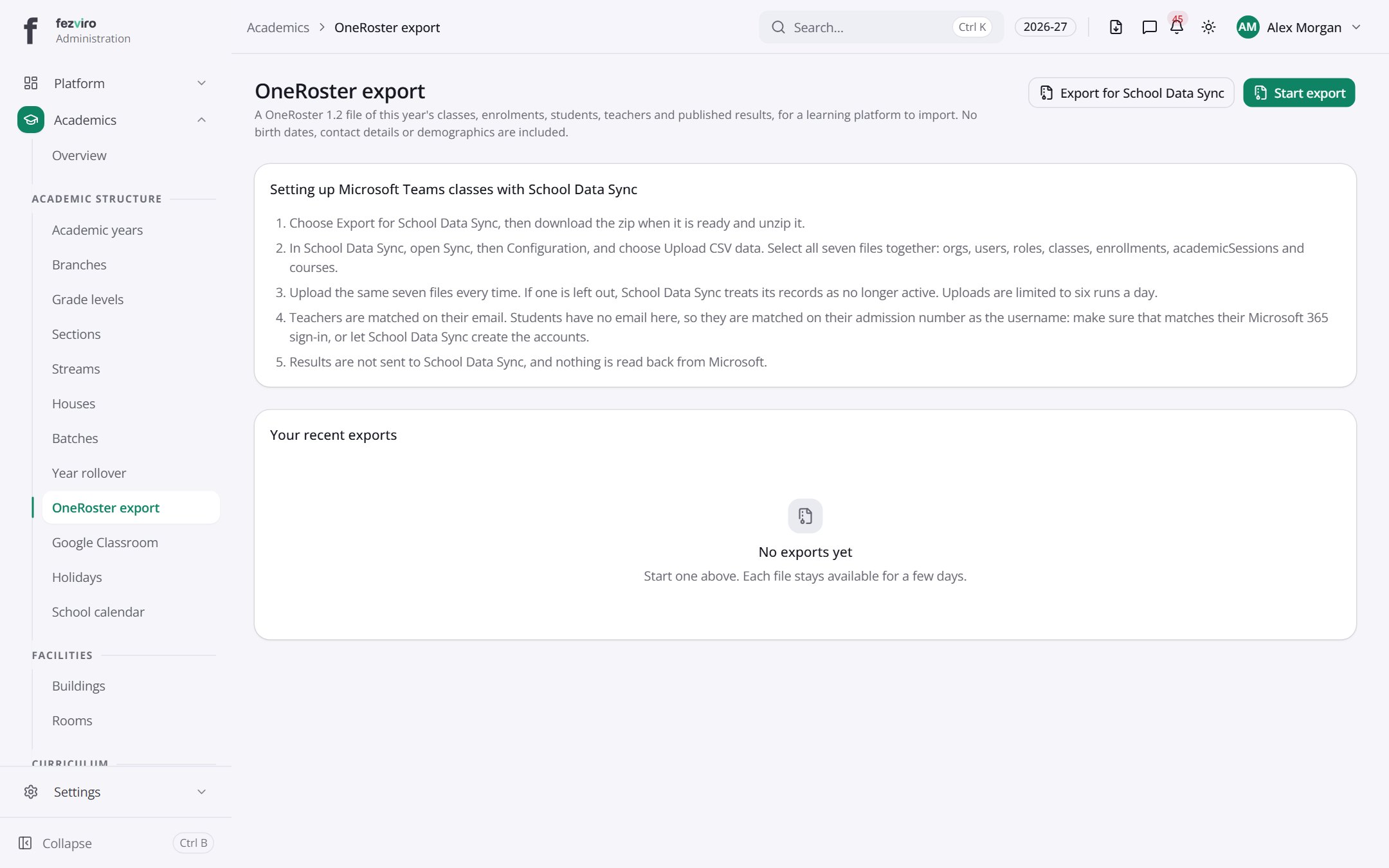
- Sections on the page: Setting up Microsoft Teams classes with School Data Sync, Your recent exports.
Buttons on this screen
Section titled “Buttons on this screen”- Export for School Data Sync — saves this list to a file on your computer (Excel or CSV).
- Start export — opens a form to add a new one. See Filling in the form below.
← Back to Academics overview