

Lesson plans
What it is
Teachers' lesson plans, with goals, activities and files.
Why it matters
Shares good teaching and keeps plans in one searchable place.
When to use it
Teachers write and copy plans; approvers review them where required.
Who uses it
Administrator
How to get here
Section titled “How to get here”- Sign in as Administrator (see Signing in).
- In the left menu, click Online Learning to open it.
- Click Lesson plans.
What you see
Section titled “What you see”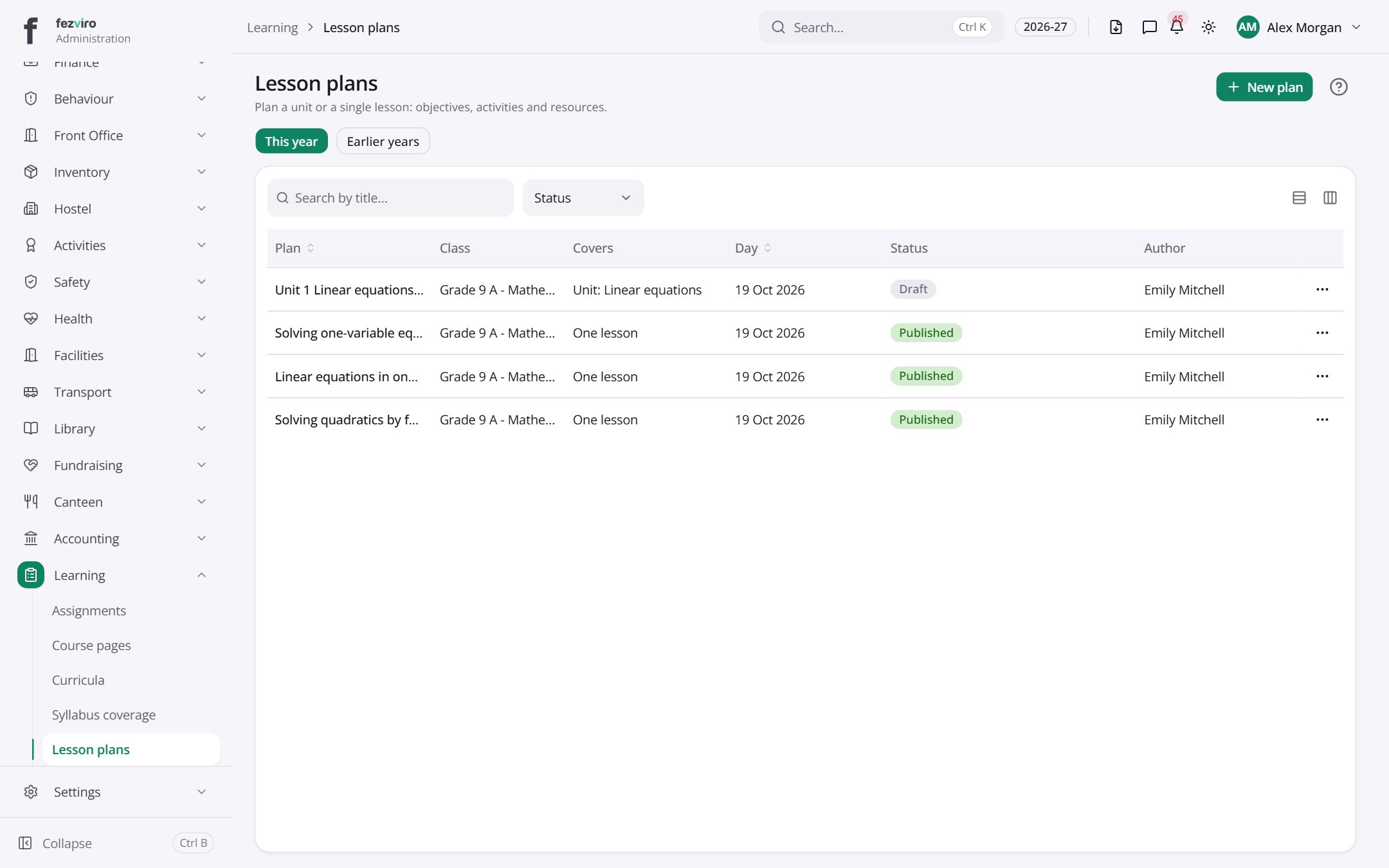
- The list has these columns: Plan, Class, Covers, Day, Status, Author, Actions. Click a column name to sort by it.
Buttons on this screen
Section titled “Buttons on this screen”- New plan — opens a form to add a new one. See Filling in the form below.
Filling in the form
Section titled “Filling in the form”- Click the New plan button at the top right.
- Fill in the boxes. Boxes marked with a red * must be filled in (4 on this form).
- Click Save at the bottom. If something is missing, the box turns red and tells you what to fix.
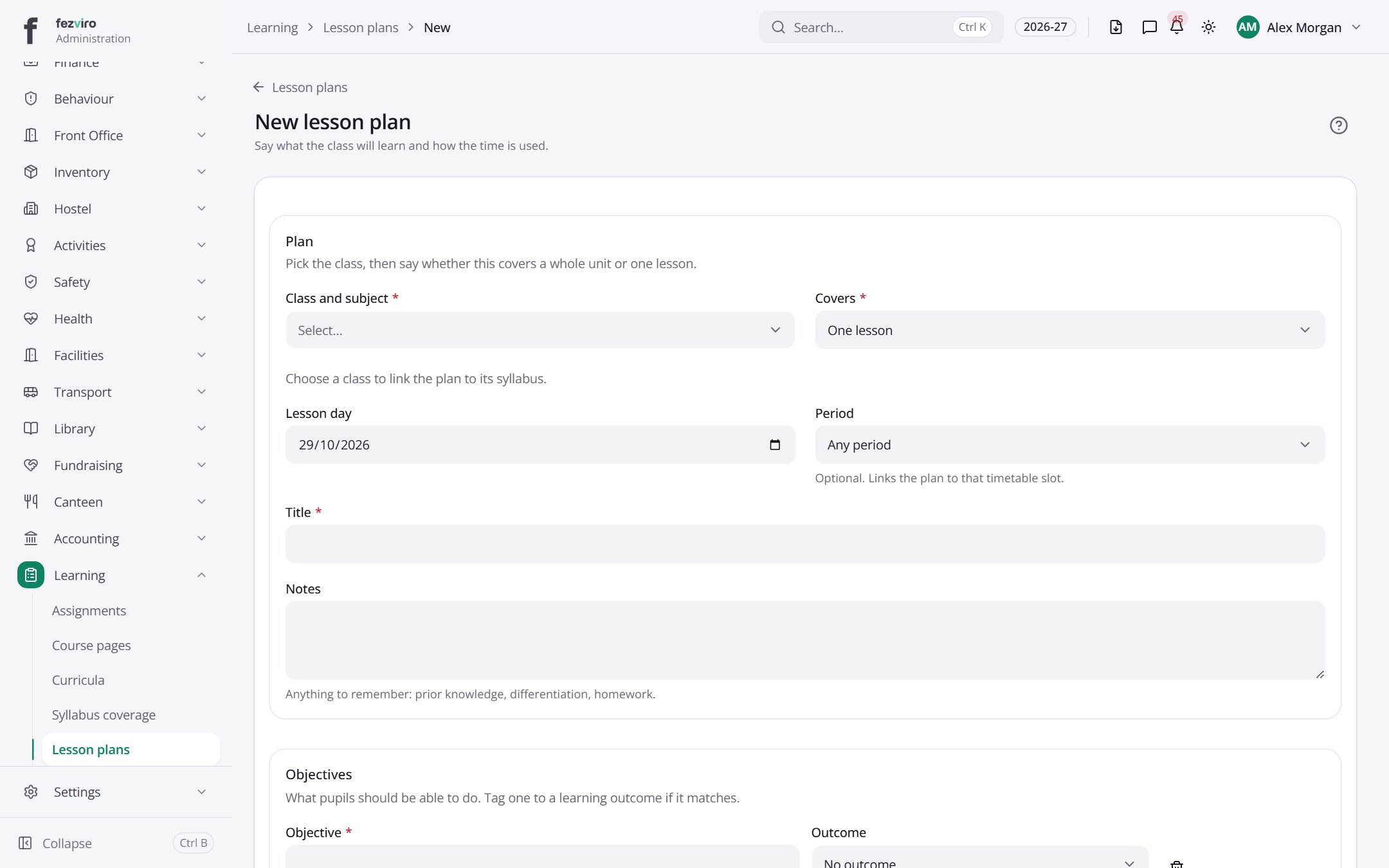
The fields
Section titled “The fields”| Field | Type | What to enter, and why |
|---|---|---|
| Class and subject * | choose | Pick the class and subject this lesson plan is for. |
| Covers * | choose | Choose whether the plan covers a whole unit or just one lesson. |
| Lesson day | date | The date of the lesson. Shown when planning a single lesson. |
| Period | choose | Optional. Pick the timetable period this plan is for. |
| Title * | text | A short name for the lesson plan, such as Adding fractions. |
| Notes | long text | Anything to remember: prior knowledge, extra help, or homework. |
| Objective * | text | Write one thing pupils should be able to do by the end. |
| Outcome | choose | Optional. Link this objective to a learning outcome if it matches. |
Types: text — type it in · number — digits only · date — click and pick from the calendar · choose — click and pick one from the list · pick one — click one of the options · switch / tick box — click to turn on or off · long text — type as much as you need · file — click to attach a file from your computer.
← Back to Online Learning overview