

Guardians
What it is
A directory of parents and guardians, with their contact details.
Why it matters
Keeps every family contact in one place, linked to their children.
When to use it
Office staff add and update guardians; teachers look them up.
Who uses it
Administrator
How to get here
Section titled “How to get here”- Sign in as Administrator (see Signing in).
- In the left menu, click Students to open it.
- Click Guardians.
What you see
Section titled “What you see”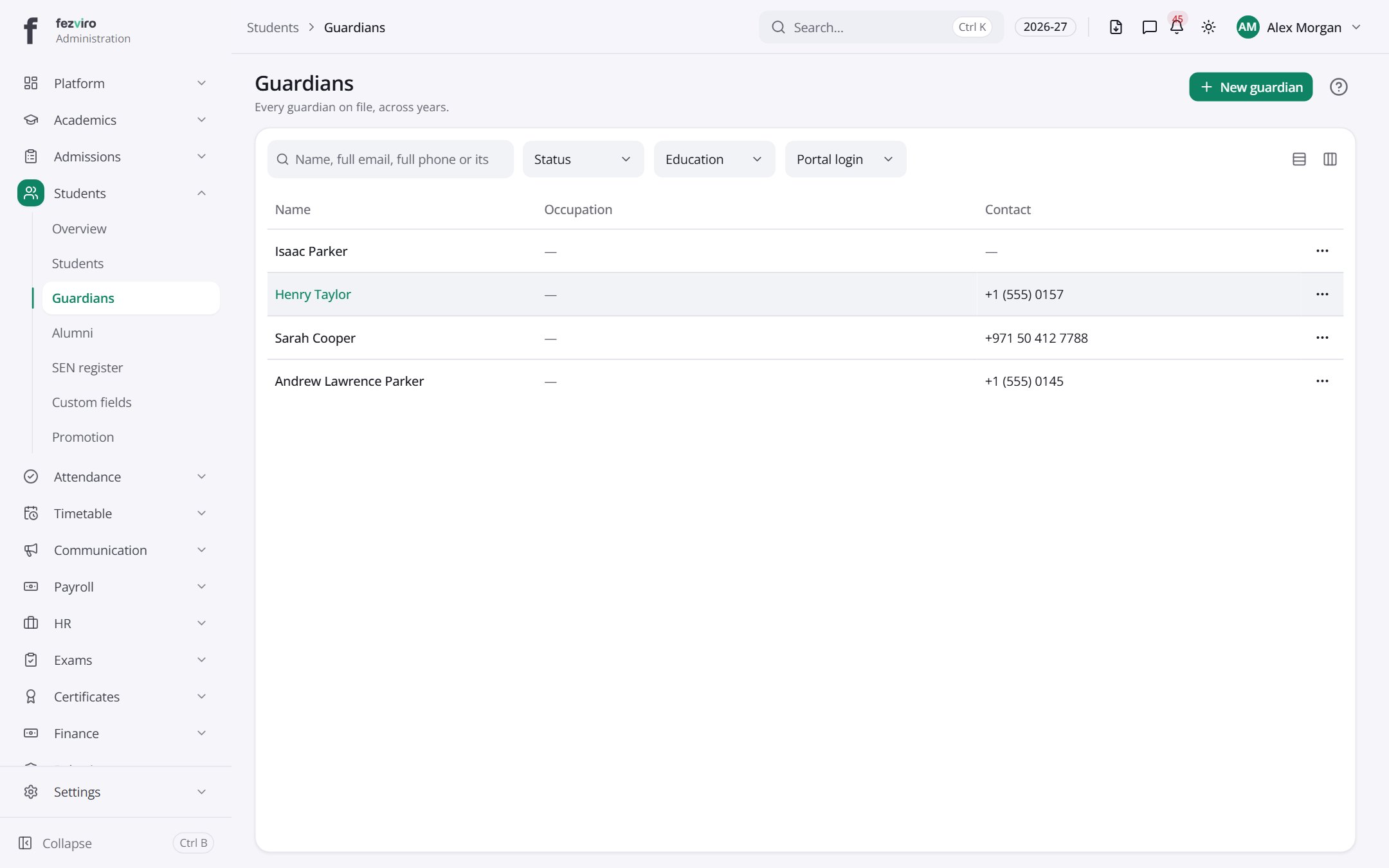
- The list has these columns: Name, Occupation, Contact, Actions. Click a column name to sort by it.
Buttons on this screen
Section titled “Buttons on this screen”- New guardian — opens a form to add a new one. See Filling in the form below.
Filling in the form
Section titled “Filling in the form”- Click the New guardian button at the top right.
- Fill in the boxes. Boxes marked with a red * must be filled in (2 on this form).
- Click Save at the bottom. If something is missing, the box turns red and tells you what to fix.
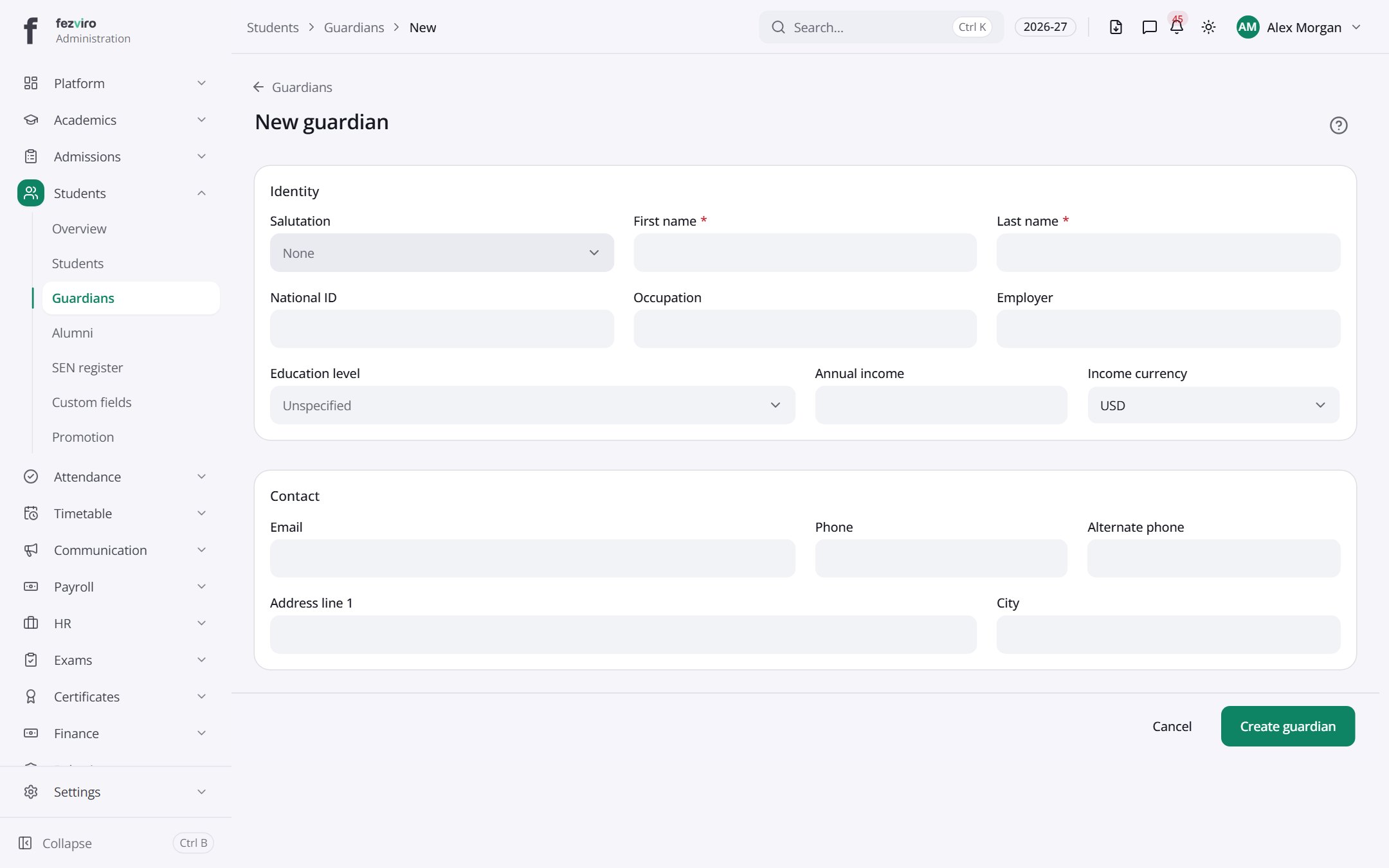
The fields
Section titled “The fields”| Field | Type | What to enter, and why |
|---|---|---|
| Salutation | choose | Choose the title to use, such as Mr, Mrs or Dr. |
| First name * | text | The guardian's first name, as on their official papers. |
| Last name * | text | The guardian's family name, as on their official papers. |
| National ID | text | Optional. The national identity number, as printed on official papers. |
| Occupation | text | The guardian's job, such as Teacher or Driver. |
| Employer | text | The name of the company or office the guardian works for. |
| Education level | choose | The highest school or college level the guardian finished. |
| Annual income | number | Optional. The yearly family income. Type numbers only, no commas. |
| Income currency | choose | Choose the money type used for the income above. |
| The email address for school messages. Use one the guardian reads often. | ||
| Phone | text | The main phone number to reach the guardian on, with the country code. |
| Alternate phone | text | Optional. A second phone number to call if the main one is not answered. |
| Address line 1 | text | The house number and street where the guardian lives. |
| City | text | The town or city where the guardian lives. |
Types: text — type it in · number — digits only · date — click and pick from the calendar · choose — click and pick one from the list · pick one — click one of the options · switch / tick box — click to turn on or off · long text — type as much as you need · file — click to attach a file from your computer.
← Back to Students & Guardians overview