

Vendor bills
What it is
Supplier invoices, checked against orders and deliveries before payment.
Why it matters
Makes sure the school only pays for what it ordered and received.
When to use it
Office staff enter each supplier invoice and match it before it is booked.
Who uses it
Administrator
How to get here
Section titled “How to get here”- Sign in as Administrator (see Signing in).
- In the left menu, click Accounting to open it.
- Click Vendor bills.
What you see
Section titled “What you see”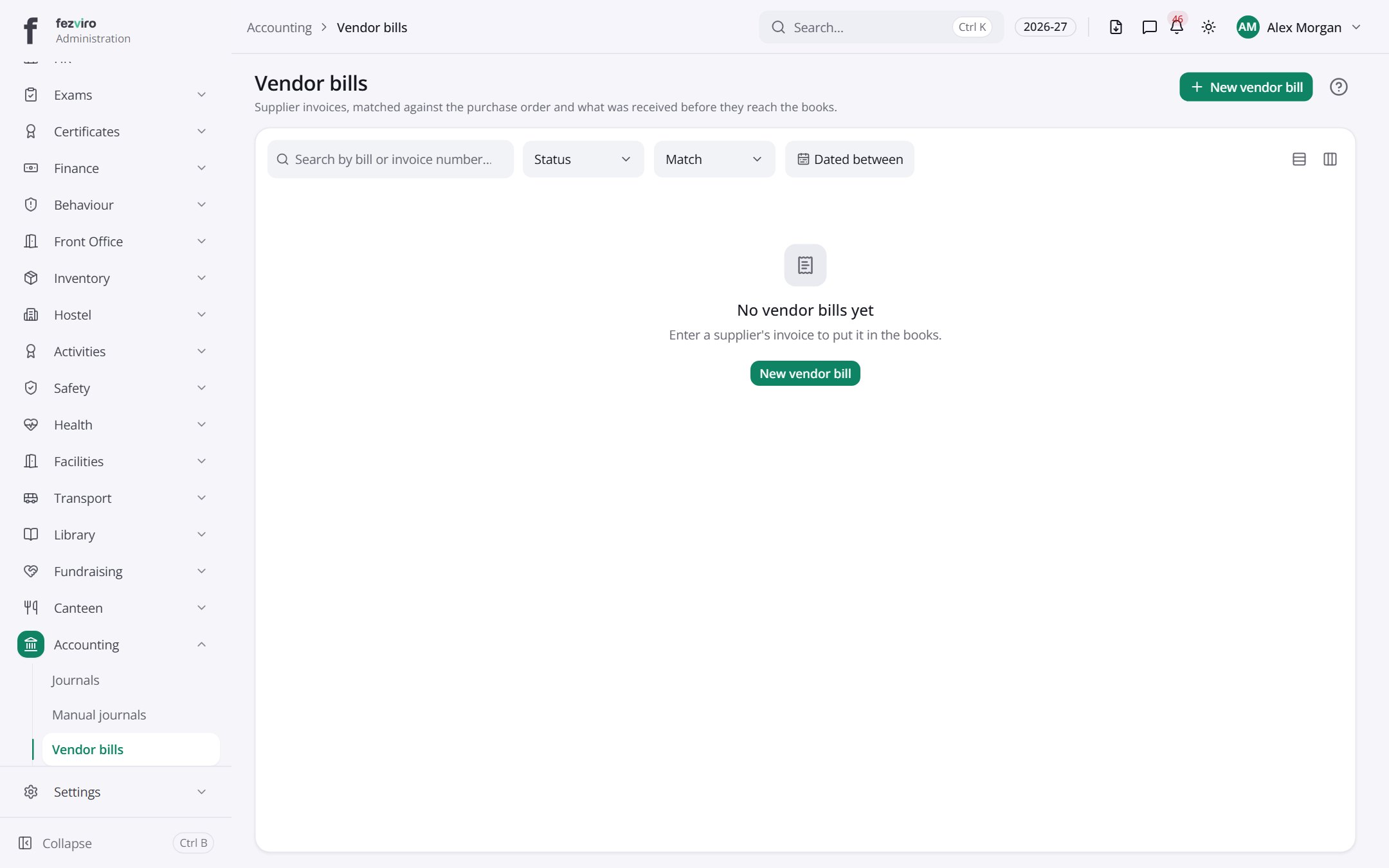
Buttons on this screen
Section titled “Buttons on this screen”- New vendor bill — opens a form to add a new one. See Filling in the form below.
Filling in the form
Section titled “Filling in the form”- Click the New vendor bill button at the top right.
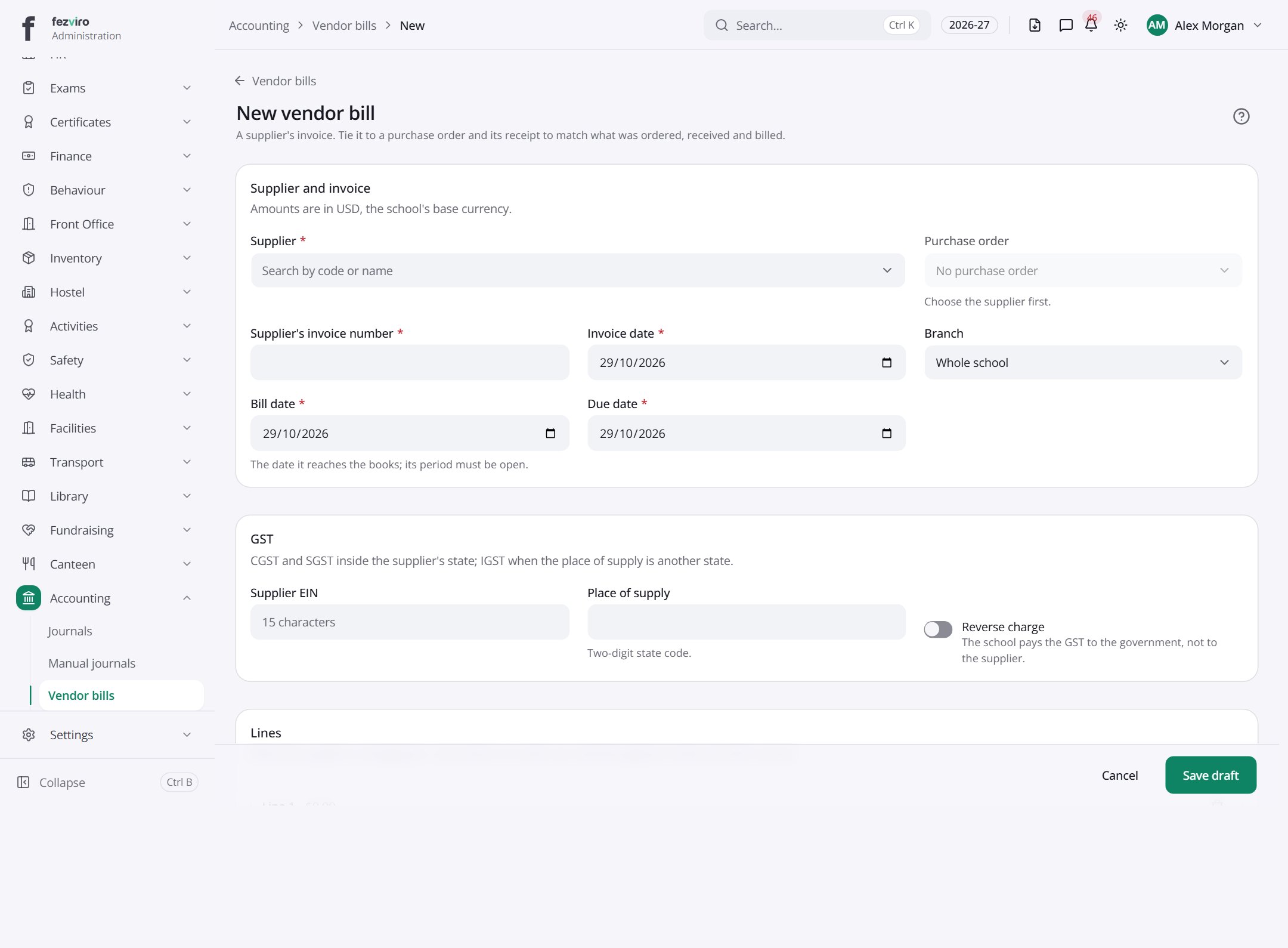
- Fill in the boxes. Boxes marked with a red * must be filled in (9 on this form).
- Click Save at the bottom. If something is missing, the box turns red and tells you what to fix.
The fields
Section titled “The fields”| Field | Type | What to enter, and why |
|---|---|---|
| Supplier * | choose | Pick the supplier who sent this bill. |
| Purchase order | choose | Pick the purchase order this bill matches, if there is one. |
| Supplier's invoice number * | text | The invoice number printed on the supplier's bill, exactly as written. |
| Invoice date * | date | The date printed on the supplier's bill. |
| Branch | choose | Pick the school branch this bill is for. |
| Bill date * | date | The date to record this bill under in the books. |
| Due date * | date | The date the school must pay this bill by. |
| Supplier EIN | text | |
| Place of supply | number | Pick the state where the goods or services were supplied. |
| Reverse charge | switch | Tick only if the school must pay the tax itself. Ask if unsure. |
| Description * | text | A short description of what the bill is for. |
| HSN/SAC | number | The official code for the item or service, from the tax list. |
| Quantity * | number | How many units were billed. |
| Unit price * | number | The price of one unit, before tax. |
| GST rate * | choose | Pick the tax rate that applies to this item. |
| Expense or asset account | choose | Pick the account this cost should go to in the books. |
| Cost centre | choose | Pick the department or cost centre that should carry this cost. |
| Notes | long text | Any extra detail about this bill. Optional. |
Types: text — type it in · number — digits only · date — click and pick from the calendar · choose — click and pick one from the list · pick one — click one of the options · switch / tick box — click to turn on or off · long text — type as much as you need · file — click to attach a file from your computer.
← Back to Accounting overview