

New concerns
What it is
Worries staff raise about a child's welfare.
Why it matters
Makes sure every concern is recorded and reaches the lead quickly.
When to use it
Any staff member logs a concern; the safeguarding lead reviews it.
Who uses it
Administrator
How to get here
Section titled “How to get here”- Sign in as Administrator (see Signing in).
- In the left menu, click Safety to open it.
- Click New concerns.
What you see
Section titled “What you see”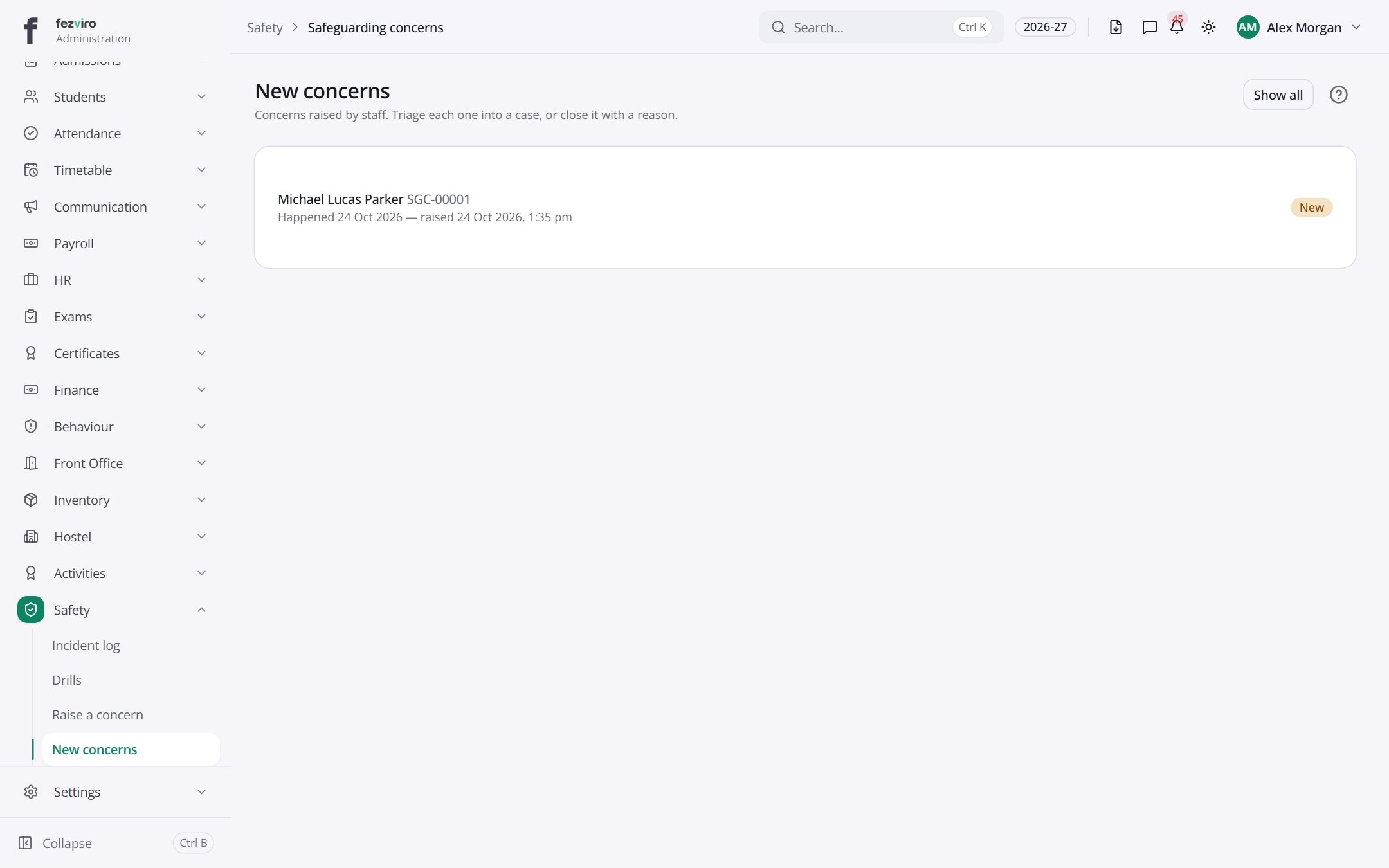
Buttons on this screen
Section titled “Buttons on this screen”- Show all — does what it says on the button.
Filling in the form
Section titled “Filling in the form”- Click the New button at the top right.
- Fill in the boxes. Boxes marked with a red * must be filled in (2 on this form).
- Click Save at the bottom. If something is missing, the box turns red and tells you what to fix.
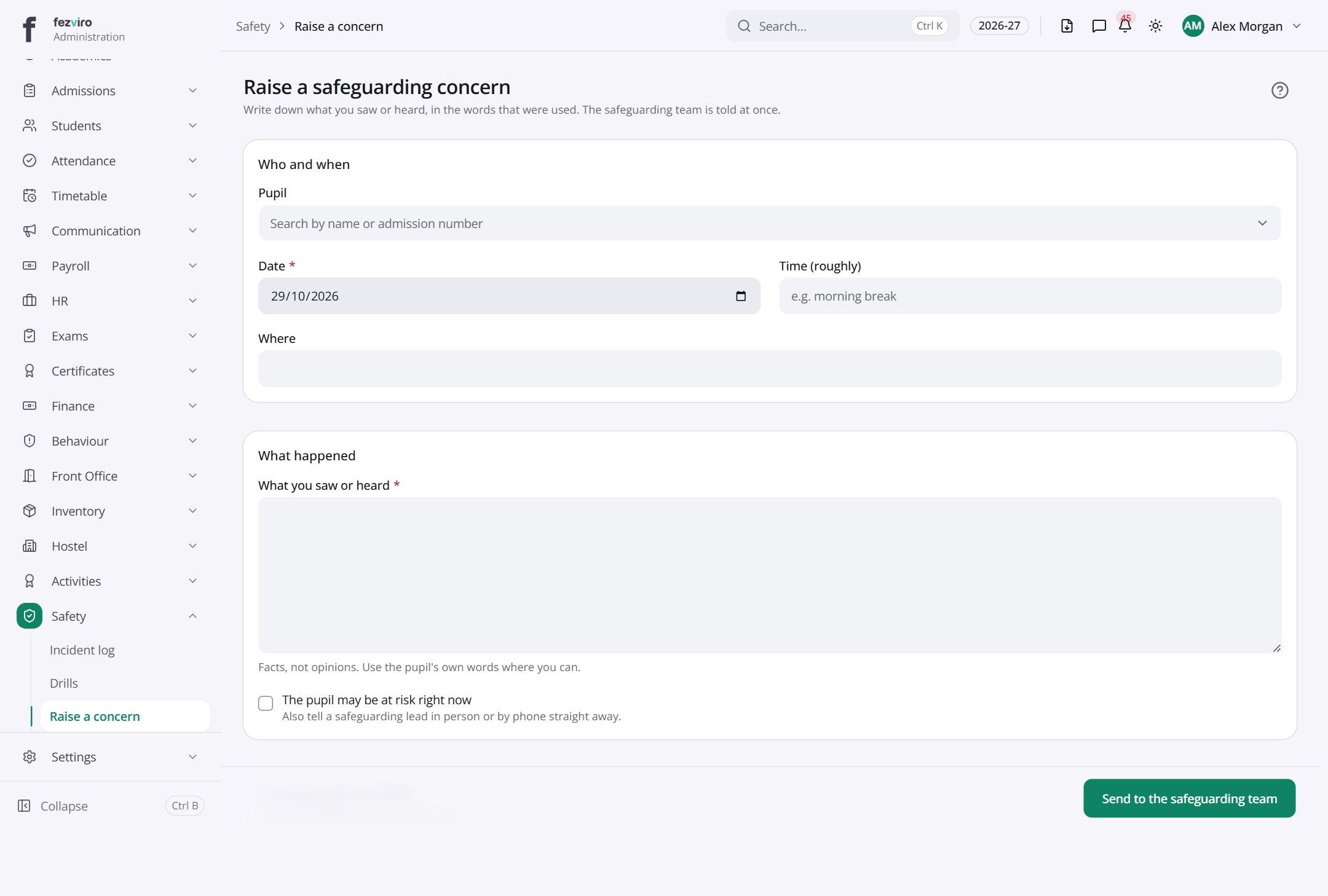
The fields
Section titled “The fields”| Field | Type | What to enter, and why |
|---|---|---|
| Pupil | choose | Pick the pupil you are worried about. |
| Date * | date | The day you saw or heard the concern. |
| Time (roughly) | text | About what time it was. A rough time is fine. |
| Where | text | The place it happened, such as the playground. |
| What you saw or heard * | long text | Write the facts in the words used. Leave out your opinions. |
| The pupil may be at risk right now | tick box | Turn on if the pupil may be in danger now. Tell a lead now. |
| Who | choose | Pick the other person involved in the concern, if known. |
| Describe them | text | If the person is not known, describe them as clearly as you can. |
Types: text — type it in · number — digits only · date — click and pick from the calendar · choose — click and pick one from the list · pick one — click one of the options · switch / tick box — click to turn on or off · long text — type as much as you need · file — click to attach a file from your computer.
← Back to Safety & Safeguarding overview