

Bookable resources
What it is
The halls, grounds and equipment the school lets people book.
Why it matters
Keeps one list of everything that can be reserved.
When to use it
Administrators add and update items; staff use them when booking.
Who uses it
Administrator
How to get here
Section titled “How to get here”- Sign in as Administrator (see Signing in).
- In the left menu, click Facilities to open it.
- Click Bookable resources.
What you see
Section titled “What you see”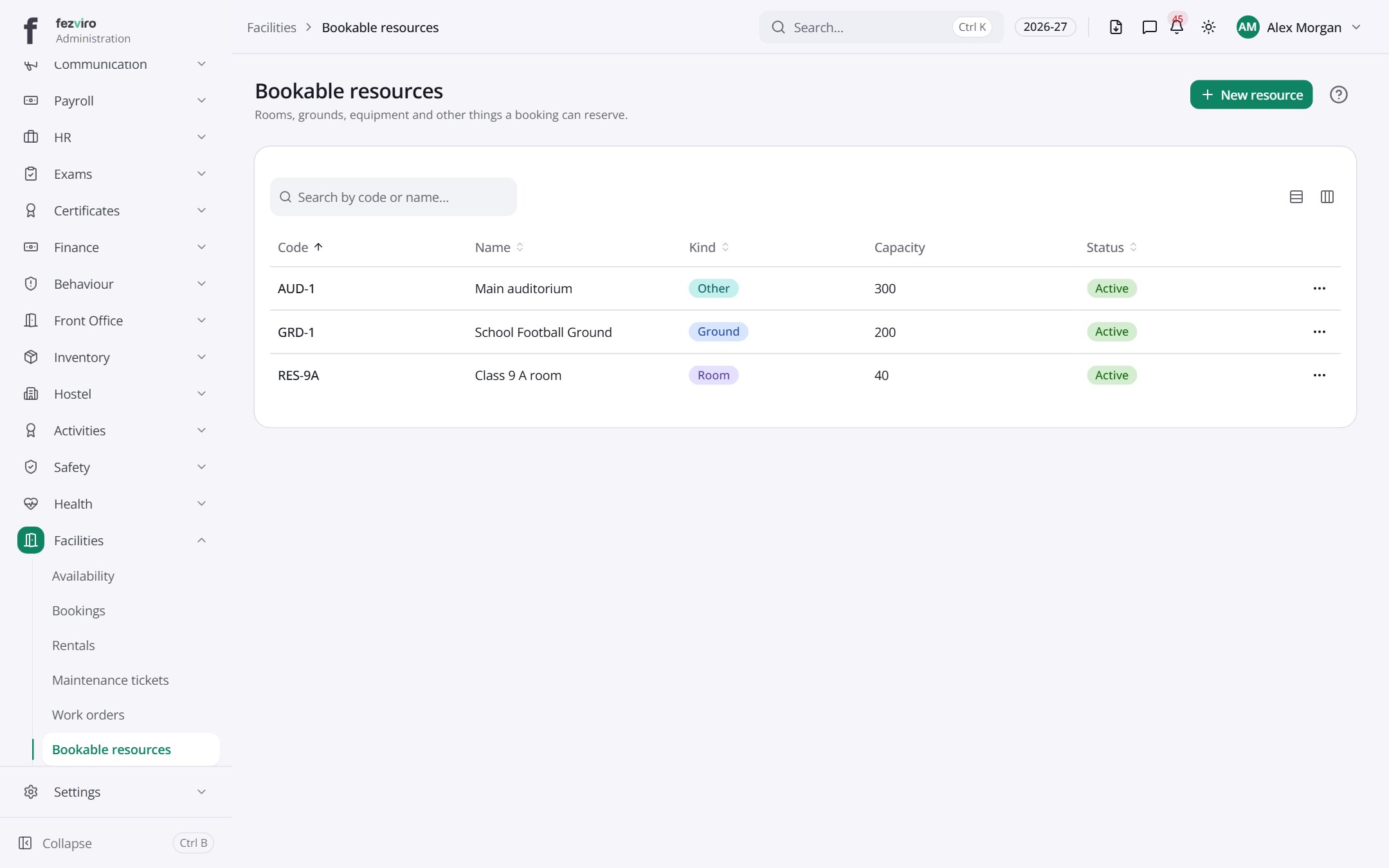
- The list has these columns: Code, Name, Kind, Capacity, Status, Actions. Click a column name to sort by it.
Buttons on this screen
Section titled “Buttons on this screen”- New resource — opens a form to add a new one. See Filling in the form below.
Filling in the form
Section titled “Filling in the form”- Click the New resource button at the top right.
- Fill in the boxes. Boxes marked with a red * must be filled in (2 on this form).
- Click Save at the bottom. If something is missing, the box turns red and tells you what to fix.
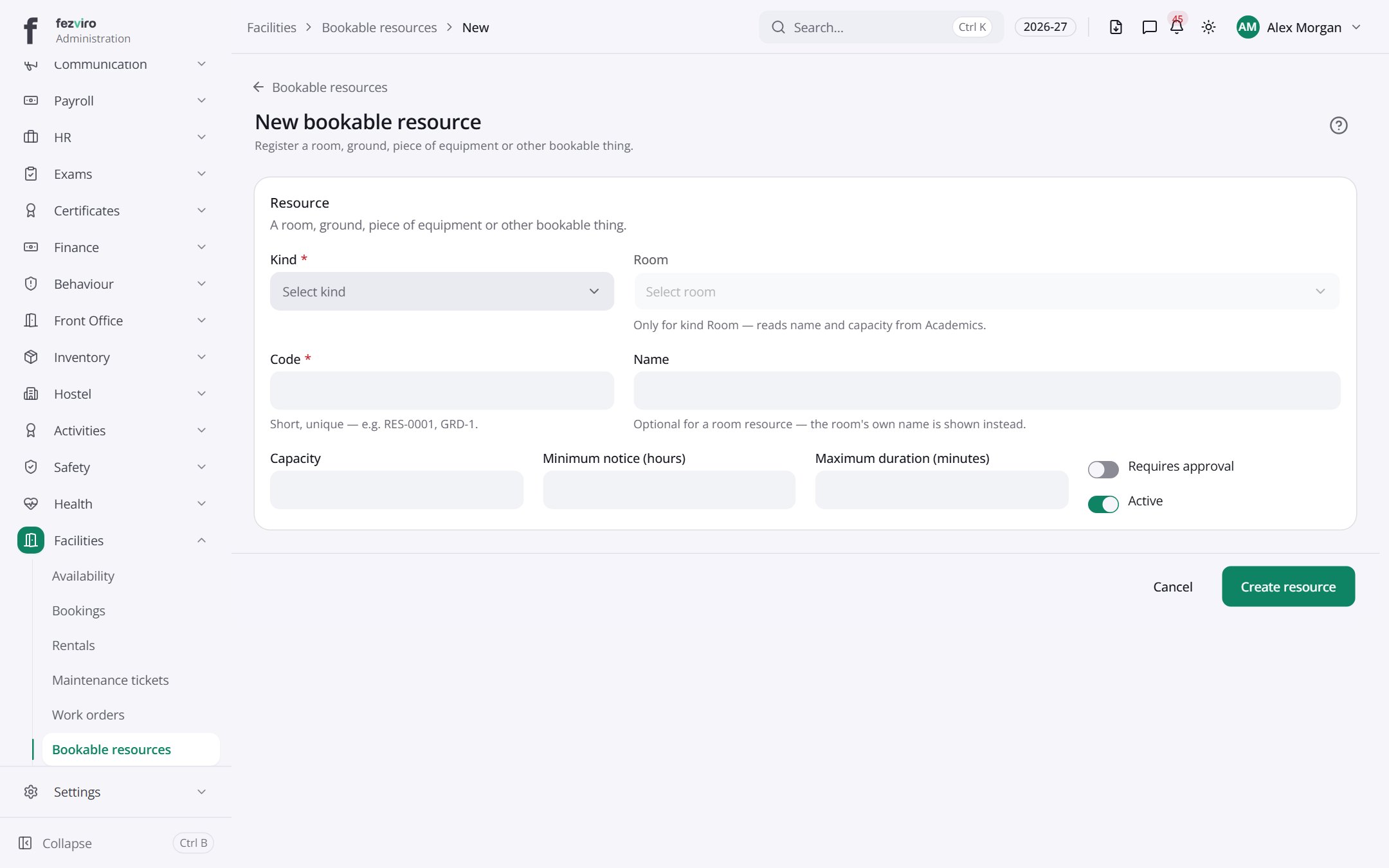
The fields
Section titled “The fields”| Field | Type | What to enter, and why |
|---|---|---|
| Kind * | choose | Choose what is being booked, such as a room, ground or equipment. |
| Room | choose | Only for a room resource. Pick the room from the school list. |
| Code * | text | A short code unique to this item, such as GRD-1. |
| Name | text | Optional for a room. Otherwise, the name people will see. |
| Capacity | number | How many people or items it can hold or support. |
| Minimum notice (hours) | number | How many hours ahead a booking must be made. |
| Maximum duration (minutes) | number | The longest time one booking can last, in minutes. |
| Requires approval | switch | Turn on so bookings must be approved before they are final. |
| Active | switch | Turn on to let people book this. Turn off to hide it. |
Types: text — type it in · number — digits only · date — click and pick from the calendar · choose — click and pick one from the list · pick one — click one of the options · switch / tick box — click to turn on or off · long text — type as much as you need · file — click to attach a file from your computer.
← Back to Facilities overview