

Test papers
What it is
Test papers built from the question bank, with settings for each sitting.
Why it matters
Creates fair tests quickly and in the same format each time.
When to use it
Teachers build, preview and publish papers for their classes.
Who uses it
Administrator
How to get here
Section titled “How to get here”- Sign in as Administrator (see Signing in).
- In the left menu, click Online Learning to open it.
- Click Test papers.
What you see
Section titled “What you see”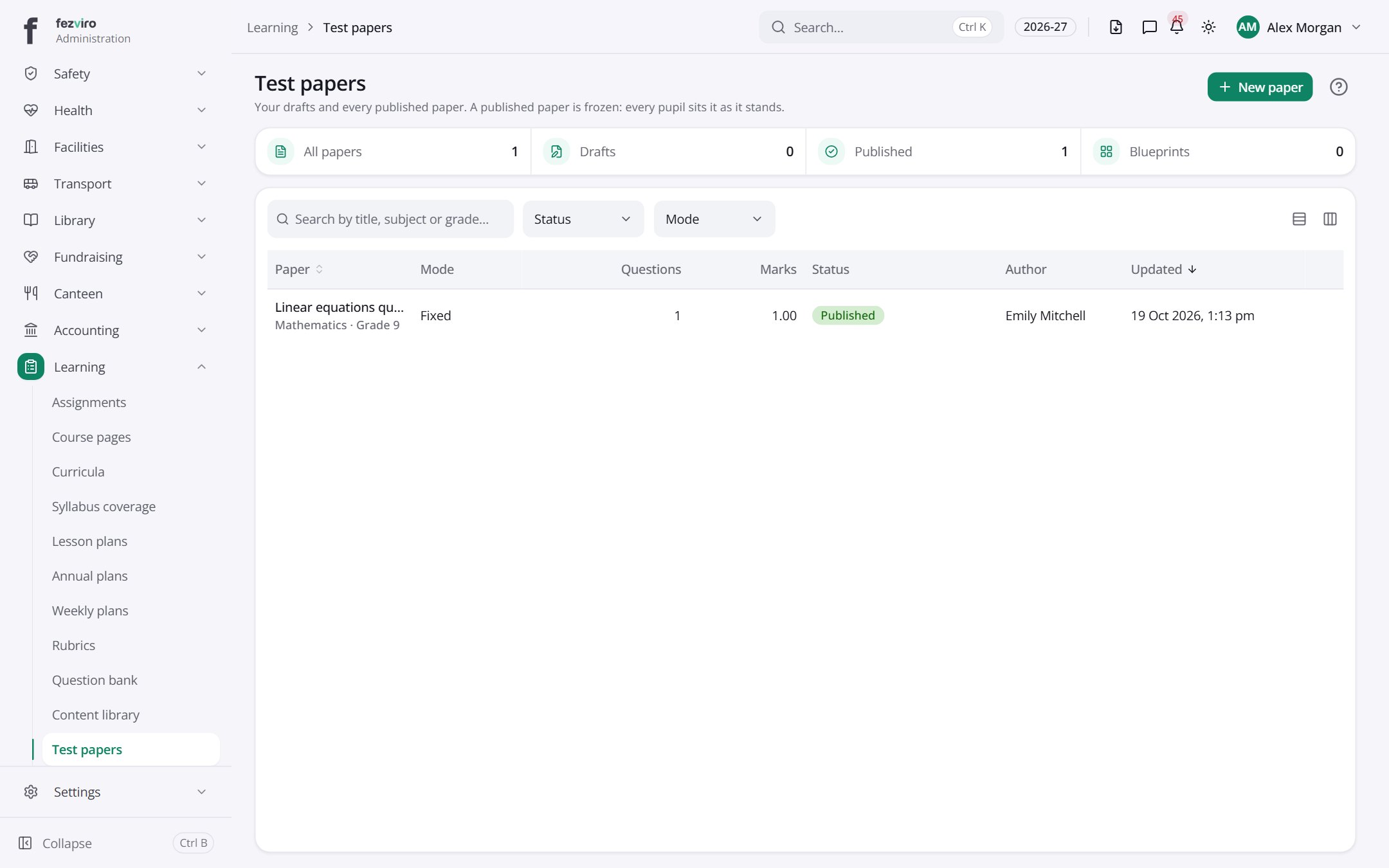
- The list has these columns: Paper, Mode, Questions, Marks, Status, Author, Updated, Actions. Click a column name to sort by it.
Buttons on this screen
Section titled “Buttons on this screen”- New paper — opens a form to add a new one. See Filling in the form below.
Filling in the form
Section titled “Filling in the form”- Click the New paper button at the top right.
- Fill in the boxes. Boxes marked with a red * must be filled in (1 on this form).
- Click Save at the bottom. If something is missing, the box turns red and tells you what to fix.
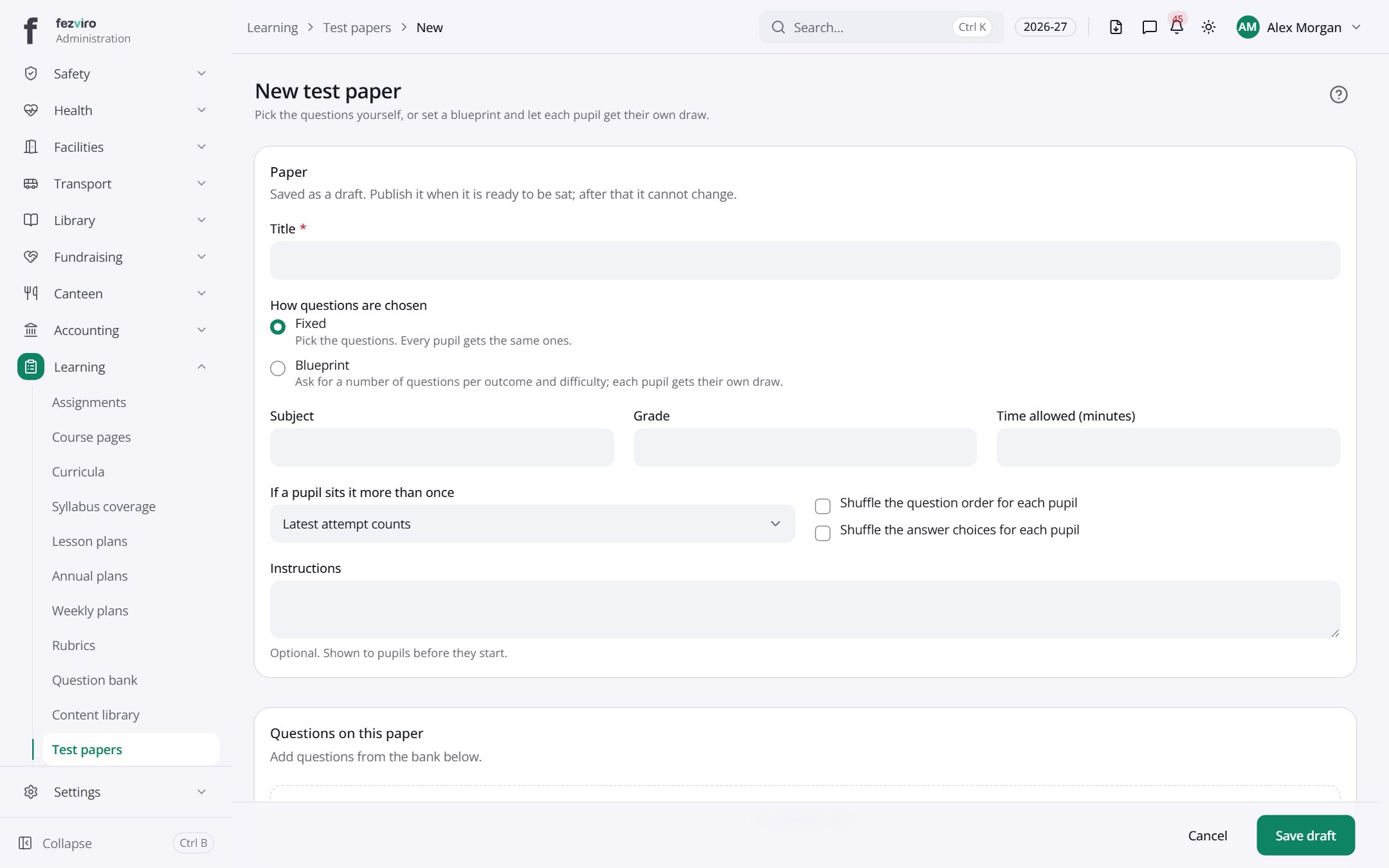
The fields
Section titled “The fields”| Field | Type | What to enter, and why |
|---|---|---|
| Title * | text | A clear name for the paper, such as Term 2 Maths Test. |
| How questions are chosen | choose | Fixed gives everyone the same questions. Blueprint picks them at random. |
| Subject | text | The subject this paper covers. |
| Grade | text | The grade this paper is for. |
| Time allowed (minutes) | number | How many minutes pupils have to finish the paper. |
| If a pupil sits it more than once | choose | Choose which attempt counts for marks if a pupil sits it again. |
| Shuffle the question order for each pupil | tick box | Turn on so each pupil sees the questions in a different order. |
| Shuffle the answer choices for each pupil | tick box | Turn on so answer options come in a different order for each pupil. |
| Instructions | long text | Optional. Shown to pupils before they start the paper. |
Types: text — type it in · number — digits only · date — click and pick from the calendar · choose — click and pick one from the list · pick one — click one of the options · switch / tick box — click to turn on or off · long text — type as much as you need · file — click to attach a file from your computer.
← Back to Online Learning overview