

Scholarships
What it is
Named programmes that cover part of students' fees.
Why it matters
Makes support for students clear, fair and easy to track.
When to use it
Finance staff set each programme's limits; awards then apply to eligible bills.
Who uses it
Administrator
How to get here
Section titled “How to get here”- Sign in as Administrator (see Signing in).
- In the left menu, click Fees to open it.
- Click Scholarships.
What you see
Section titled “What you see”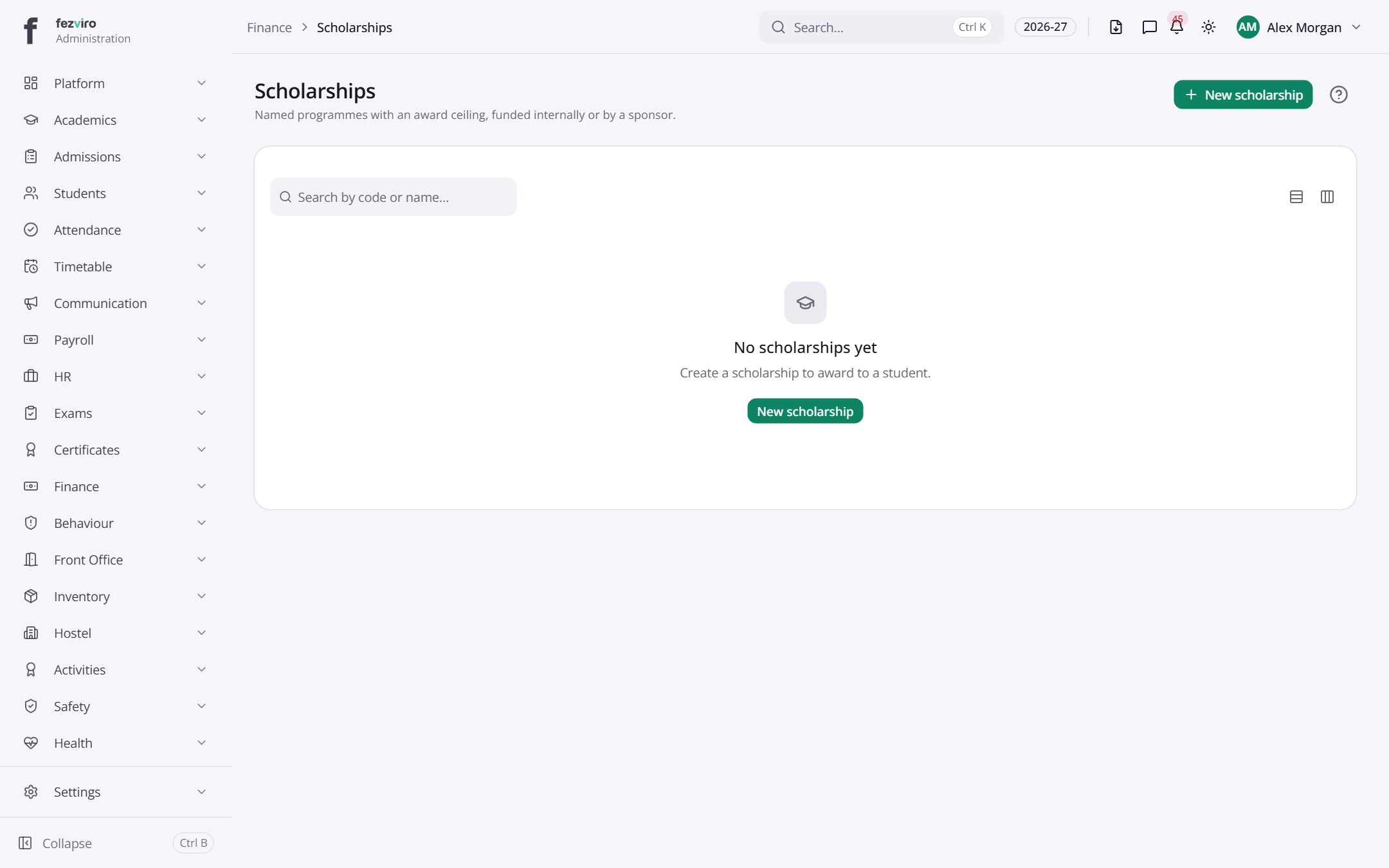
Buttons on this screen
Section titled “Buttons on this screen”- New scholarship — opens a form to add a new one. See Filling in the form below.
Filling in the form
Section titled “Filling in the form”- Click the New scholarship button at the top right.
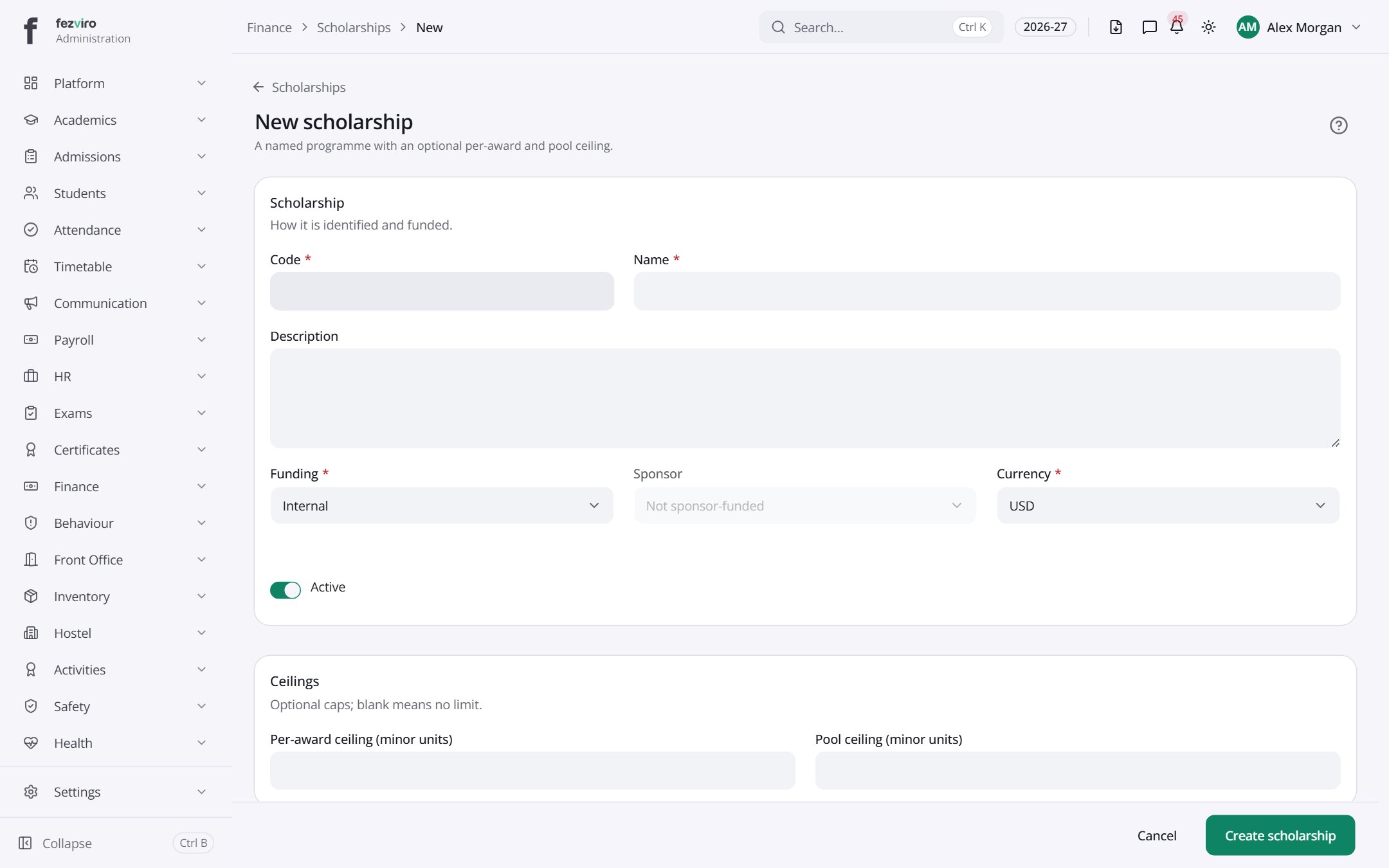
- Fill in the boxes. Boxes marked with a red * must be filled in (4 on this form).
- Click Save at the bottom. If something is missing, the box turns red and tells you what to fix.
The fields
Section titled “The fields”| Field | Type | What to enter, and why |
|---|---|---|
| Code * | text | A short code for this scholarship, such as MERIT-25. Must be unique. |
| Name * | text | The scholarship's name, such as Merit award. |
| Description | long text | A short note on who qualifies. Optional. |
| Funding * | choose | Pick where the money comes from, such as the school or a sponsor. |
| Sponsor | choose | Pick the sponsor paying for this scholarship, if there is one. |
| Currency * | choose | Pick the currency the scholarship is paid in. |
| Active | switch | Tick to offer this scholarship. Untick to pause it. |
| Per-award ceiling (minor units) | number | The most one student can receive, in the smallest money unit. |
| Pool ceiling (minor units) | number | The most all students together can receive, in the smallest money unit. |
Types: text — type it in · number — digits only · date — click and pick from the calendar · choose — click and pick one from the list · pick one — click one of the options · switch / tick box — click to turn on or off · long text — type as much as you need · file — click to attach a file from your computer.
← Back to Fees & Finance overview