

Call sources
What it is
The ways callers first reach the school, such as a website or a referral.
Why it matters
Shows where enquiries come from so the school can plan its outreach.
When to use it
Office staff keep this list tidy so every call gets a clear source.
Who uses it
Administrator
How to get here
Section titled “How to get here”- Sign in as Administrator (see Signing in).
- In the left menu, click Front Office to open it.
- Click Call sources.
What you see
Section titled “What you see”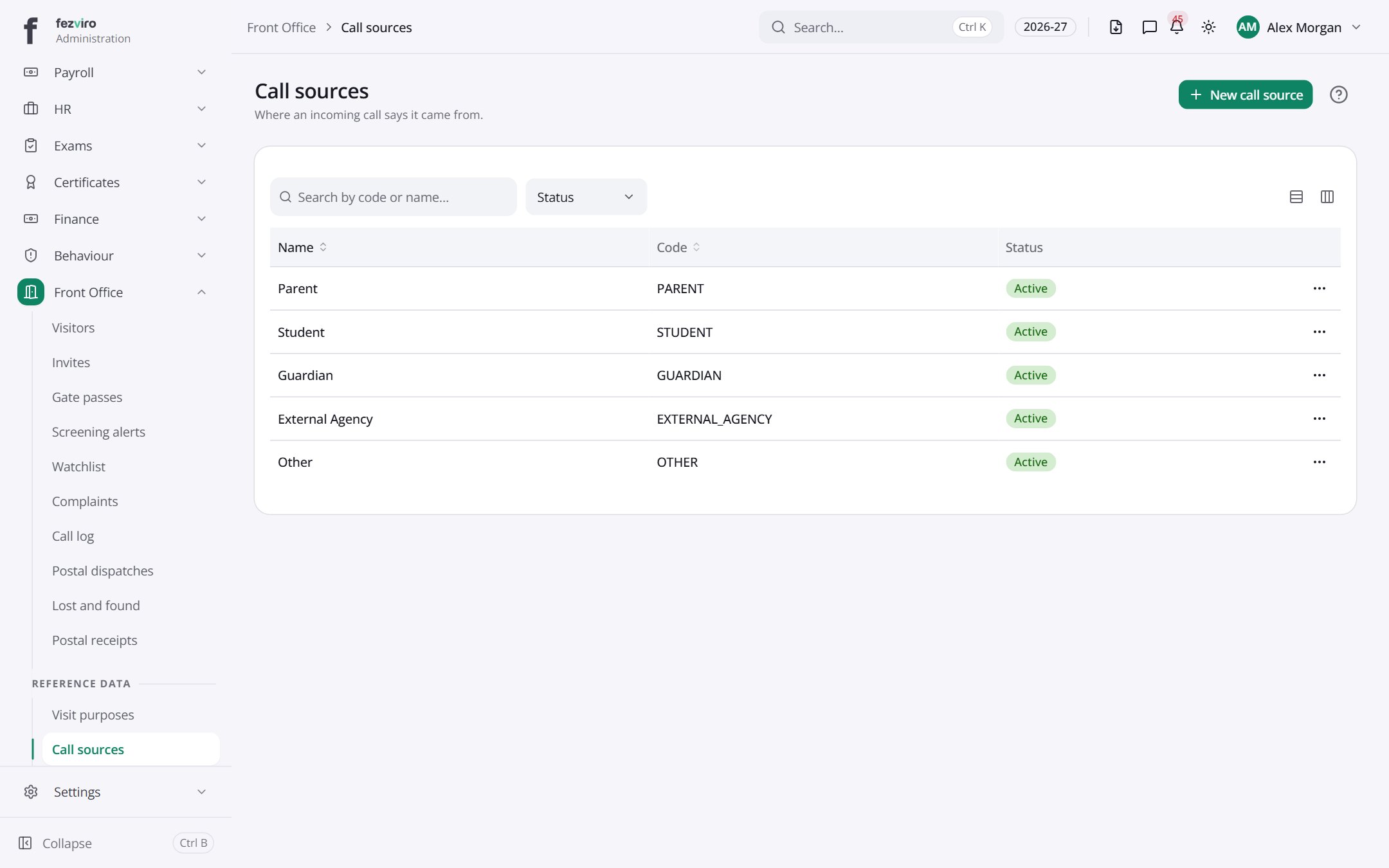
- The list has these columns: Name, Code, Status, Actions. Click a column name to sort by it.
Buttons on this screen
Section titled “Buttons on this screen”- New call source — opens a form to add a new one. See Filling in the form below.
Filling in the form
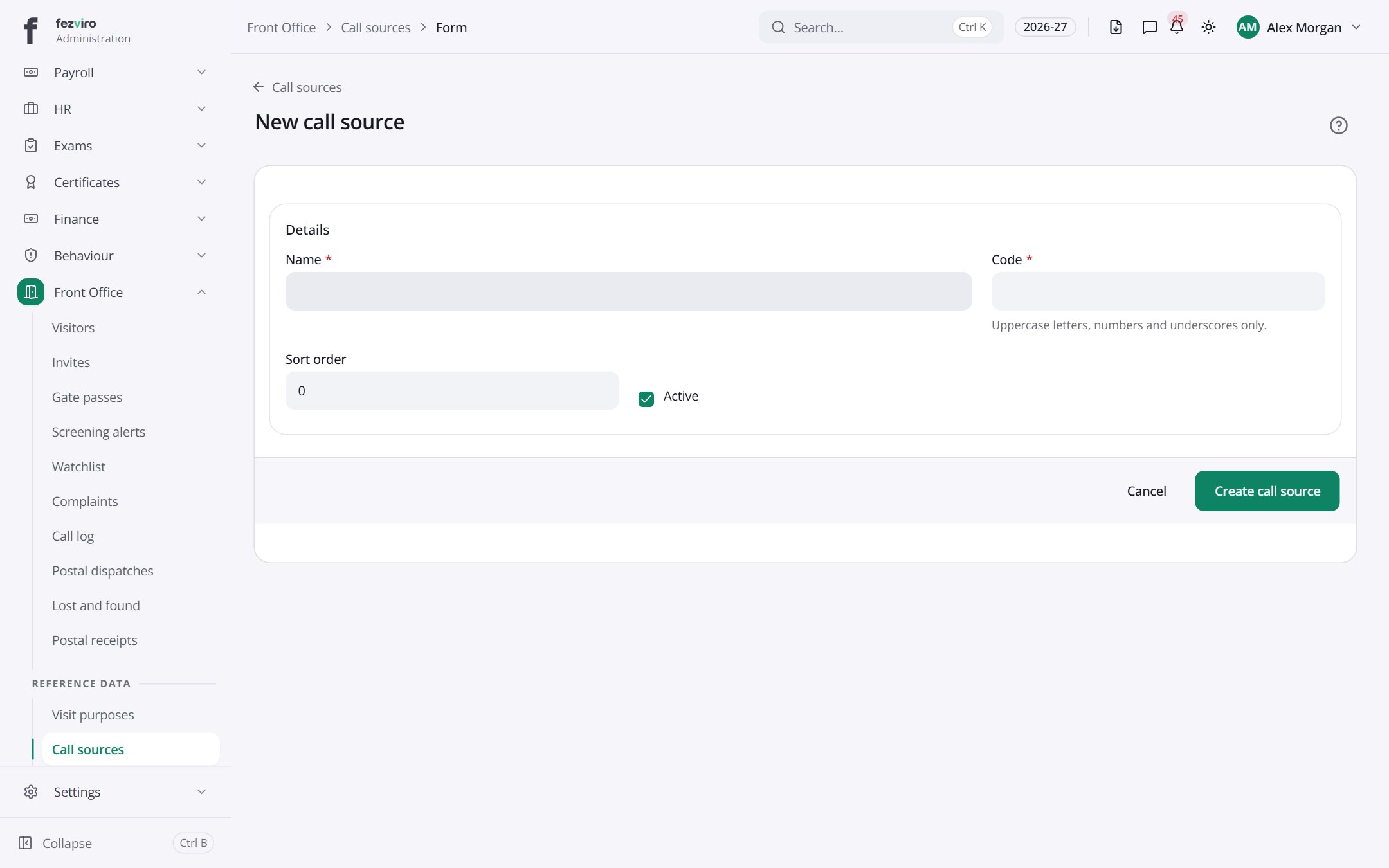
Section titled “Filling in the form”- Click the New call source button at the top right.
- Fill in the boxes. Boxes marked with a red * must be filled in (2 on this form).
- Click Save at the bottom. If something is missing, the box turns red and tells you what to fix.
The fields
Section titled “The fields”| Field | Type | What to enter, and why |
|---|---|---|
| Name * | text | The name staff will pick, such as Website or Walk-in. |
| Code * | text | Capital letters, numbers and underscores only, such as WEBSITE. |
| Sort order | number | A number for the list order. Lower numbers appear first. |
| Active | tick box | Turn on to show this choice in the list. Turn off to hide it. |
Types: text — type it in · number — digits only · date — click and pick from the calendar · choose — click and pick one from the list · pick one — click one of the options · switch / tick box — click to turn on or off · long text — type as much as you need · file — click to attach a file from your computer.
← Back to Front Office overview