

Watchlist
What it is
A list of people the school must be alerted about when they arrive.
Why it matters
Helps protect students by flagging people who should not collect them.
When to use it
Administrators add or switch off entries; the desk sees alerts at the gate.
Who uses it
Administrator
How to get here
Section titled “How to get here”- Sign in as Administrator (see Signing in).
- In the left menu, click Front Office to open it.
- Click Watchlist.
What you see
Section titled “What you see”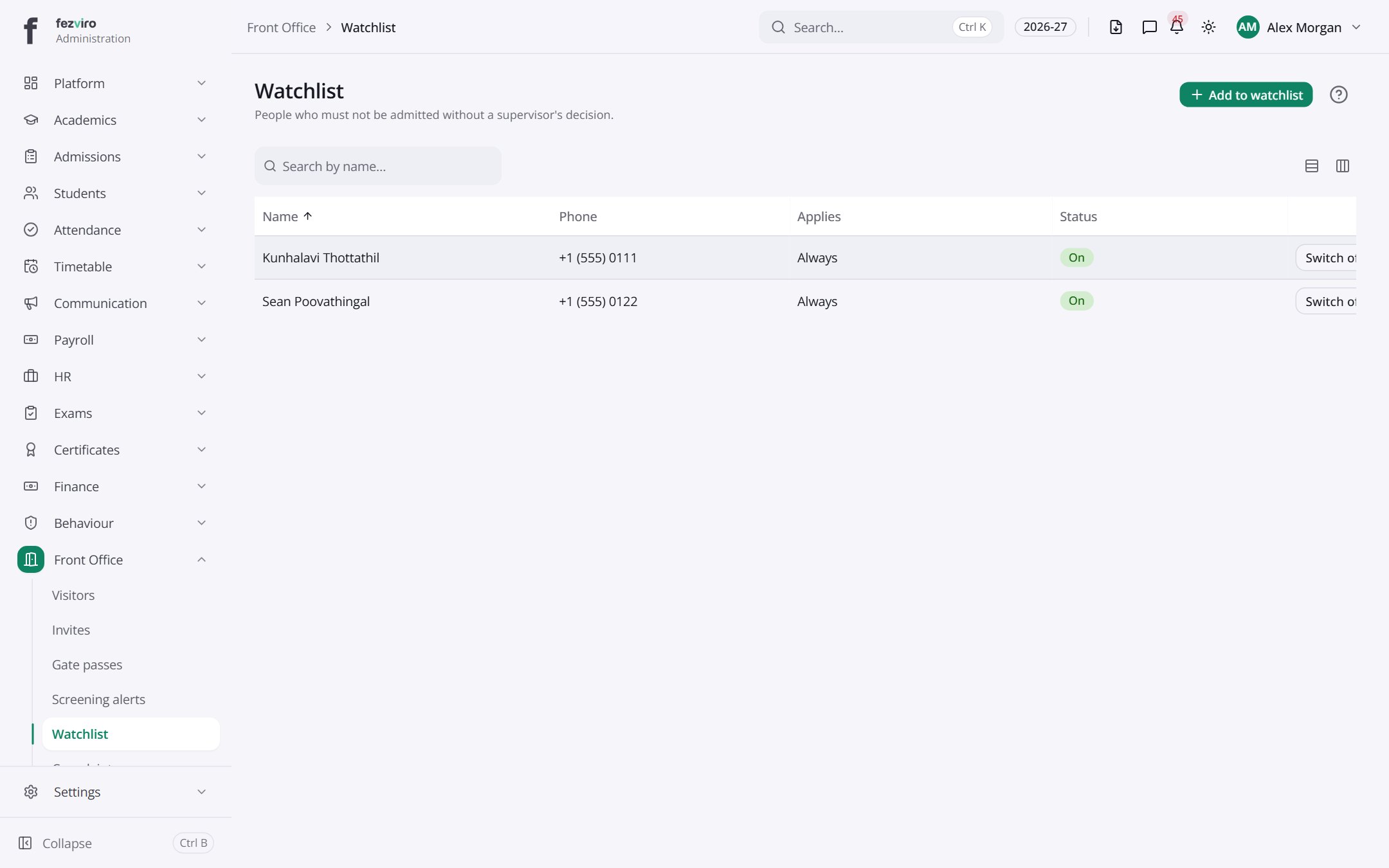
- The list has these columns: Name, Phone, Applies, Status, Actions. Click a column name to sort by it.
Buttons on this screen
Section titled “Buttons on this screen”- Add to watchlist — opens a form to add a new one. See Filling in the form below.
Filling in the form
Section titled “Filling in the form”- Click the Add to watchlist button at the top right.
- Fill in the boxes. Boxes marked with a red * must be filled in (1 on this form).
- Click Save at the bottom. If something is missing, the box turns red and tells you what to fix.
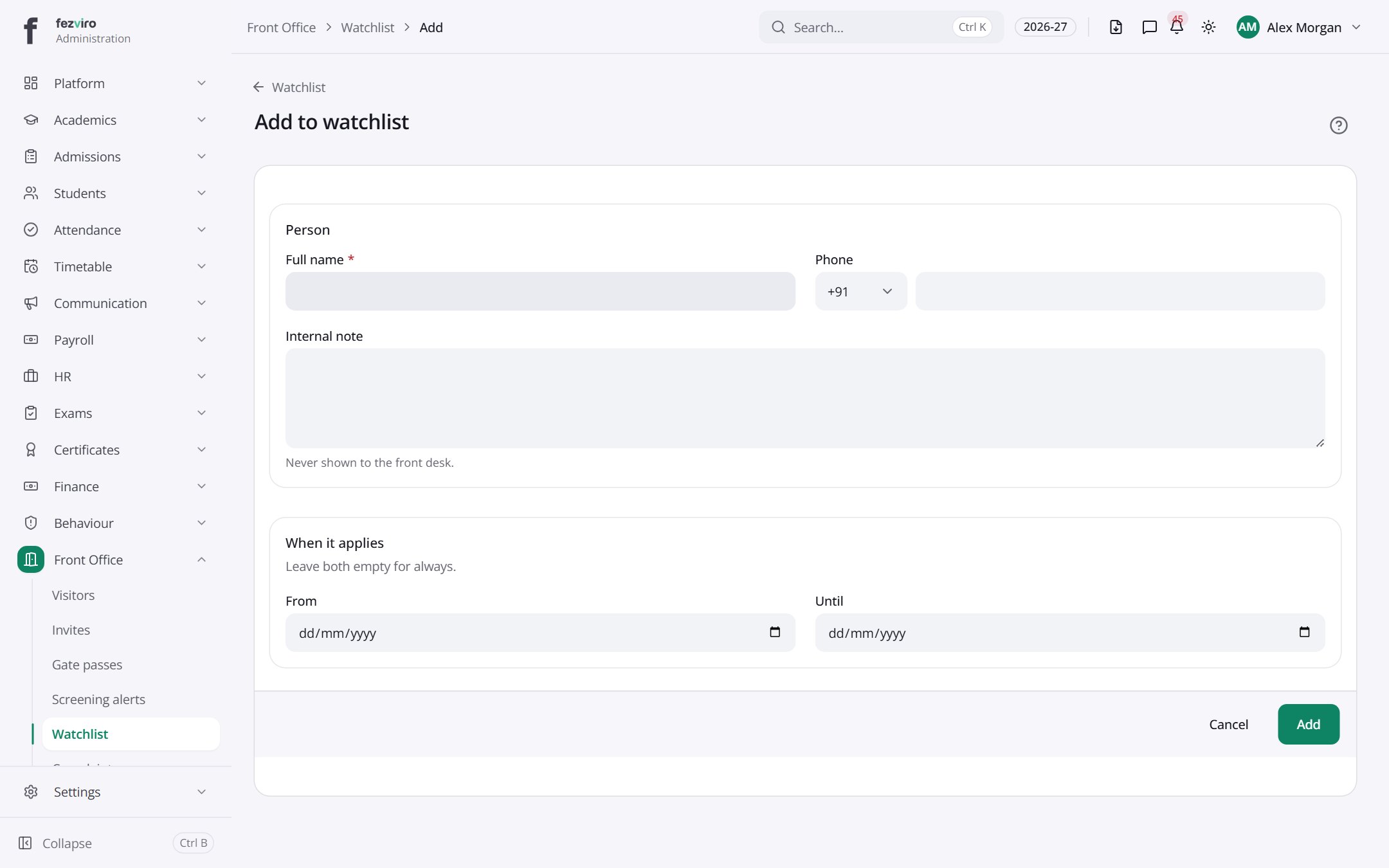
The fields
Section titled “The fields”| Field | Type | What to enter, and why |
|---|---|---|
| Full name * | text | The full name of the person to watch for. |
| Phone | phone | Their phone number, if known, to help the front desk spot them. |
| Internal note | long text | Why they are on the list. The front desk never sees this note. |
| From | date | The first day this entry applies. Leave both dates empty for always. |
| Until | date | The last day this entry applies. Leave both dates empty for always. |
Types: text — type it in · number — digits only · date — click and pick from the calendar · choose — click and pick one from the list · pick one — click one of the options · switch / tick box — click to turn on or off · long text — type as much as you need · file — click to attach a file from your computer.
← Back to Front Office overview