

Sub-processors
What it is
Every outside company that handles school data, with its agreement.
Why it matters
Shows families which companies hold their data, as the law requires.
When to use it
Privacy staff keep this list current when suppliers change.
Who uses it
Administrator
How to get here
Section titled “How to get here”- Sign in as Administrator (see Signing in).
- In the left menu, click Platform to open it.
- Click Settings.
What you see
Section titled “What you see”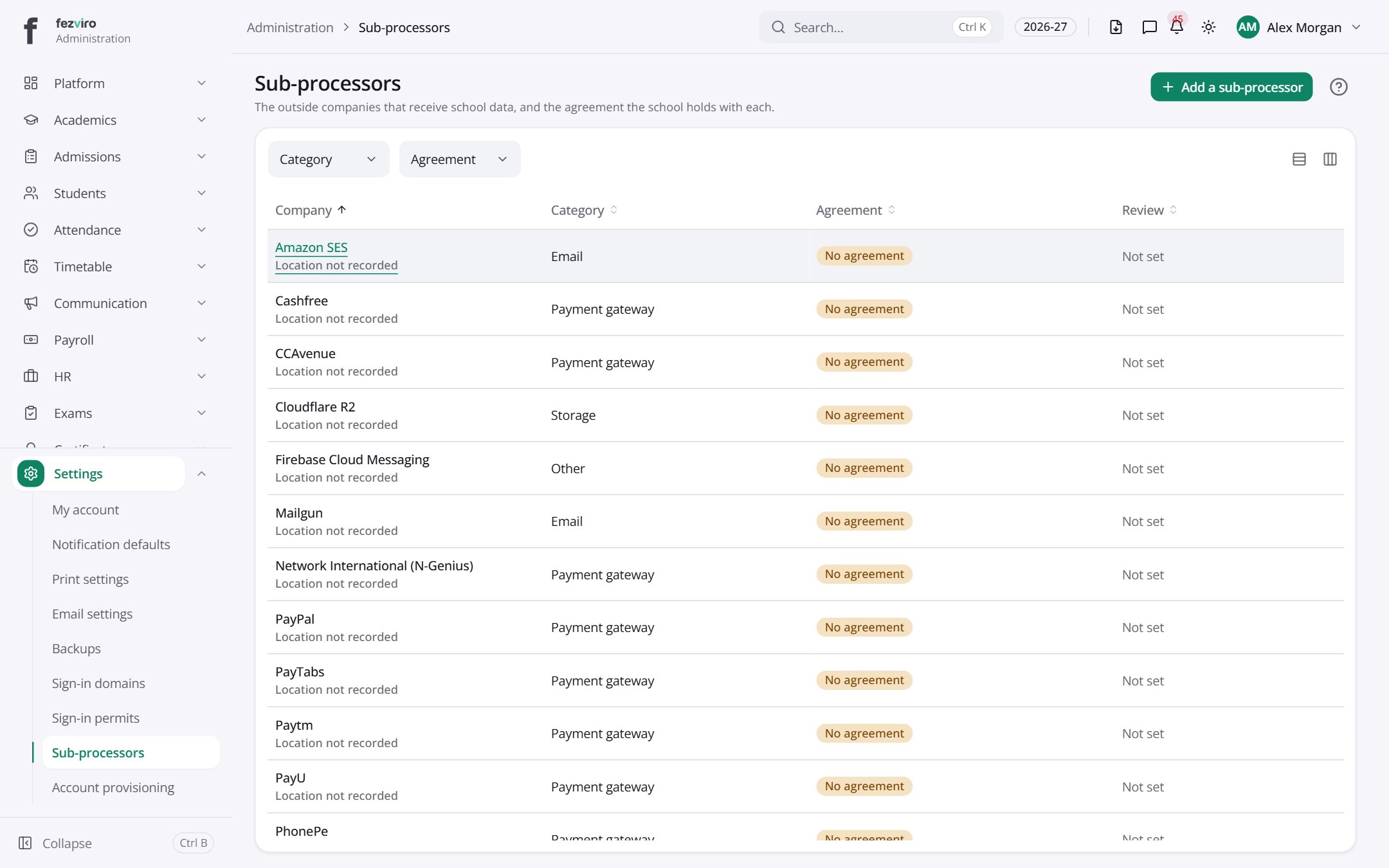
- The list has these columns: Company, Category, Agreement, Review. Click a column name to sort by it.
Buttons on this screen
Section titled “Buttons on this screen”- Add a sub-processor — opens a form to add a new one. See Filling in the form below.
Opening a record
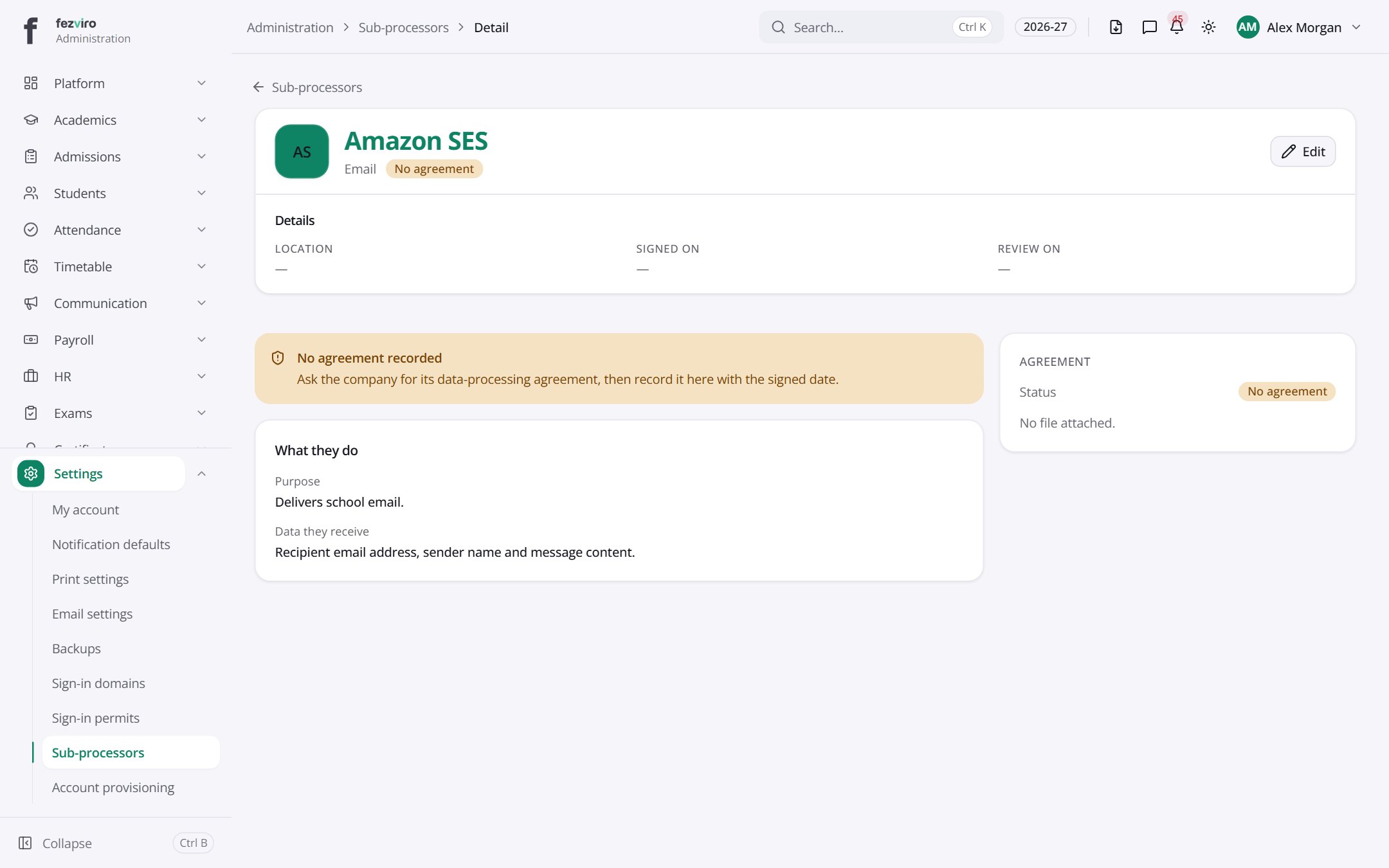
Section titled “Opening a record”Click any row in the list to see everything about it on one page.
Filling in the form
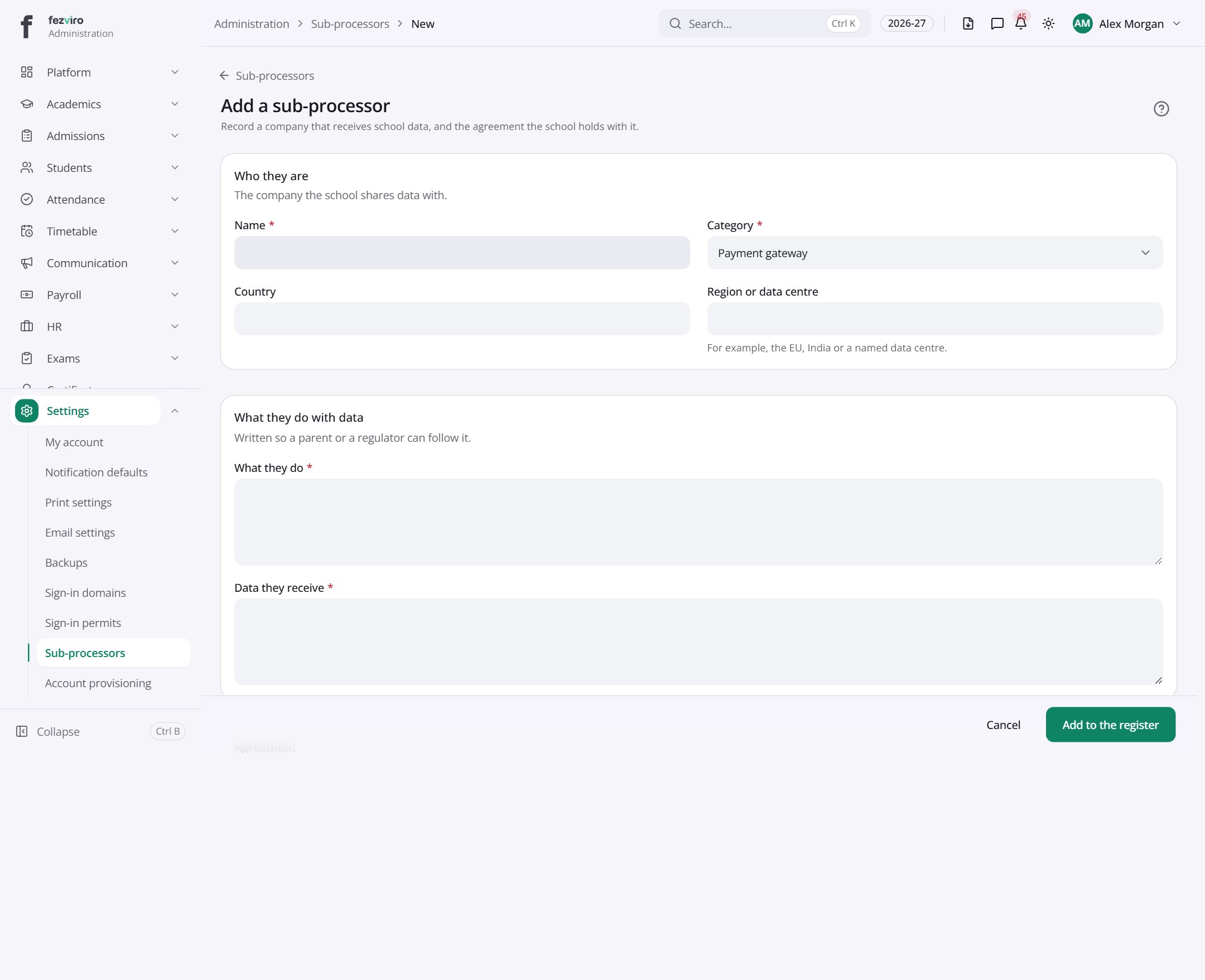
Section titled “Filling in the form”- Click the Add a sub-processor button at the top right.
- Fill in the boxes. Boxes marked with a red * must be filled in (5 on this form).
- Click Save at the bottom. If something is missing, the box turns red and tells you what to fix.
The fields
Section titled “The fields”| Field | Type | What to enter, and why |
|---|---|---|
| Name * | text | The name of the company that receives school data, such as a cloud provider. |
| Category * | choose | Choose what kind of company this is, from the list. |
| Country | text | Choose the country where the company is based. |
| Region or data centre | text | Optional. The place the data is stored, such as the EU or India. |
| What they do * | long text | A plain description of the service they provide, so parents can follow it. |
| Data they receive * | long text | The kinds of data this company receives, such as names and grades. |
| Agreement status * | choose | Choose whether the written agreement is signed, pending or missing. |
| Signed on | date | The date the agreement was signed. Required once signed. Pick from the calendar. |
| Review on | date | The date the office should check this entry again. Pick from the calendar. |
| Agreement file | file | Optional. Upload a copy of the signed agreement. |
Types: text — type it in · number — digits only · date — click and pick from the calendar · choose — click and pick one from the list · pick one — click one of the options · switch / tick box — click to turn on or off · long text — type as much as you need · file — click to attach a file from your computer.
← Back to Platform & Security overview