

Assignments
What it is
Homework and class tasks that teachers set and pupils hand in.
Why it matters
Keeps all homework in one place with clear due dates.
When to use it
Teachers set and mark work; pupils see what is due and submit it.
Who uses it
Administrator
How to get here
Section titled “How to get here”- Sign in as Administrator (see Signing in).
- In the left menu, click Online Learning to open it.
- Click Learning.
What you see
Section titled “What you see”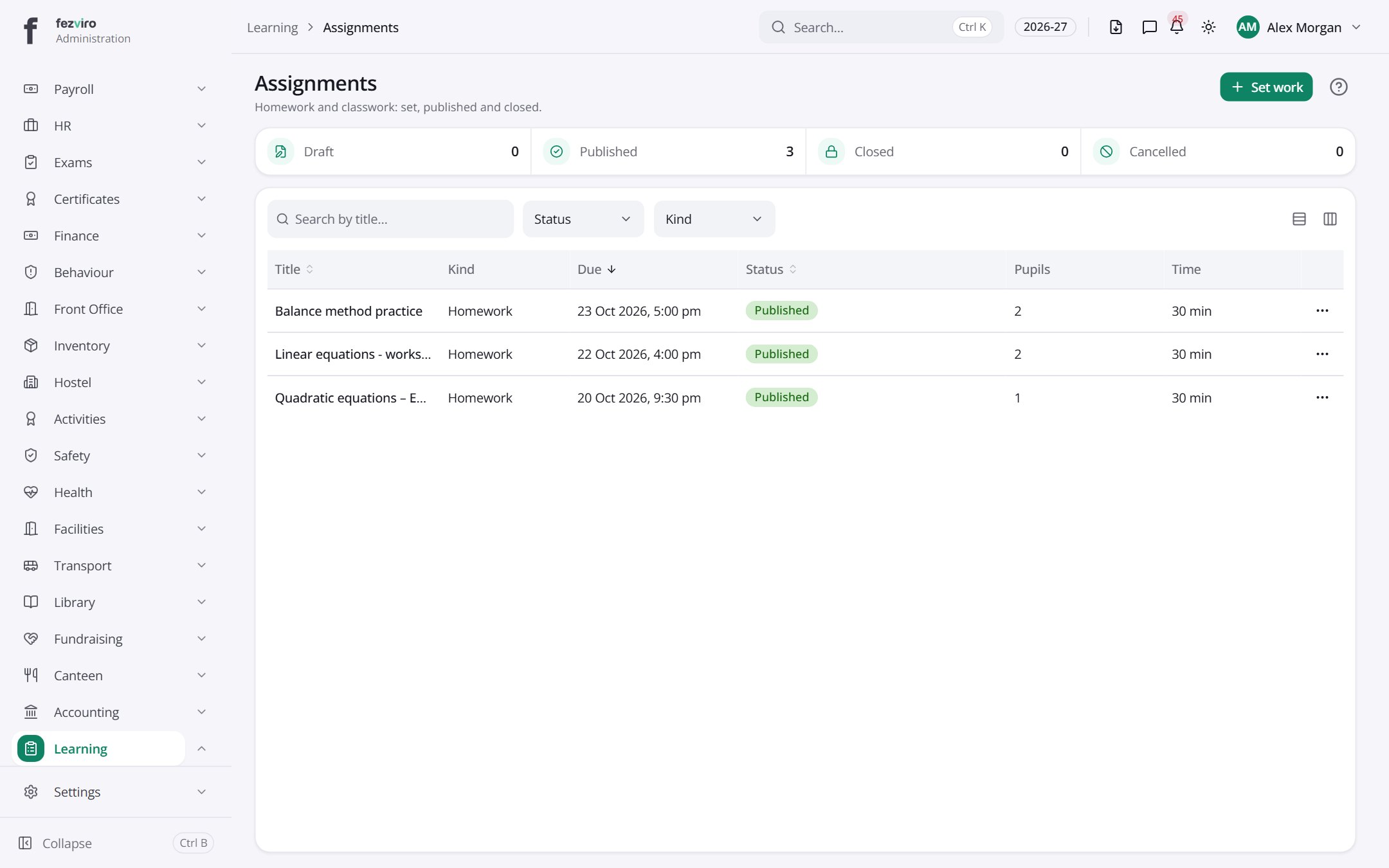
- The list has these columns: Title, Kind, Due, Status, Pupils, Time, Actions. Click a column name to sort by it.
Buttons on this screen
Section titled “Buttons on this screen”- Set work — does what it says on the button.
Filling in the form
Section titled “Filling in the form”- Click the New button at the top right.
- Fill in the boxes. Boxes marked with a red * must be filled in (9 on this form).
- Click Save at the bottom. If something is missing, the box turns red and tells you what to fix.
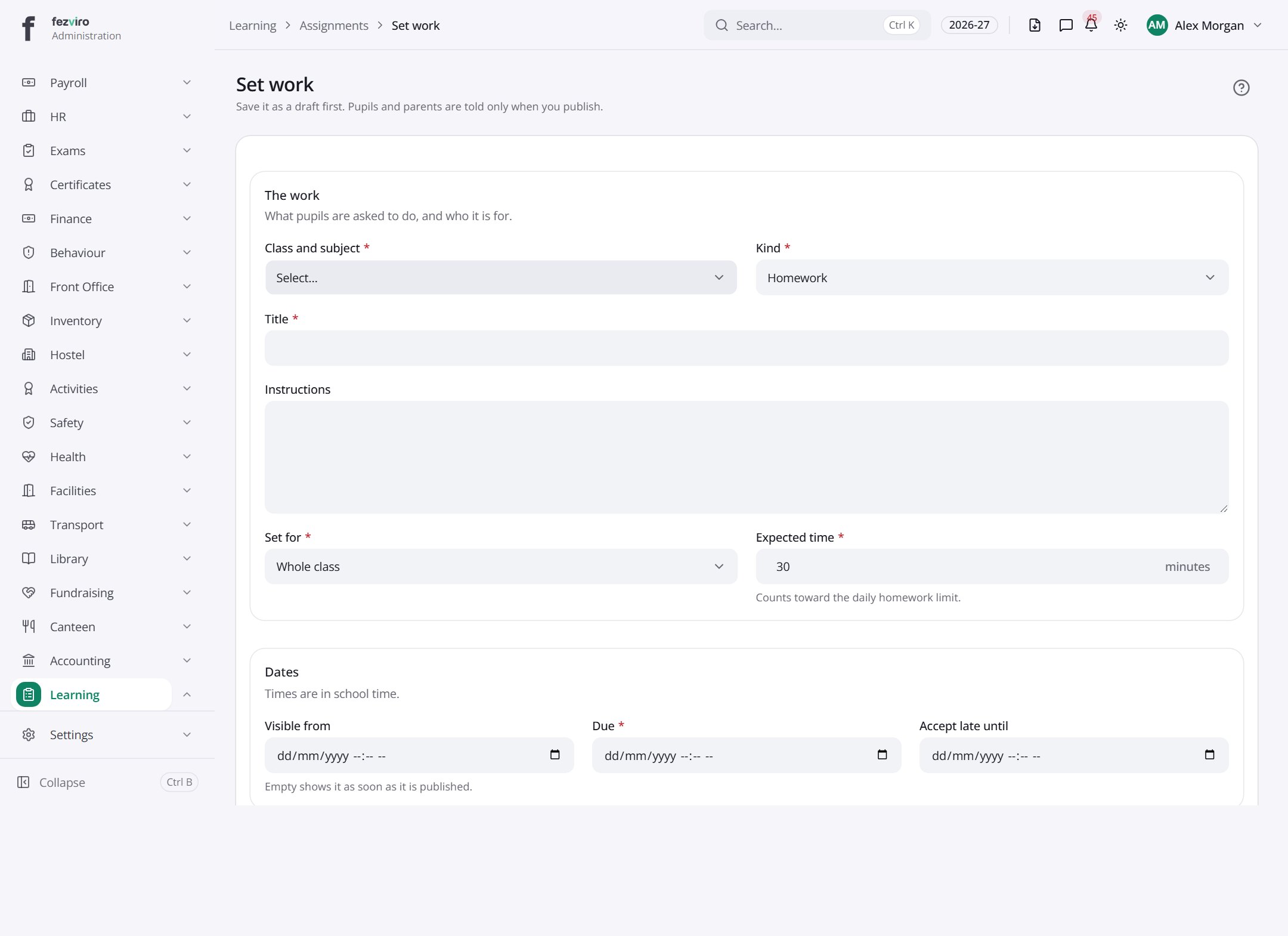
The fields
Section titled “The fields”| Field | Type | What to enter, and why |
|---|---|---|
| Class and subject * | choose | Pick the class and subject this work is for. |
| Kind * | choose | Choose the kind of work, such as homework or a project. |
| Title * | text | A short name for the work, such as Chapter 4 reading. |
| Instructions | long text | Explain clearly what pupils must do, step by step. |
| Set for * | choose | Choose whether it is set for a whole class or for chosen pupils. |
| Expected time * | number | About how many minutes the work takes. It counts toward the daily homework limit. |
| Visible from | text | The date and time pupils can first see the work. Empty means right away. |
| Due * | text | The date and time the work must be handed in. |
| Accept late until | text | The last date and time late work is still accepted. |
| Pupils hand in * | choose | Choose how pupils send their work back, such as online or on paper. |
| Marking * | choose | Choose a mark, a grade, or not marked. |
| Late penalty * | choose | Choose how late work is penalized, such as a set amount per day. |
Types: text — type it in · number — digits only · date — click and pick from the calendar · choose — click and pick one from the list · pick one — click one of the options · switch / tick box — click to turn on or off · long text — type as much as you need · file — click to attach a file from your computer.
← Back to Online Learning overview