

Students
What it is
The full list of pupils, with search, filters and their details.
Why it matters
Gives one trusted record for every pupil and family link.
When to use it
Office staff add, update and find pupils; some staff see only their own.
Who uses it
Administrator
How to get here
Section titled “How to get here”- Sign in as Administrator (see Signing in).
- In the left menu, click Students to open it.
- Click Students.
What you see
Section titled “What you see”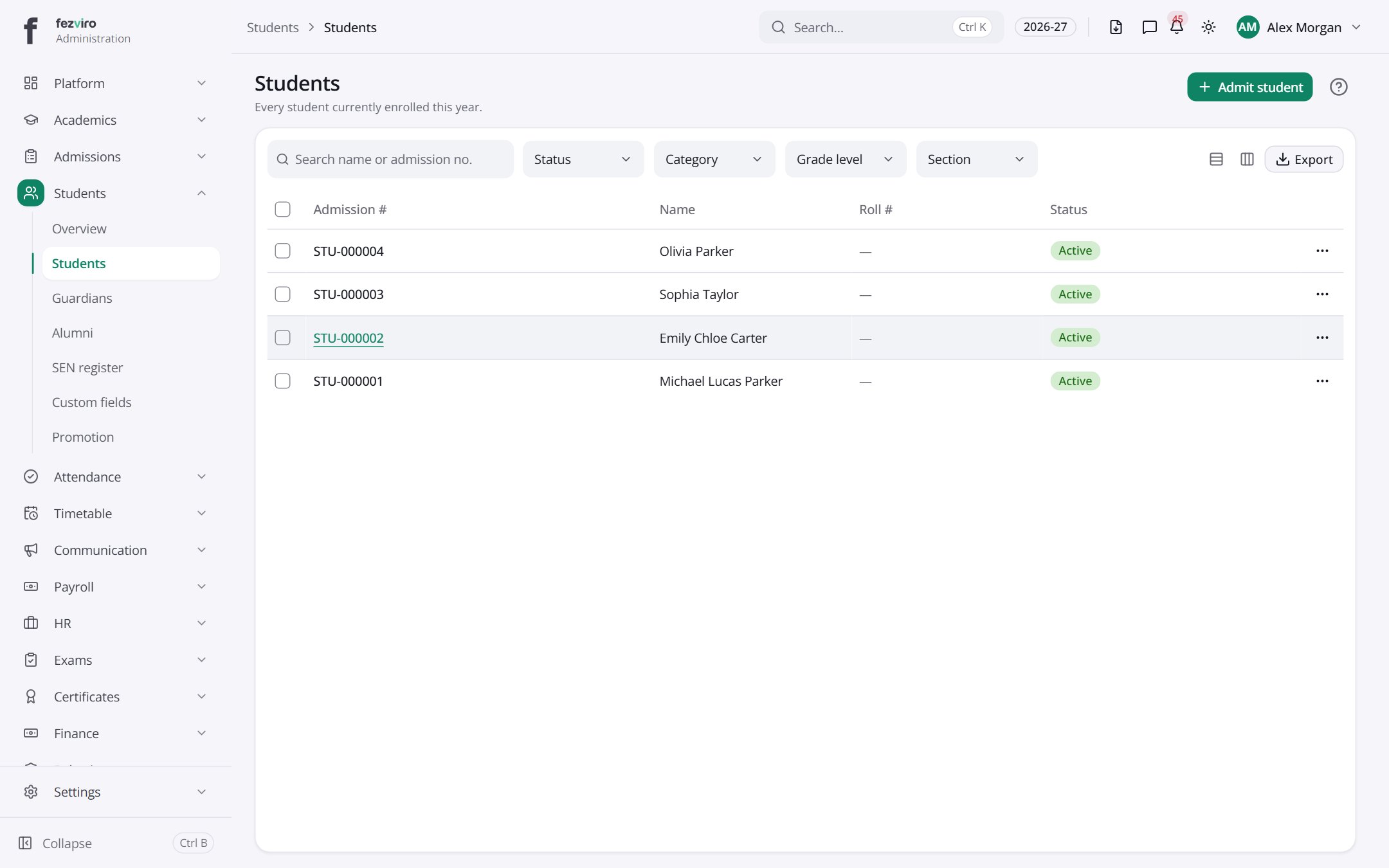
- The list has these columns: Admission, Name, Roll, Status, Actions. Click a column name to sort by it.
Buttons on this screen
Section titled “Buttons on this screen”- Admit student — does what it says on the button.
Filling in the form
Section titled “Filling in the form”- Click the New button at the top right.
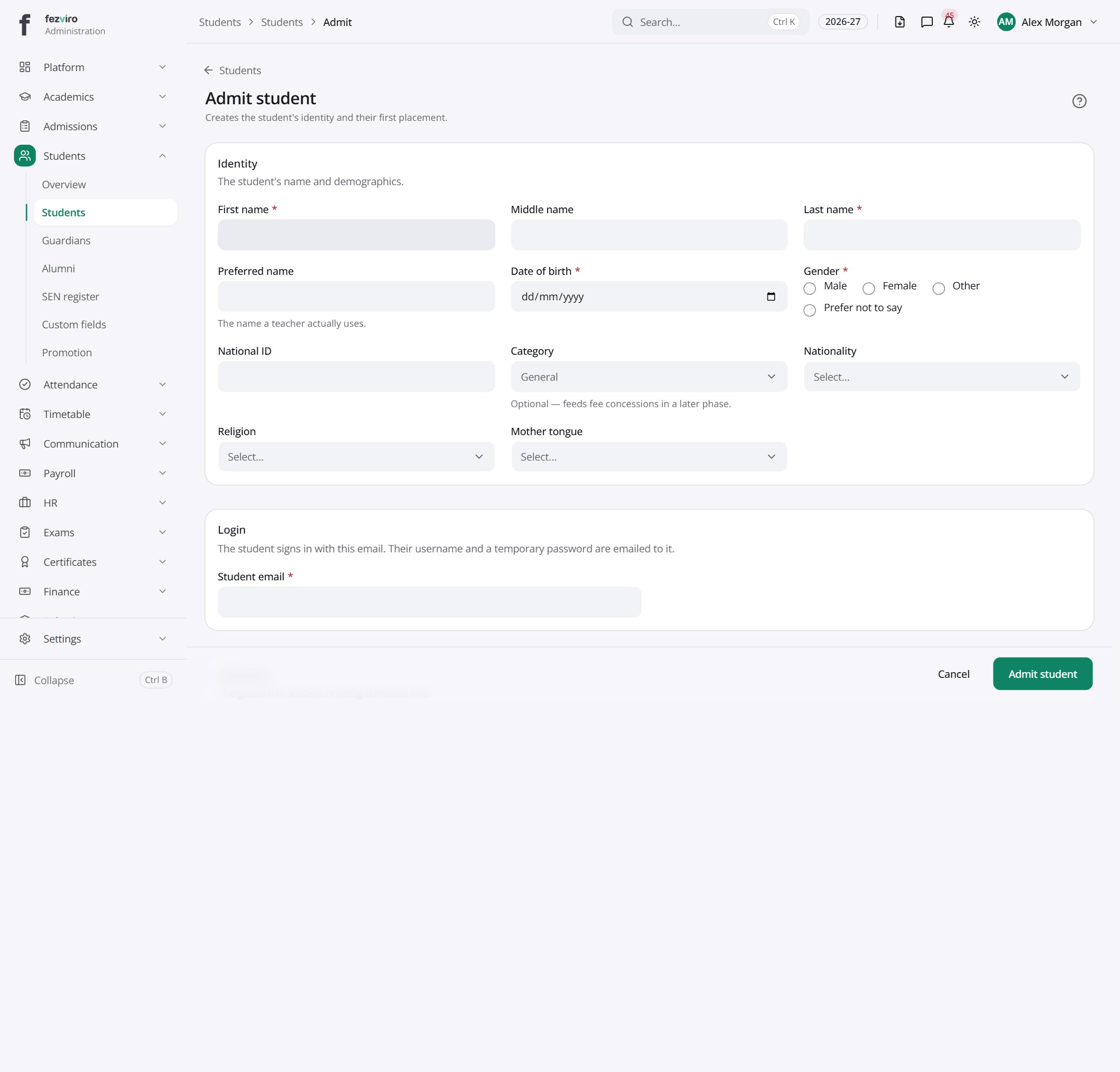
- Fill in the boxes. Boxes marked with a red * must be filled in (6 on this form).
- Click Save at the bottom. If something is missing, the box turns red and tells you what to fix.
The fields
Section titled “The fields”| Field | Type | What to enter, and why |
|---|---|---|
| First name * | text | The student's first name, as on their birth certificate. |
| Middle name | text | Optional. The student's middle name, as on official papers. |
| Last name * | text | The student's family name, as on their birth certificate. |
| Preferred name | text | Optional. The name the student likes to be called, if different. |
| Date of birth * | date | The student's birth date. Pick it from the calendar. |
| Gender * | choose | Choose the gender from the list, as the family gives it. |
| National ID | text | Optional. The national identity number, as printed on official papers. |
| Category | choose | Optional. Choose the category the student belongs to, from the list. |
| Nationality | choose | The country the student is a citizen of. |
| Religion | choose | Optional. The student's religion, as the family gives it. |
| Mother tongue | choose | Optional. The language the student speaks first at home. |
| Student email * | The student's own email address. Their login details are sent here. | |
| Grade level * | choose | The grade the student is joining. |
| Section | choose | Optional. The class section the student joins. Leave empty if not yet placed. |
| House | choose | Optional. The house the student joins. House points count only once placed in one. |
| Admission date | date | The day the student joins the school. Defaults to today. |
| Photo consent | tick box | Tick if the family agrees to photos of the student being used. |
| Media consent | tick box | Tick if the family agrees to the student appearing in school media. |
| Trips consent | tick box | Tick if the family agrees to the student going on school trips. |
| Data sharing consent | tick box | Tick if the family agrees to share the student's details with approved partners. |
Types: text — type it in · number — digits only · date — click and pick from the calendar · choose — click and pick one from the list · pick one — click one of the options · switch / tick box — click to turn on or off · long text — type as much as you need · file — click to attach a file from your computer.
← Back to Students & Guardians overview