

Students & Guardians
A complete record for every student and family: profile, guardians, siblings, enrolment history, documents, health flags, custom fields, promotions and alumni.
👥 Office staff, class teachers, principal, parents (own children)🖥️ 8 screens📝 4 forms

What it does
Section titled “What it does”- Student records with photo profile
- Automatic admission numbers
- Tabbed profile: family, academics, documents, health
- Enrolment history, transfer, withdraw
- Guardians, siblings, family links
- Custody, pickup and restricted-person flags
- Custom fields defined by the school
- Document cabinet with versions
- Parent profile-correction requests
- Bulk promote, retain, graduate (reversible)
- Bulk student and guardian import
Its screens
Section titled “Its screens”Each screen has its own page: what it is for, how to reach it, a picture, its buttons and its form.
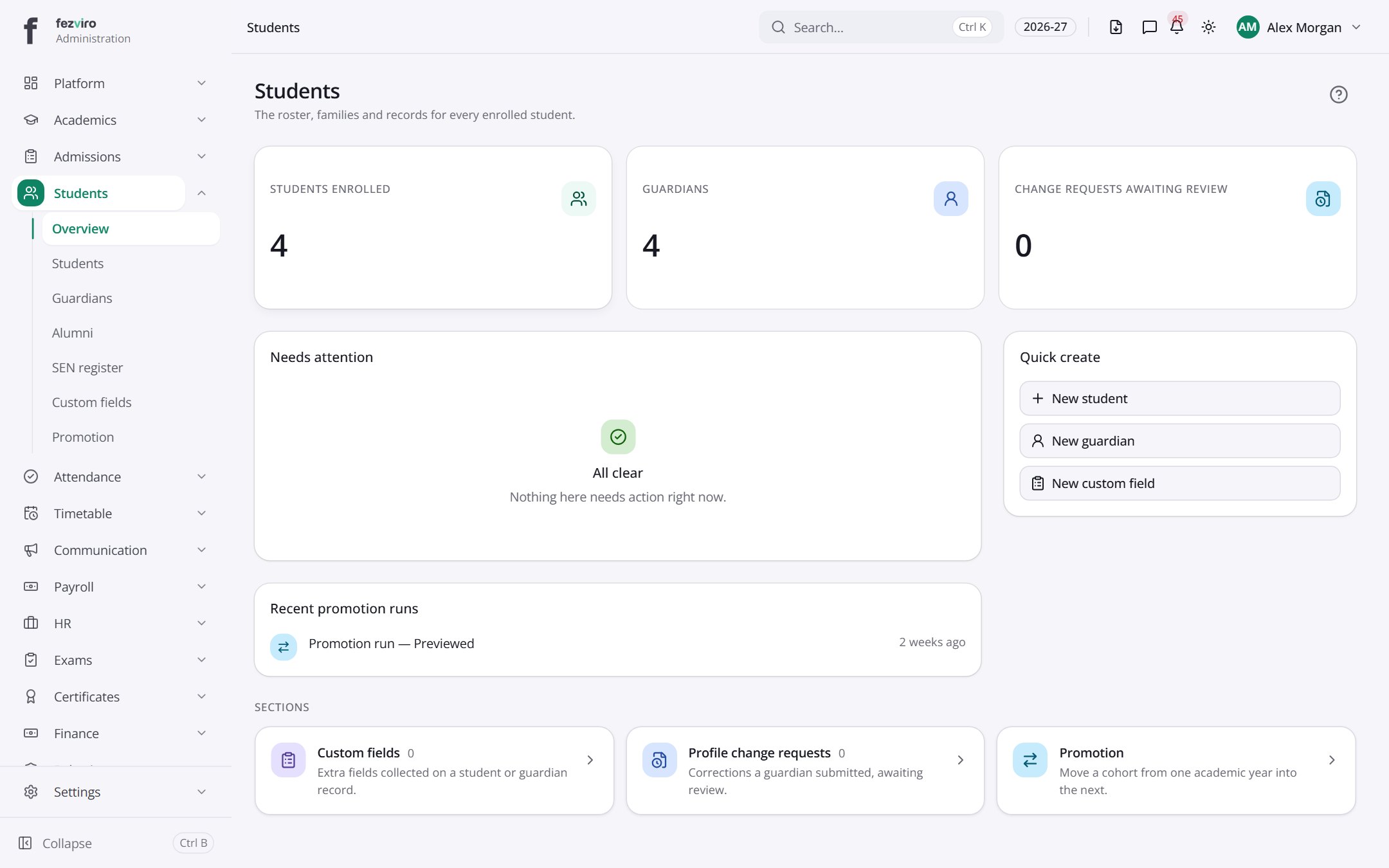 Students & Guardians dashboardThe landing page for everything about pupils and families.
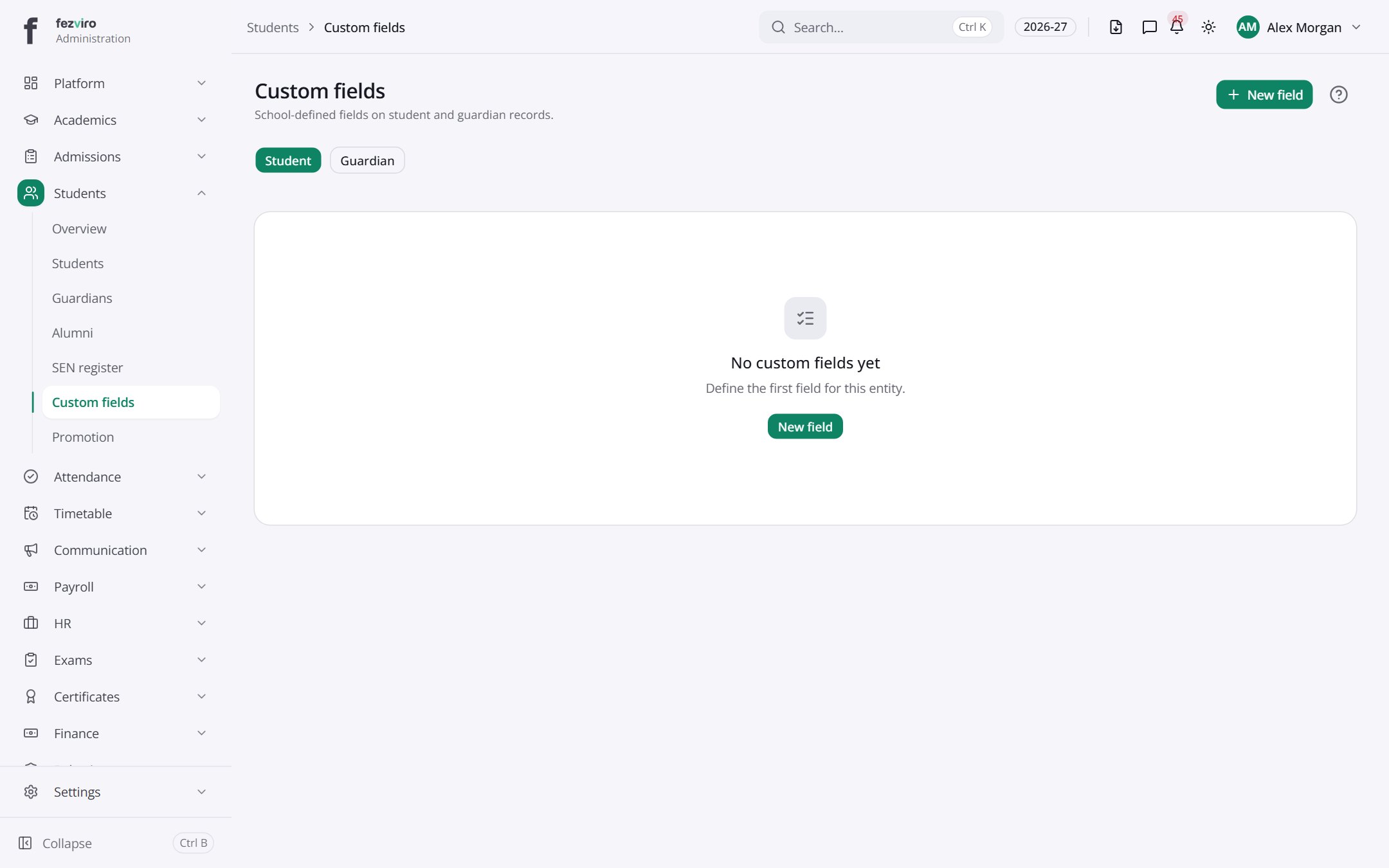 Custom fieldsExtra details the school chooses to record about pupils and guardians.has a form
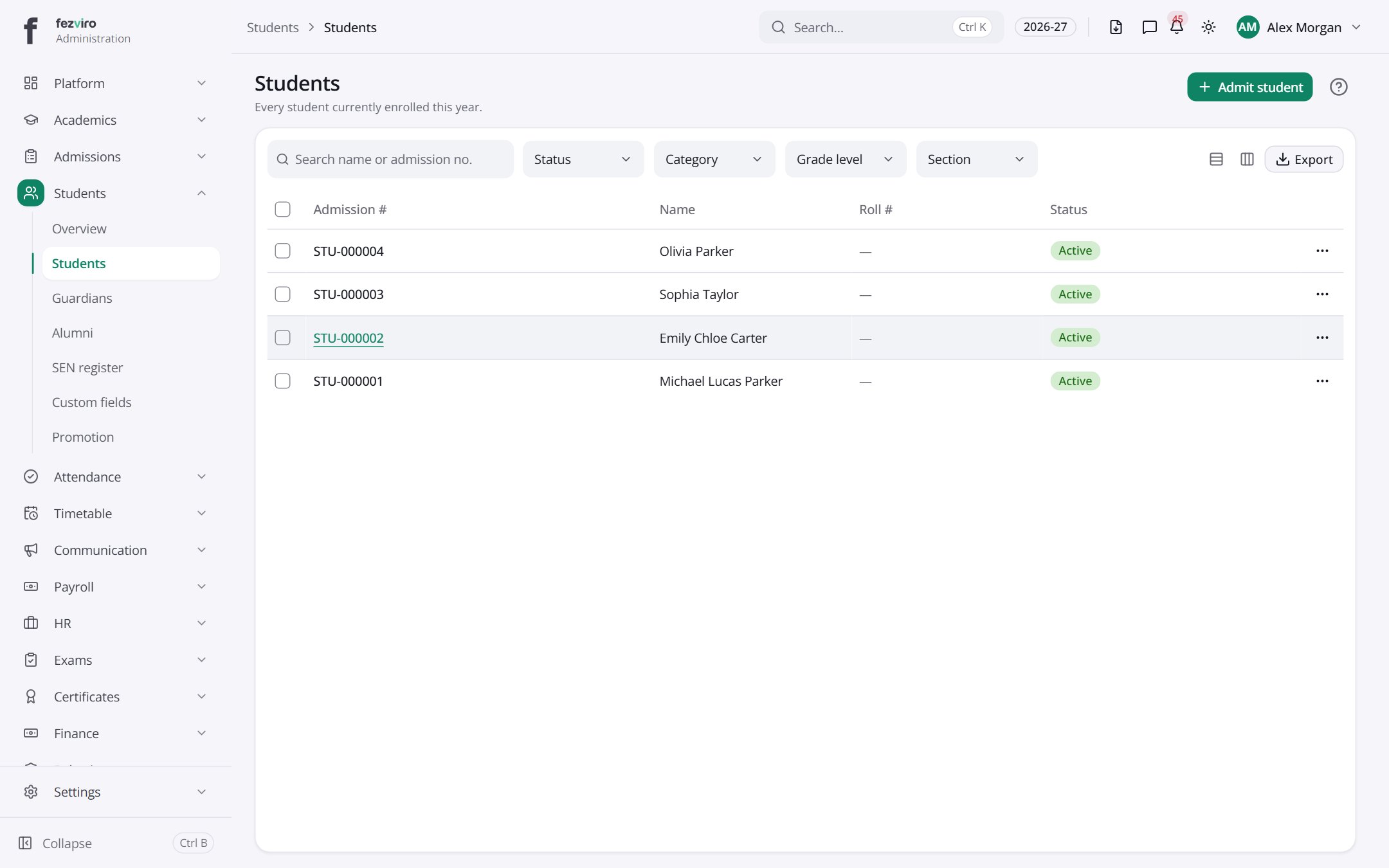 StudentsThe full list of pupils, with search, filters and their details.has a form
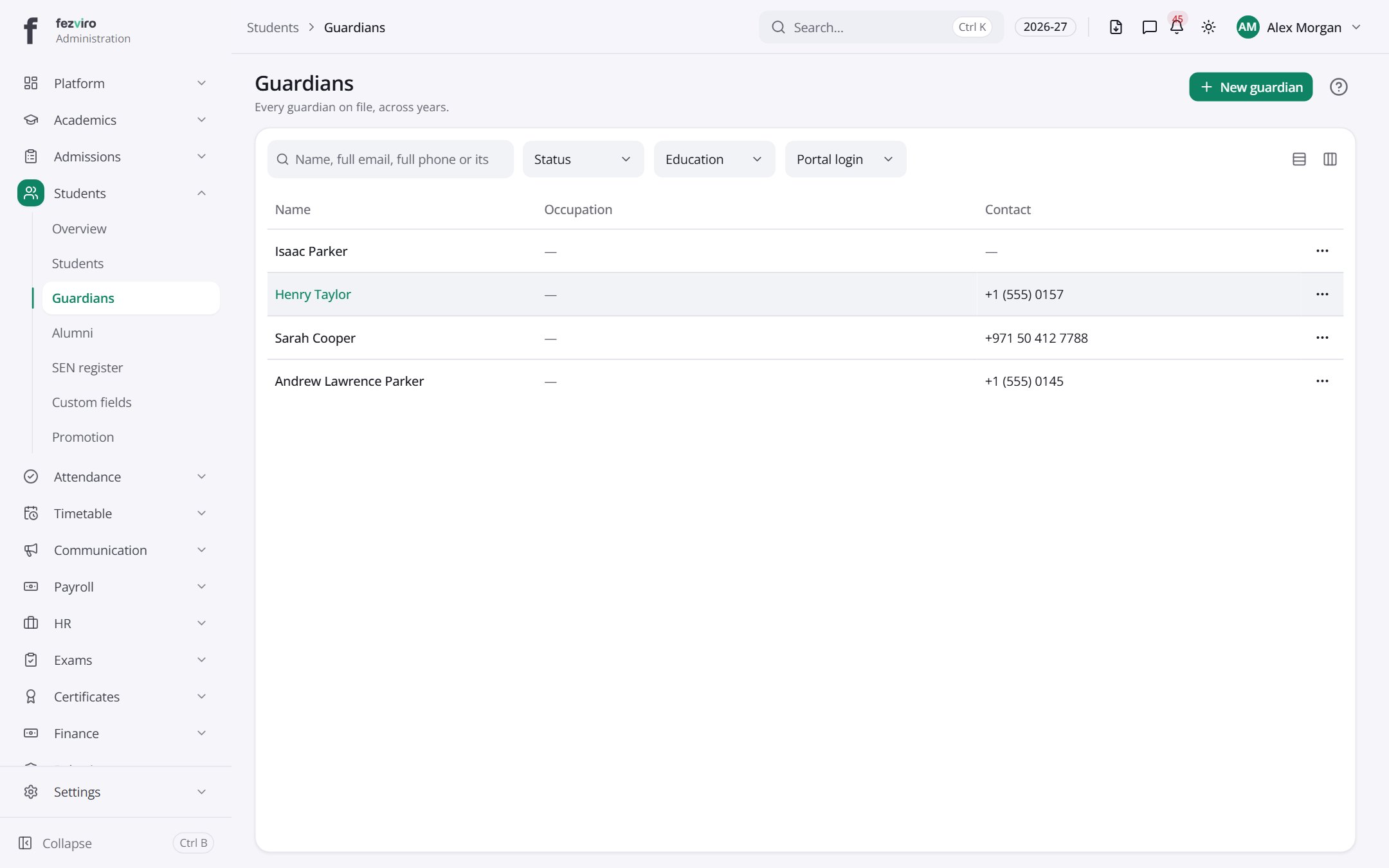 GuardiansA directory of parents and guardians, with their contact details.has a form
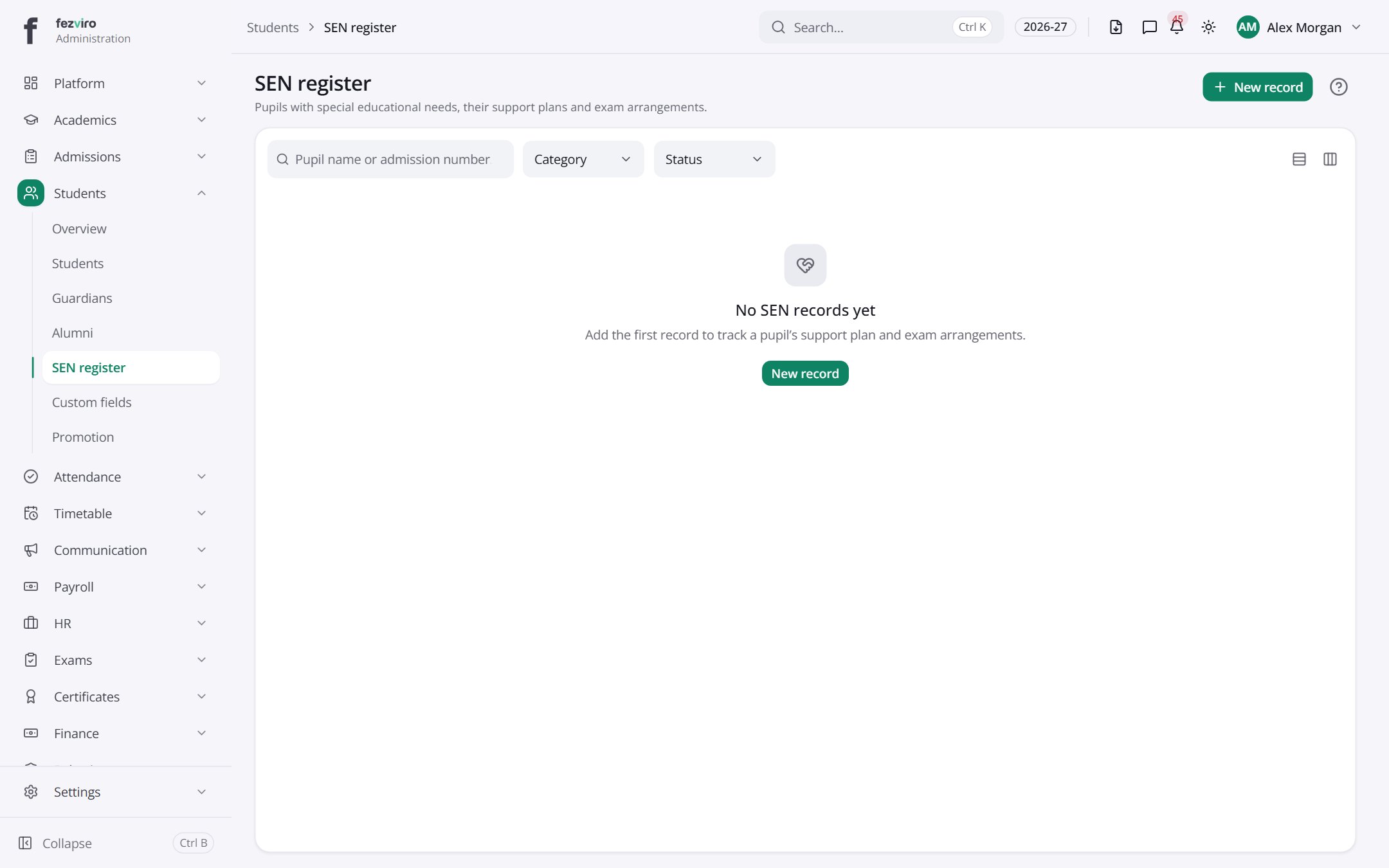 SEN registerA record of pupils with special educational needs and the support they get.has a form
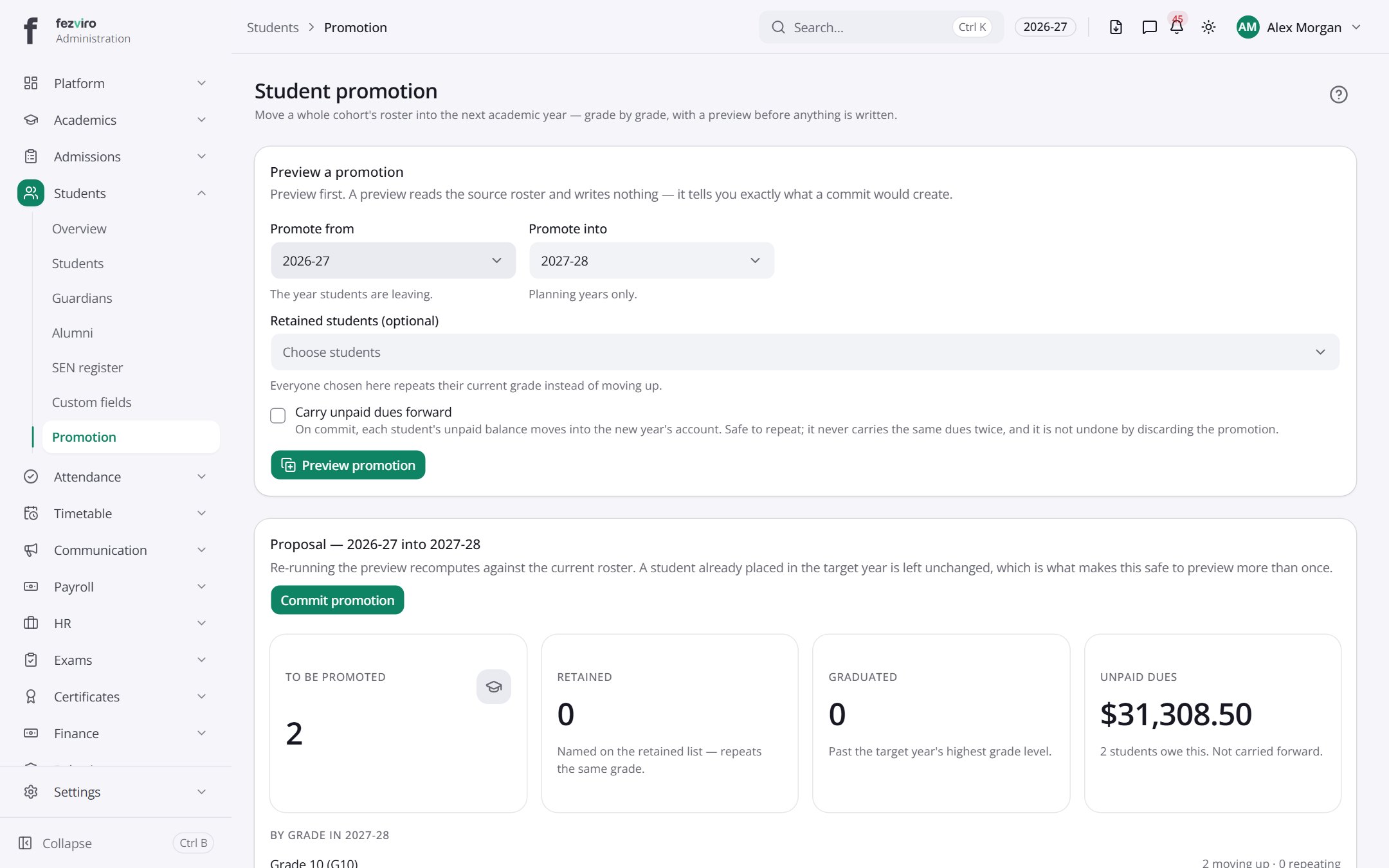 Student promotionA guided page for moving pupils up a year, holding back or graduating them.
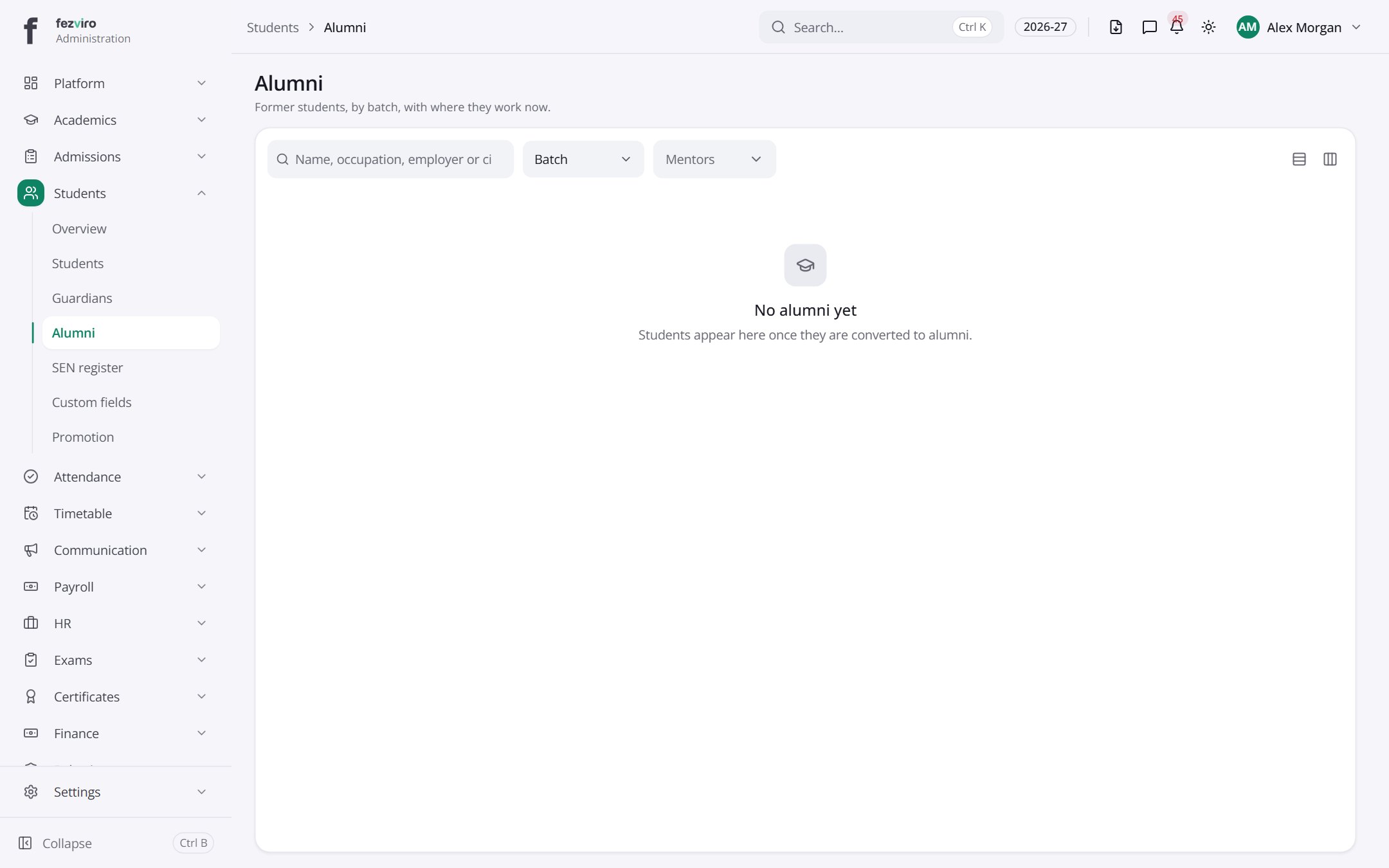 AlumniA directory of former pupils who have left the school.
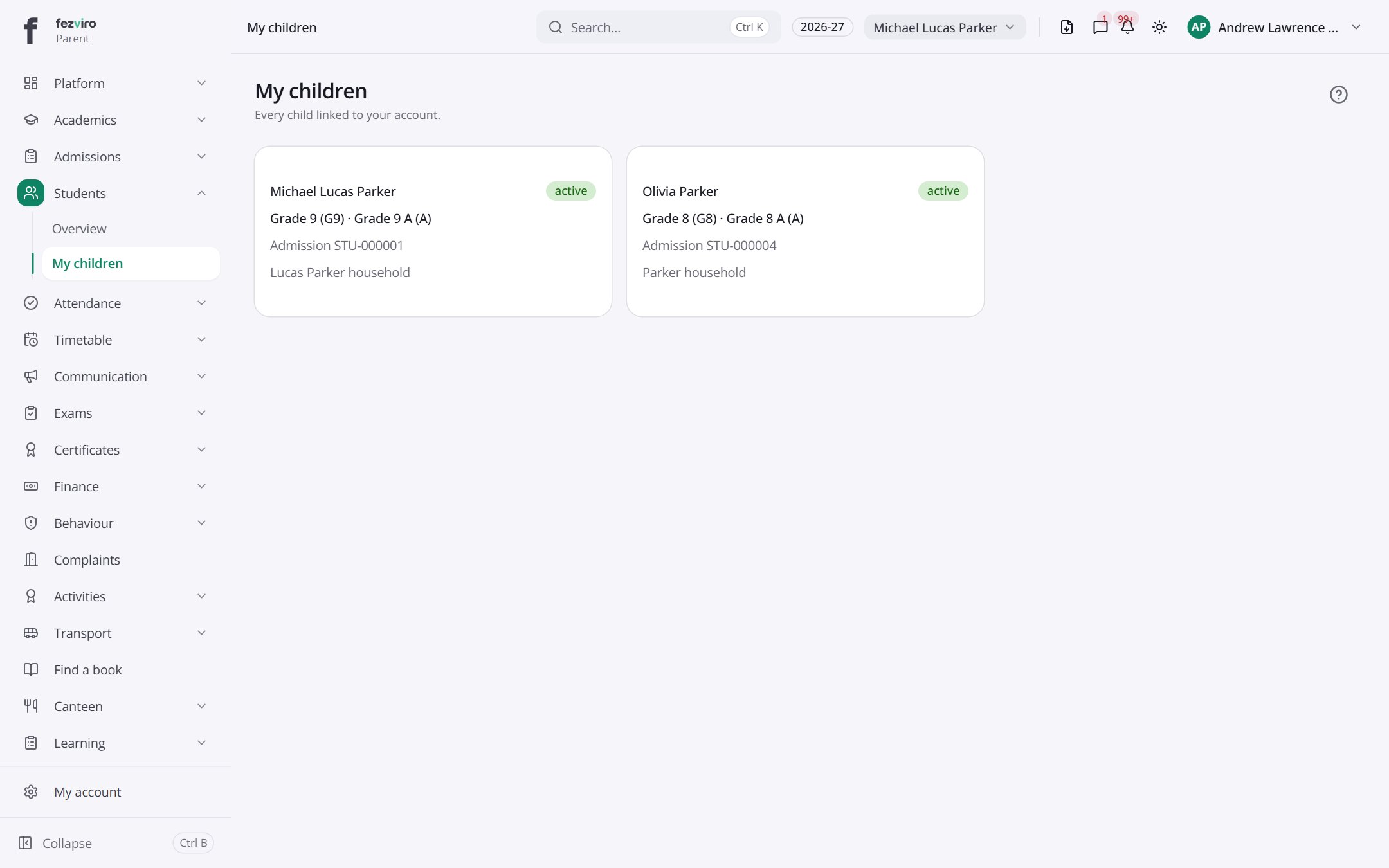 My childrenThe pupils linked to your account, with a quick link to each one.Parent
Step by step
Section titled “Step by step”Add a new student
Section titled “Add a new student”- Open Students and choose to add a student (or convert an admitted applicant from Admissions).
- Fill in personal details, photo and grade/section. The admission number is generated automatically.
- Add or link guardians. Siblings are linked automatically through shared guardians.
- Save. The student now appears in attendance, timetable, fees and exams.
Promote the class at year end
Section titled “Promote the class at year end”- Open Students → Promotions.
- Pick the source grade/section and the target for next year.
- Mark exceptions: retain, graduate or withdraw.
- Confirm. Promotions are reversible if a mistake is found.
Record custody or pickup restrictions
Section titled “Record custody or pickup restrictions”- Open the student’s profile and go to the family tab.
- Mark guardians as authorised to pick up, or flag a restricted person.
- The flags show at the front office gate and dismissal screens.
Questions
Section titled “Questions”Can parents update their own details?
Parents submit a correction request from their portal; office staff review and approve it before the record changes.
Can we add our own fields?
Yes. Custom fields lets the school define extra fields (blood group, bus preference, anything) without development.
Where are student documents kept?
In the student’s document cabinet, with version history.
How do we find a student quickly?
Press Ctrl K anywhere and type the name or admission number.