

Medication authorizations
What it is
Medicines pupils take at school, with permissions and dose records.
Why it matters
Keeps children safe by giving the right medicine at the right time.
When to use it
The nurse records each dose given and checks the permission on file.
Who uses it
Administrator
How to get here
Section titled “How to get here”- Sign in as Administrator (see Signing in).
- In the left menu, click Health to open it.
- Click Medications.
What you see
Section titled “What you see”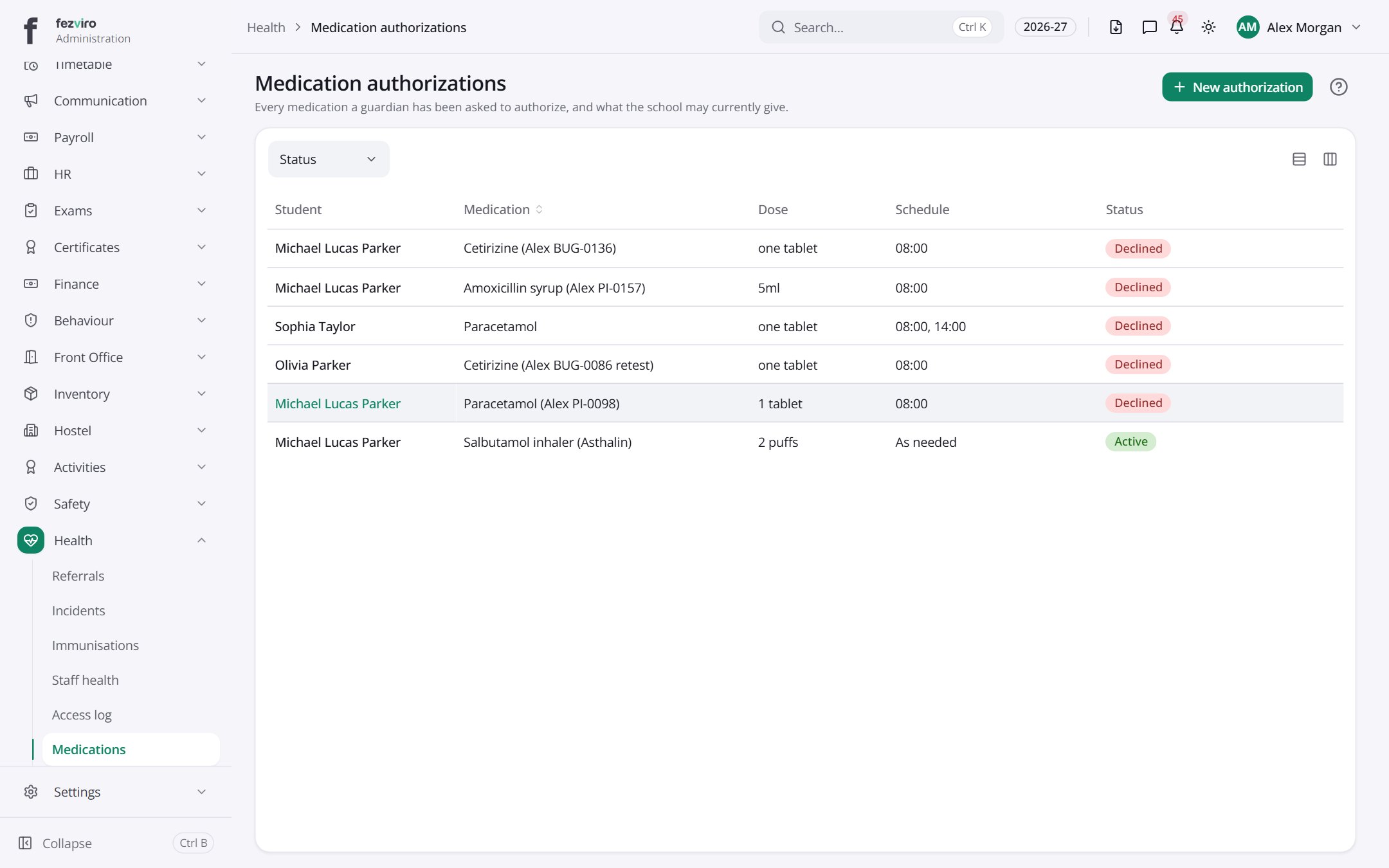
- The list has these columns: Student, Medication, Dose, Schedule, Status. Click a column name to sort by it.
Buttons on this screen
Section titled “Buttons on this screen”- New authorization — opens a form to add a new one. See Filling in the form below.
Filling in the form
Section titled “Filling in the form”- Click the New authorization button at the top right.
- Fill in the boxes. Boxes marked with a red * must be filled in (11 on this form).
- Click Save at the bottom. If something is missing, the box turns red and tells you what to fix.
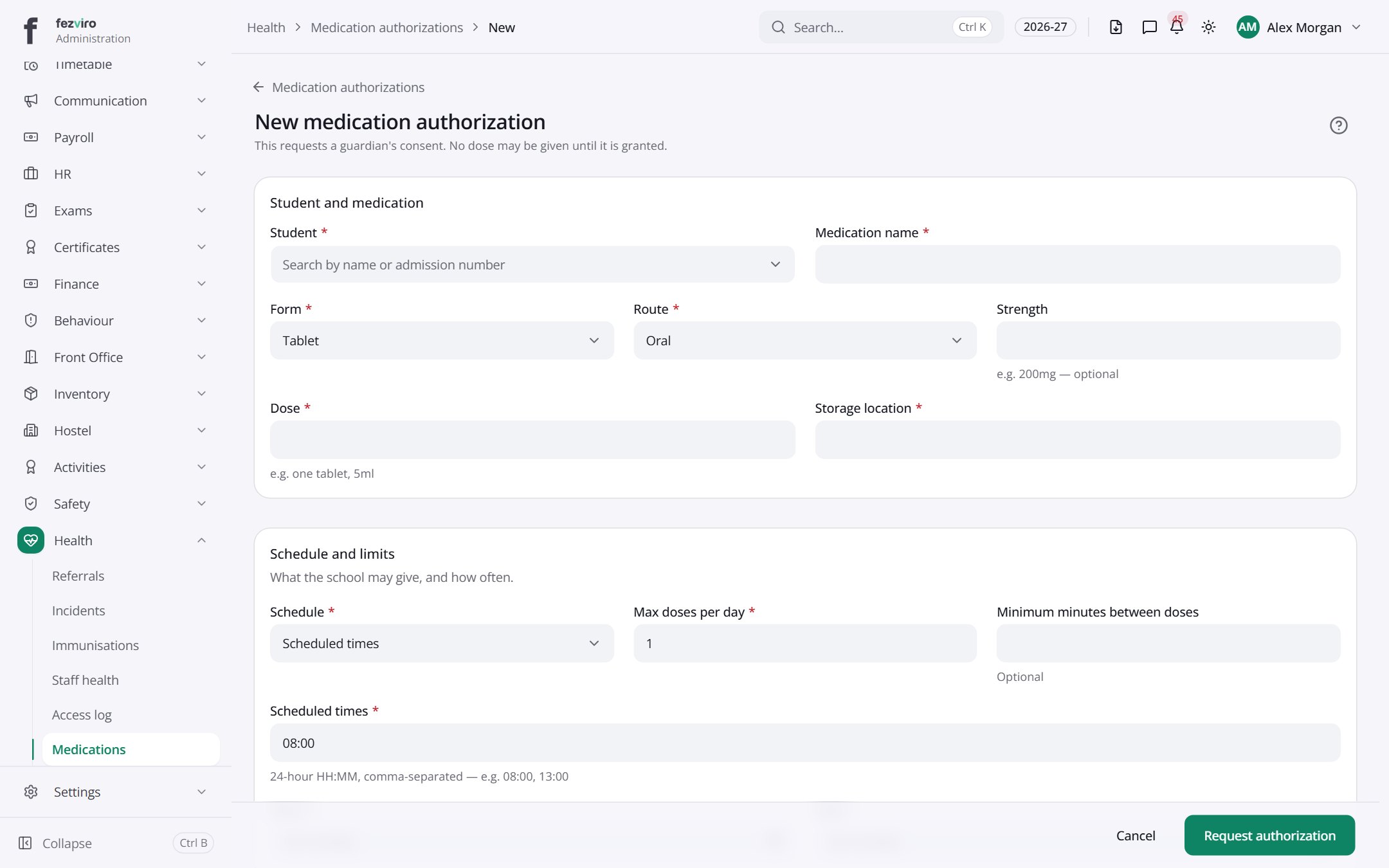
The fields
Section titled “The fields”| Field | Type | What to enter, and why |
|---|---|---|
| Student * | choose | Search for the student who needs the medicine. |
| Medication name * | text | The name of the medicine, as written on its label. |
| Form * | choose | The form of the medicine, such as tablet, syrup or cream. |
| Route * | choose | How it is taken, such as by mouth or on the skin. |
| Strength | text | The strength of the medicine, such as 200mg. Optional. |
| Dose * | text | How much to give each time, such as one tablet or 5ml. |
| Storage location * | text | Where the medicine is kept safely, such as the nurse's cabinet. |
| Schedule * | choose | Choose how often the medicine is given, such as daily or as needed. |
| Max doses per day * | number | The most doses that can be given in one day. |
| Minimum minutes between doses | number | The shortest gap between doses, in minutes. Optional. |
| Scheduled times * | text | The times each dose is due, in 24-hour format, such as 08:00, 13:00. |
| Starts * | date | The first day the medicine should be given. |
| Ends * | date | The last day the medicine should be given. |
Types: text — type it in · number — digits only · date — click and pick from the calendar · choose — click and pick one from the list · pick one — click one of the options · switch / tick box — click to turn on or off · long text — type as much as you need · file — click to attach a file from your computer.
← Back to Health overview