

Capture devices
What it is
The gate readers, card readers and scanners that record entry and attendance.
Why it matters
Keeps track of which devices are connected and reporting.
When to use it
IT or office staff add, change or retire devices as needed.
Who uses it
Administrator
How to get here
Section titled “How to get here”- Sign in as Administrator (see Signing in).
- In the left menu, click Platform to open it.
- Click Capture devices.
What you see
Section titled “What you see”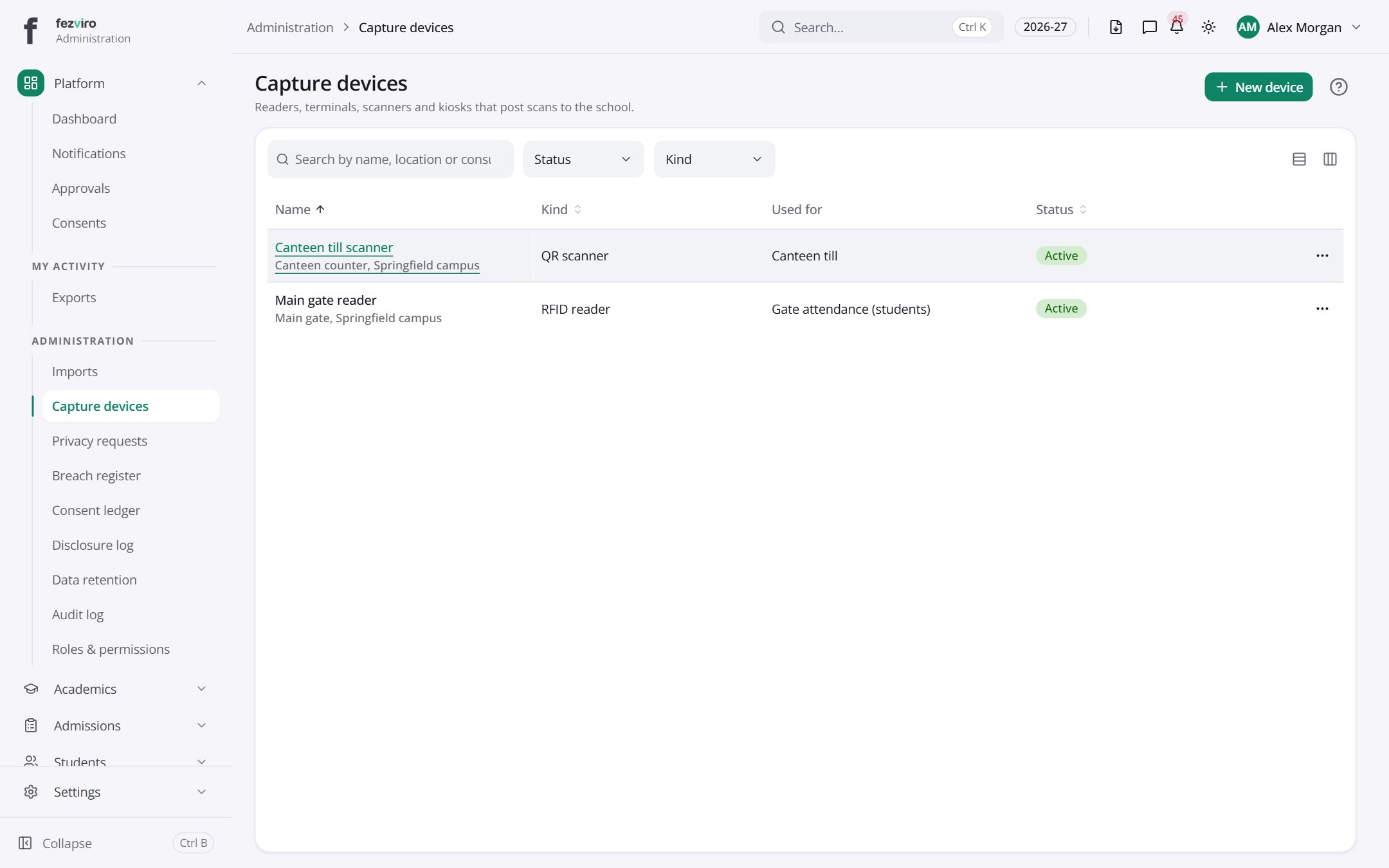
- The list has these columns: Name, Kind, Used for, Status, Actions. Click a column name to sort by it.
Buttons on this screen
Section titled “Buttons on this screen”- New device — opens a form to add a new one. See Filling in the form below.
Opening a record
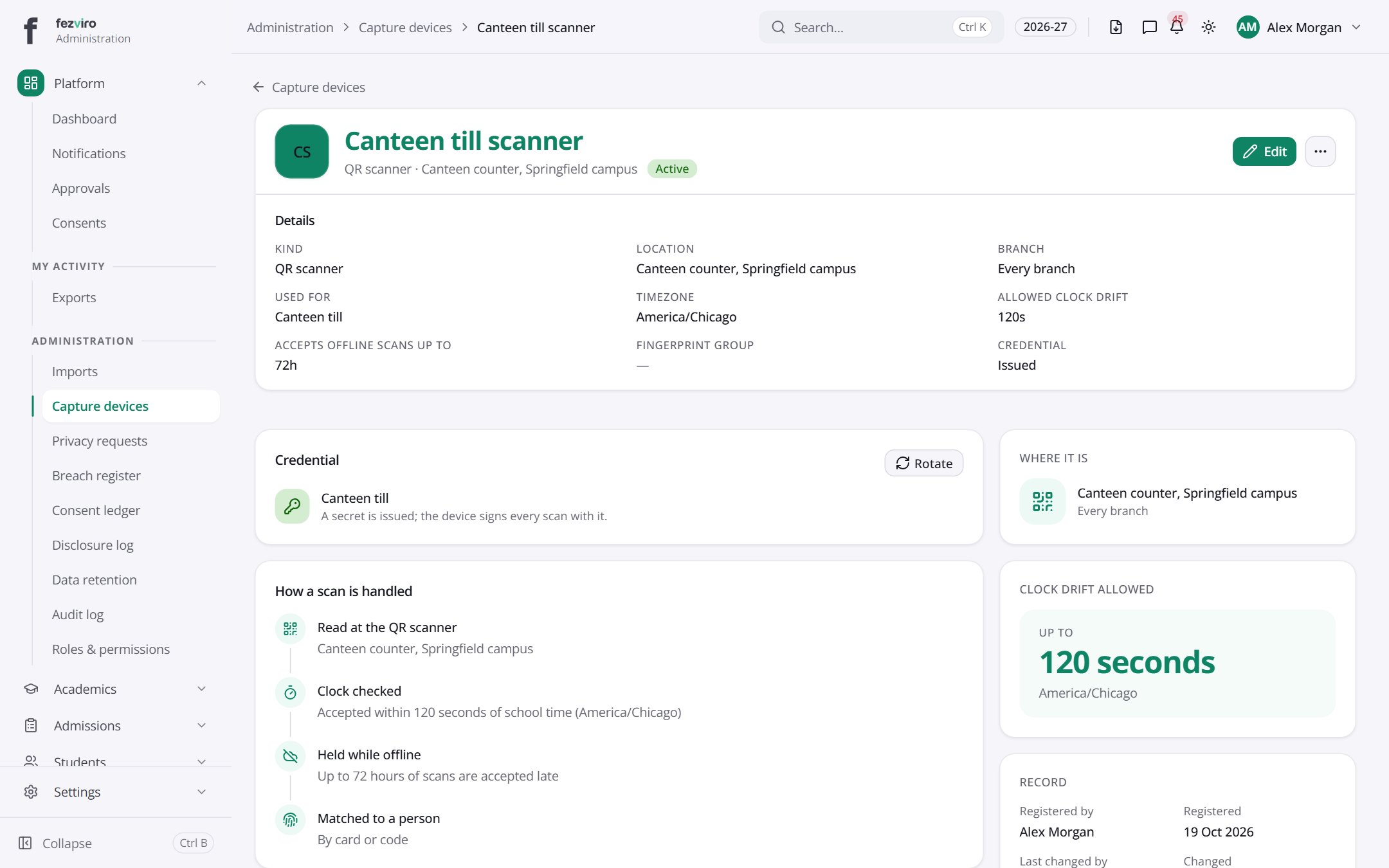
Section titled “Opening a record”Click any row in the list to see everything about it on one page.
Filling in the form
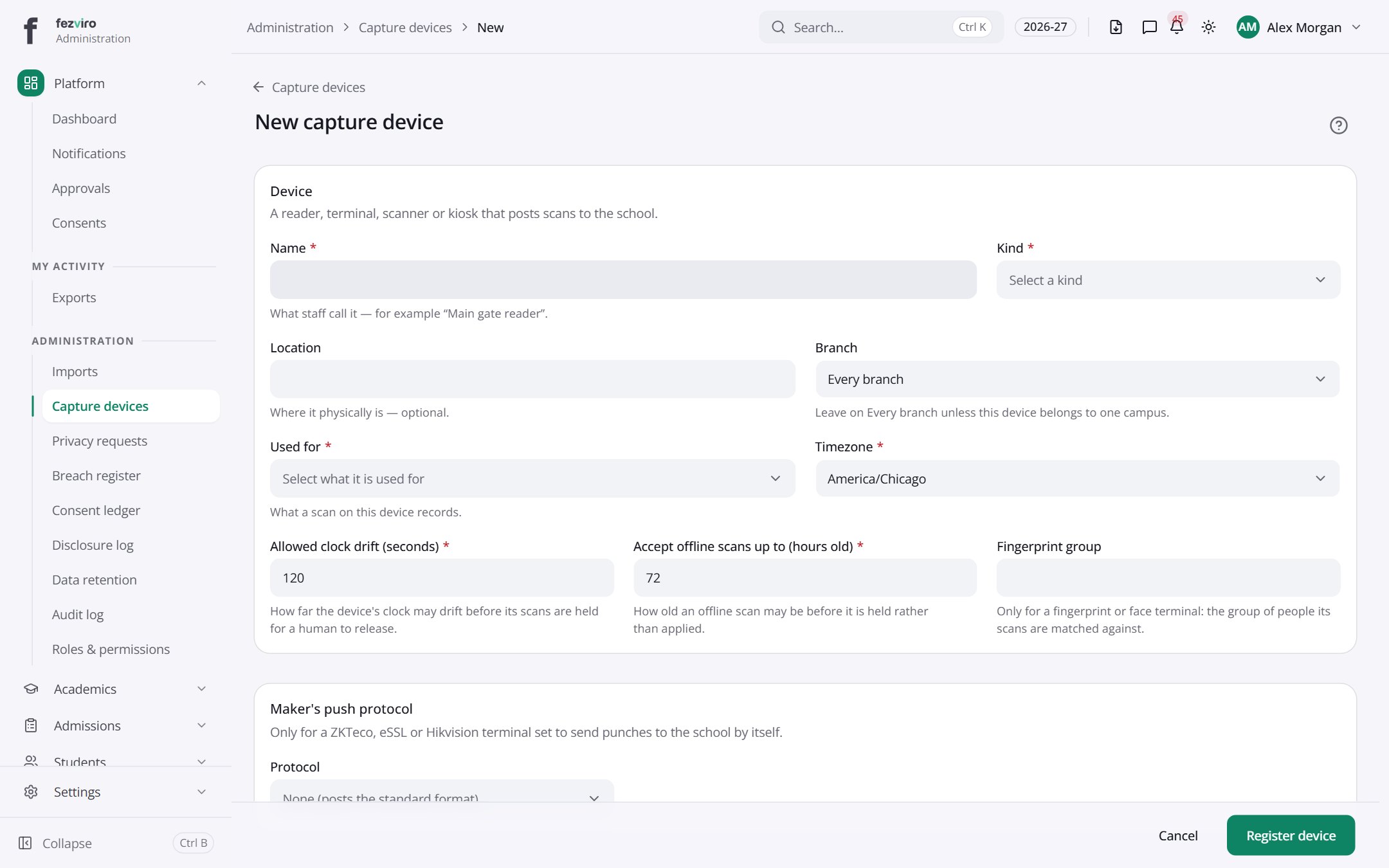
Section titled “Filling in the form”- Click the New device button at the top right.
- Fill in the boxes. Boxes marked with a red * must be filled in (6 on this form).
- Click Save at the bottom. If something is missing, the box turns red and tells you what to fix.
The fields
Section titled “The fields”| Field | Type | What to enter, and why |
|---|---|---|
| Name * | text | What staff call the device, such as Main gate reader. |
| Kind * | choose | Choose the kind of device: reader, terminal, scanner or kiosk. |
| Location | text | Optional. Where the device is, such as the front entrance. |
| Branch | choose | Choose a campus if this device belongs to one. Otherwise leave empty. |
| Used for * | choose | Choose what a scan on this device records, such as attendance or meals. |
| Timezone * | choose | Choose the local time zone the device's clock is set to. |
| Allowed clock drift (seconds) * | number | How many seconds the clock can be off before scans are held. |
| Accept offline scans up to (hours old) * | number | How many hours old a scan saved offline can be and still count. |
| Fingerprint group | text | Only for fingerprint or face devices. The group of people its scans match. |
| Protocol | choose | Only if the device sends scans to the school by itself. Choose its type. |
Types: text — type it in · number — digits only · date — click and pick from the calendar · choose — click and pick one from the list · pick one — click one of the options · switch / tick box — click to turn on or off · long text — type as much as you need · file — click to attach a file from your computer.
← Back to Platform & Security overview