

Surveys
What it is
Surveys, polls and feedback forms sent to parents, students or staff.
Why it matters
Collects opinions in one place and shows results without spreadsheets.
When to use it
Staff create a survey, send it and review the results when it closes.
Who uses it
Administrator
How to get here
Section titled “How to get here”- Sign in as Administrator (see Signing in).
- In the left menu, click Communication to open it.
- Click Surveys.
What you see
Section titled “What you see”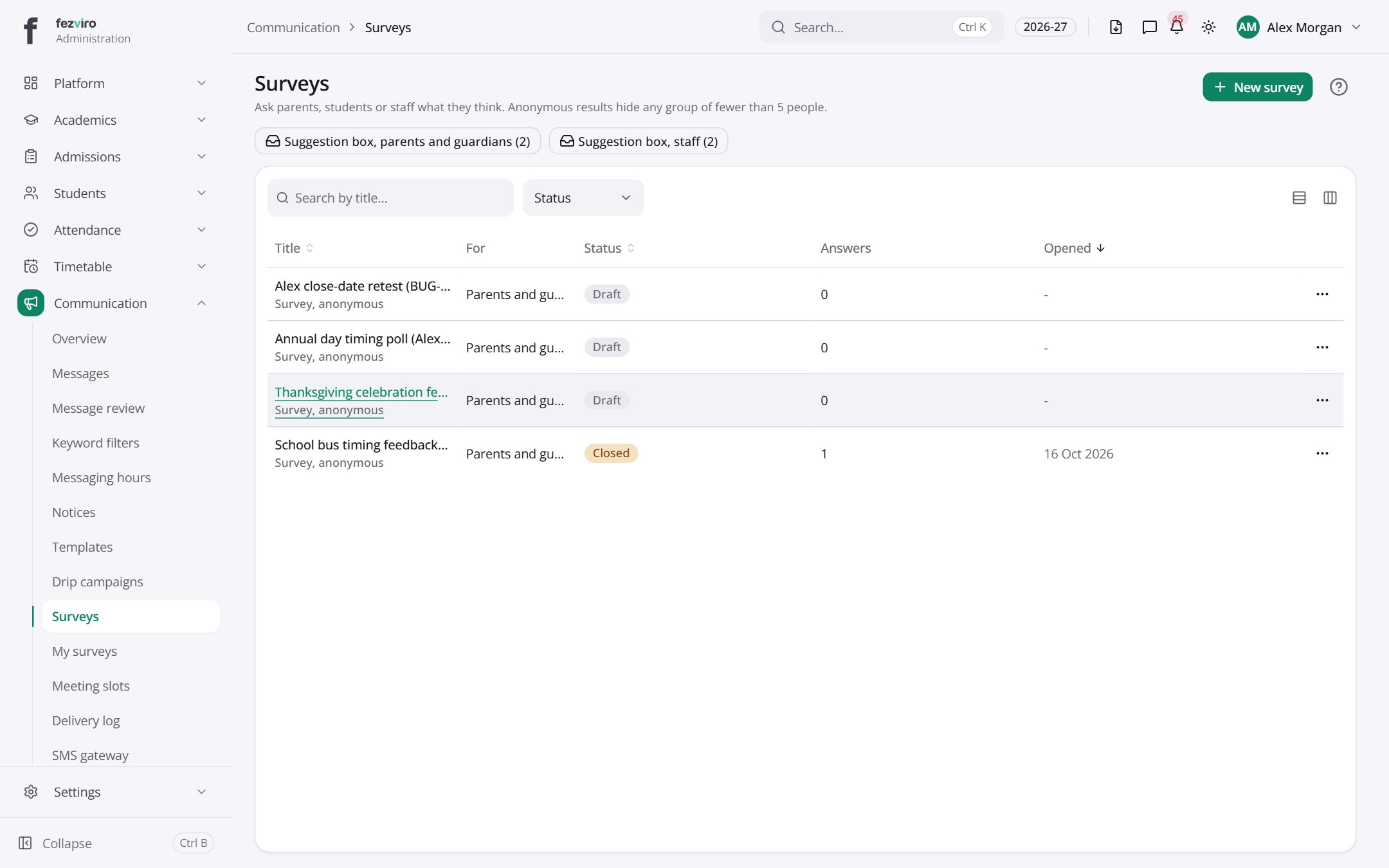
- The list has these columns: Title, For, Status, Answers, Opened, Actions. Click a column name to sort by it.
Buttons on this screen
Section titled “Buttons on this screen”- New survey — opens a form to add a new one. See Filling in the form below.
Filling in the form
Section titled “Filling in the form”- Click the New survey button at the top right.
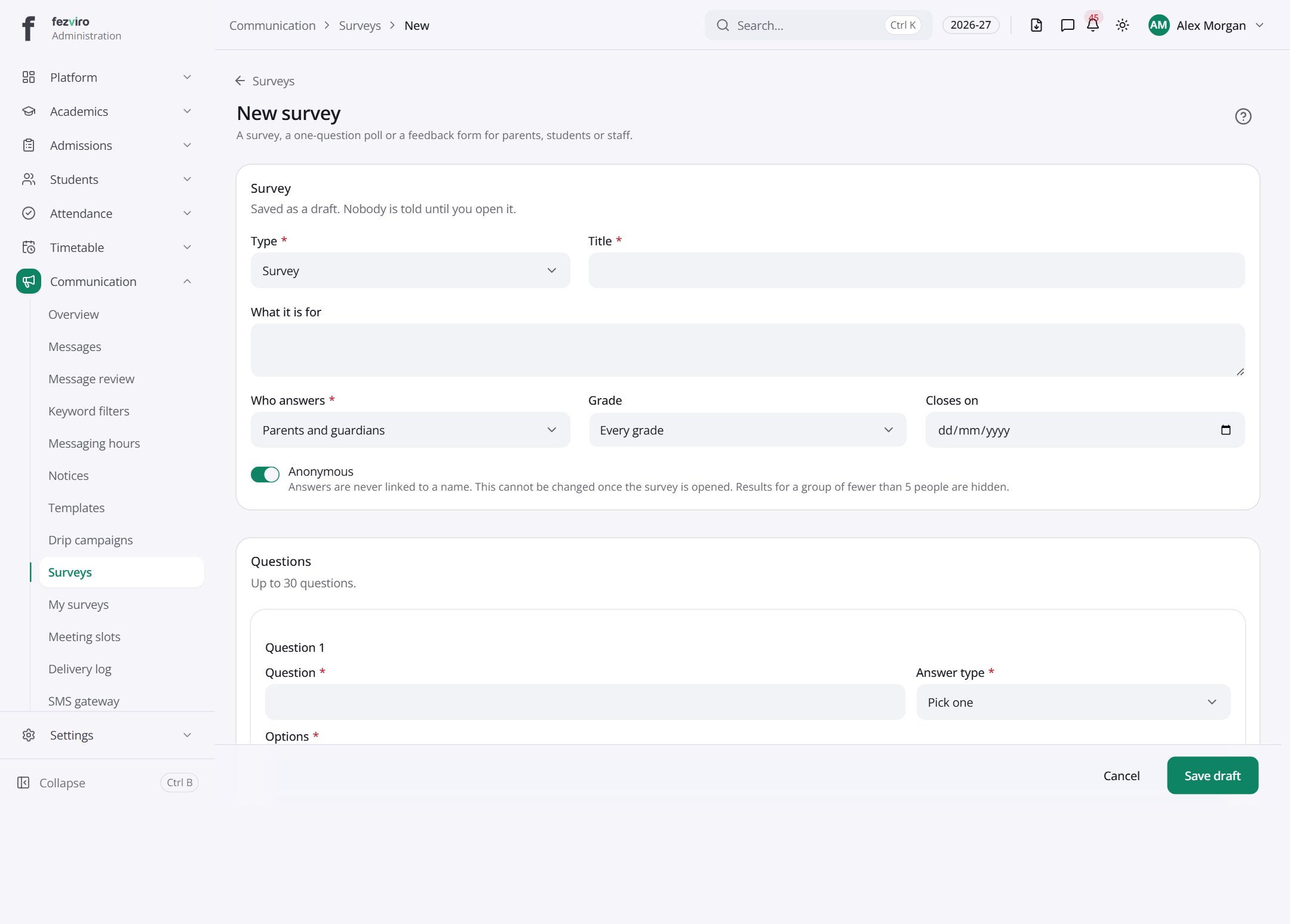
- Fill in the boxes. Boxes marked with a red * must be filled in (6 on this form).
- Click Save at the bottom. If something is missing, the box turns red and tells you what to fix.
The fields
Section titled “The fields”| Field | Type | What to enter, and why |
|---|---|---|
| Type * | choose | Choose Survey for a full form, or Poll for one quick question. |
| Title * | text | A clear name for the survey, such as Parent feedback, Term 2. |
| What it is for | long text | A short note on why you are asking, shown to people who answer. |
| Who answers * | choose | Choose whether parents, students or staff will fill this in. |
| Grade | choose | Choose one grade to ask, or leave it on Every grade. |
| Closes on | date | The last day people can answer. The survey closes after this date. |
| Anonymous | switch | Turn on so answers are never linked to a name. |
| Question * | text | Type one question that people will answer. |
| Answer type * | choose | Choose how people reply, such as a choice or a short written answer. |
| Options * | long text | Type one answer choice per line. Add at least two. |
| Must be answered | switch | Turn on if people cannot skip this question. |
Types: text — type it in · number — digits only · date — click and pick from the calendar · choose — click and pick one from the list · pick one — click one of the options · switch / tick box — click to turn on or off · long text — type as much as you need · file — click to attach a file from your computer.
← Back to Communication overview