

Stores
What it is
Each place the school keeps and issues stock from.
Why it matters
Shows exactly what sits where, and which store to take it from.
When to use it
Store managers set up each store and check its stock levels.
Who uses it
Administrator
How to get here
Section titled “How to get here”- Sign in as Administrator (see Signing in).
- In the left menu, click Inventory to open it.
- Click Stores.
What you see
Section titled “What you see”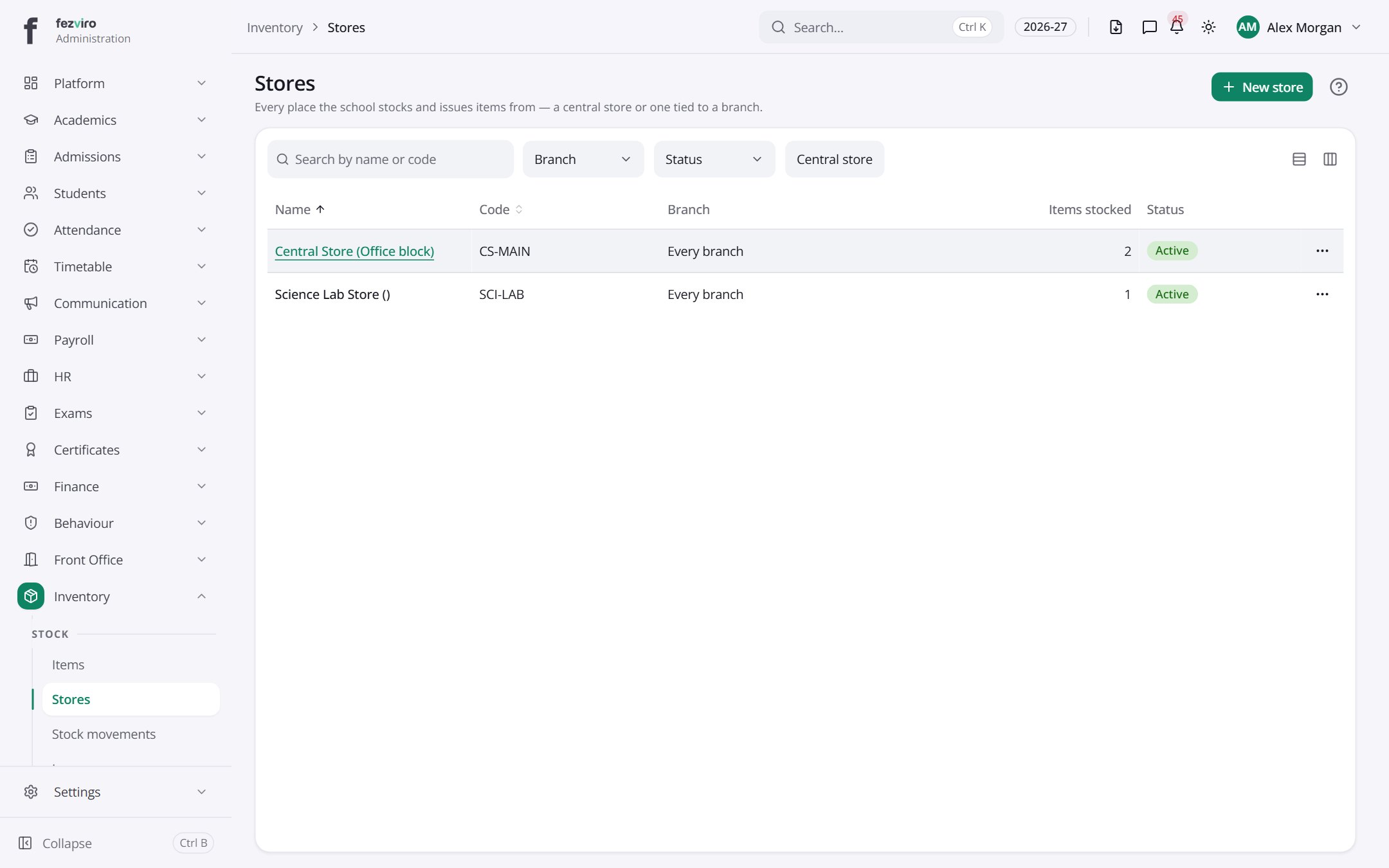
- The list has these columns: Name, Code, Branch, Items stocked, Status, Actions. Click a column name to sort by it.
Buttons on this screen
Section titled “Buttons on this screen”- New store — opens a form to add a new one. See Filling in the form below.
Opening a record
Section titled “Opening a record”Click any row in the list to see everything about it on one page.
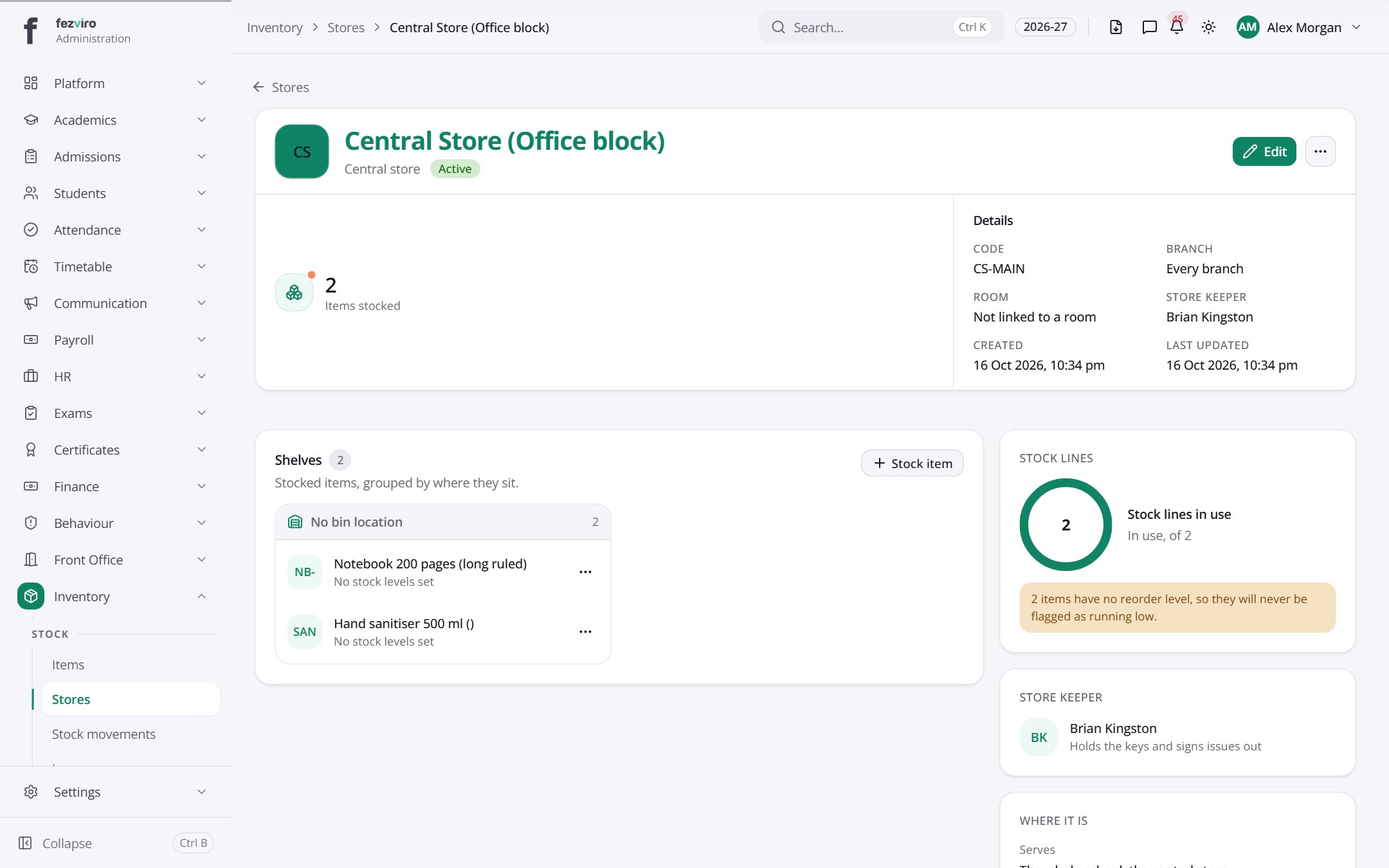
← Back to Inventory & Assets overview