

Vacancies
What it is
Open job posts, with the details each role needs.
Why it matters
Keeps recruitment organised from the first advert to the offer.
When to use it
HR creates and updates job posts before recruiting for them.
Who uses it
Administrator
How to get here
Section titled “How to get here”- Sign in as Administrator (see Signing in).
- In the left menu, click HR to open it.
- Click Vacancies.
What you see
Section titled “What you see”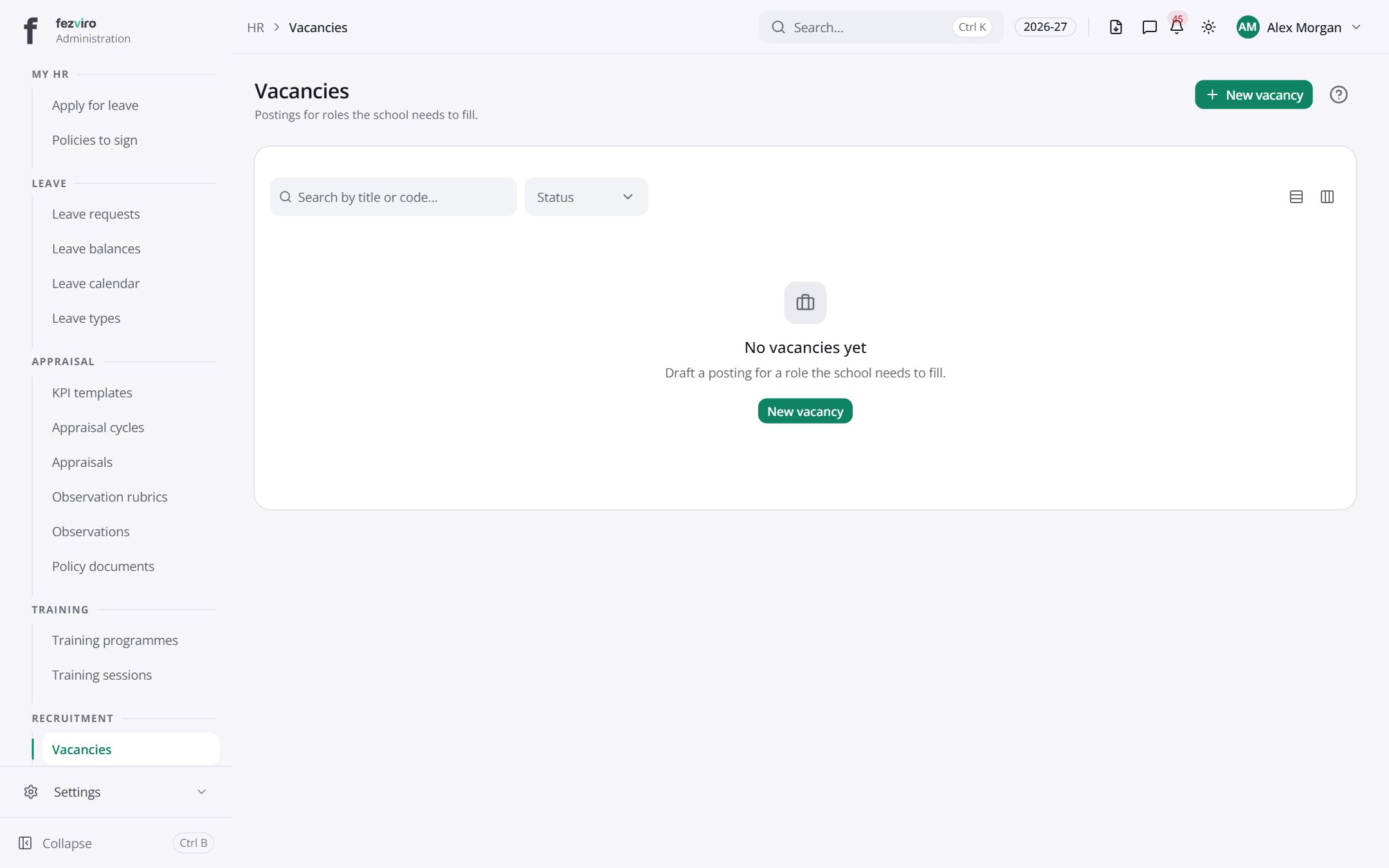
Buttons on this screen
Section titled “Buttons on this screen”- New vacancy — opens a form to add a new one. See Filling in the form below.
Filling in the form
Section titled “Filling in the form”- Click the New vacancy button at the top right.
- Fill in the boxes. Boxes marked with a red * must be filled in (4 on this form).
- Click Save at the bottom. If something is missing, the box turns red and tells you what to fix.
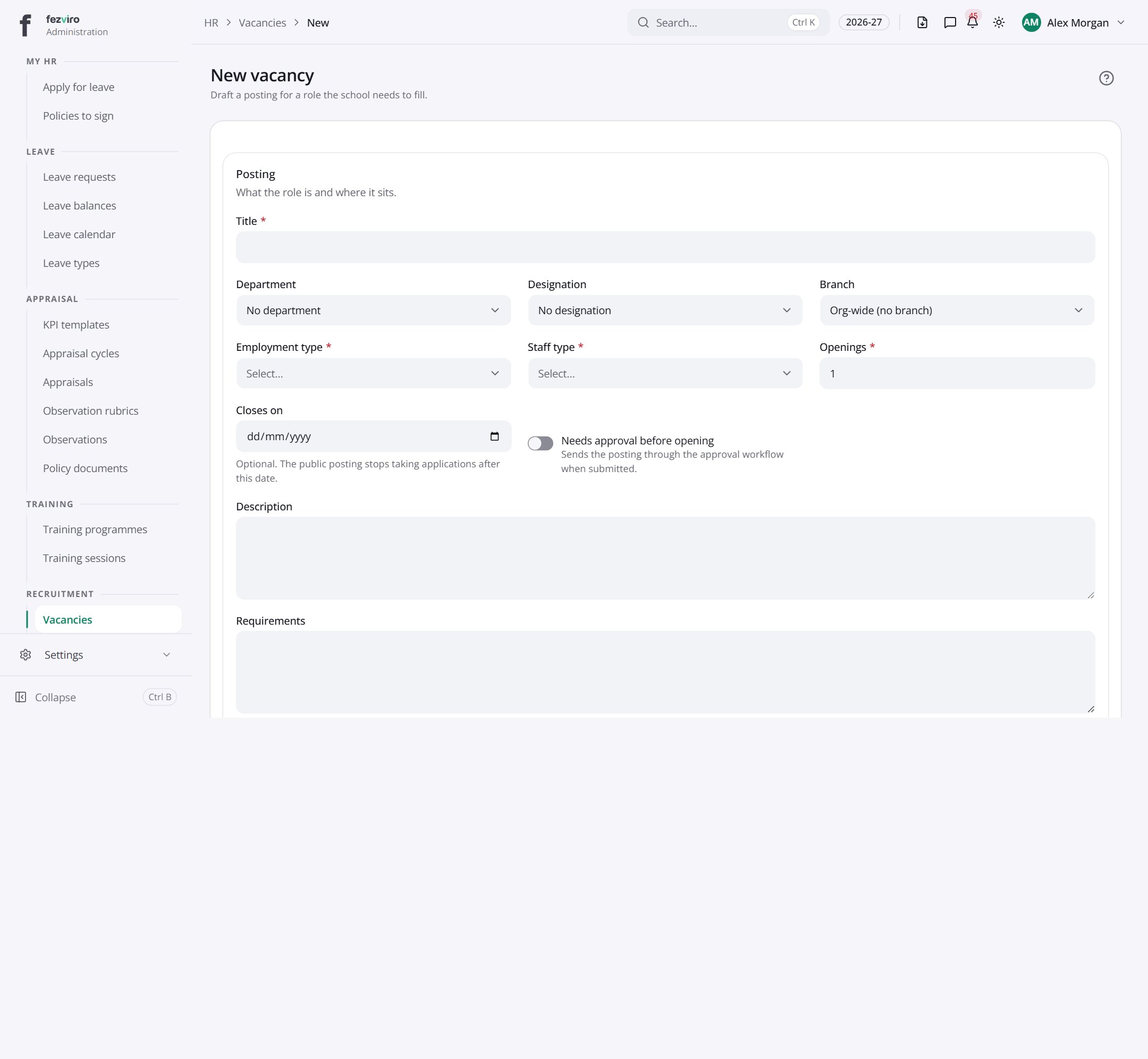
The fields
Section titled “The fields”| Field | Type | What to enter, and why |
|---|---|---|
| Title * | text | The job title shown on the posting, such as Science Teacher. |
| Department | choose | Choose the department this role sits in. |
| Designation | choose | Choose the job title for this role. |
| Branch | choose | Choose the campus where the role is based. |
| Employment type * | choose | Choose full-time, part-time or another arrangement, from the list. |
| Staff type * | choose | Choose the kind of staff member needed, such as teaching or support. |
| Openings * | number | How many people the school wants to hire for this role. |
| Closes on | date | Optional. The last day the public posting accepts applications. |
| Needs approval before opening | switch | Tick to send this posting for approval before it goes live. |
| Description | long text | What the role is and where it sits in the school. |
| Requirements | long text | The qualifications and experience the applicant needs. |
| Screening questions | long text | Optional. Questions for applicants, one per line. Up to ten. |
| Minimum (minor units) | number | Lowest pay offered, typed in the smallest unit of money, such as cents. |
| Maximum (minor units) | number | Highest pay offered, typed in the same smallest unit as the lowest pay. |
| Currency | choose | Choose the currency the pay figures above are in. |
| Show salary on careers page | switch | Tick to show the pay range on the public job posting. |
Types: text — type it in · number — digits only · date — click and pick from the calendar · choose — click and pick one from the list · pick one — click one of the options · switch / tick box — click to turn on or off · long text — type as much as you need · file — click to attach a file from your computer.
← Back to HR & Staff overview