

Notification preferences
What it is
Choose how and when you receive school messages.
Why it matters
Stops alerts arriving at bad times or through channels you do not use.
When to use it
Each person sets their own channels and quiet hours.
Who uses it
Administrator
How to get here
Section titled “How to get here”- Sign in as Administrator (see Signing in).
- In the left menu, click Platform to open it.
- Click Notifications.
What you see
Section titled “What you see”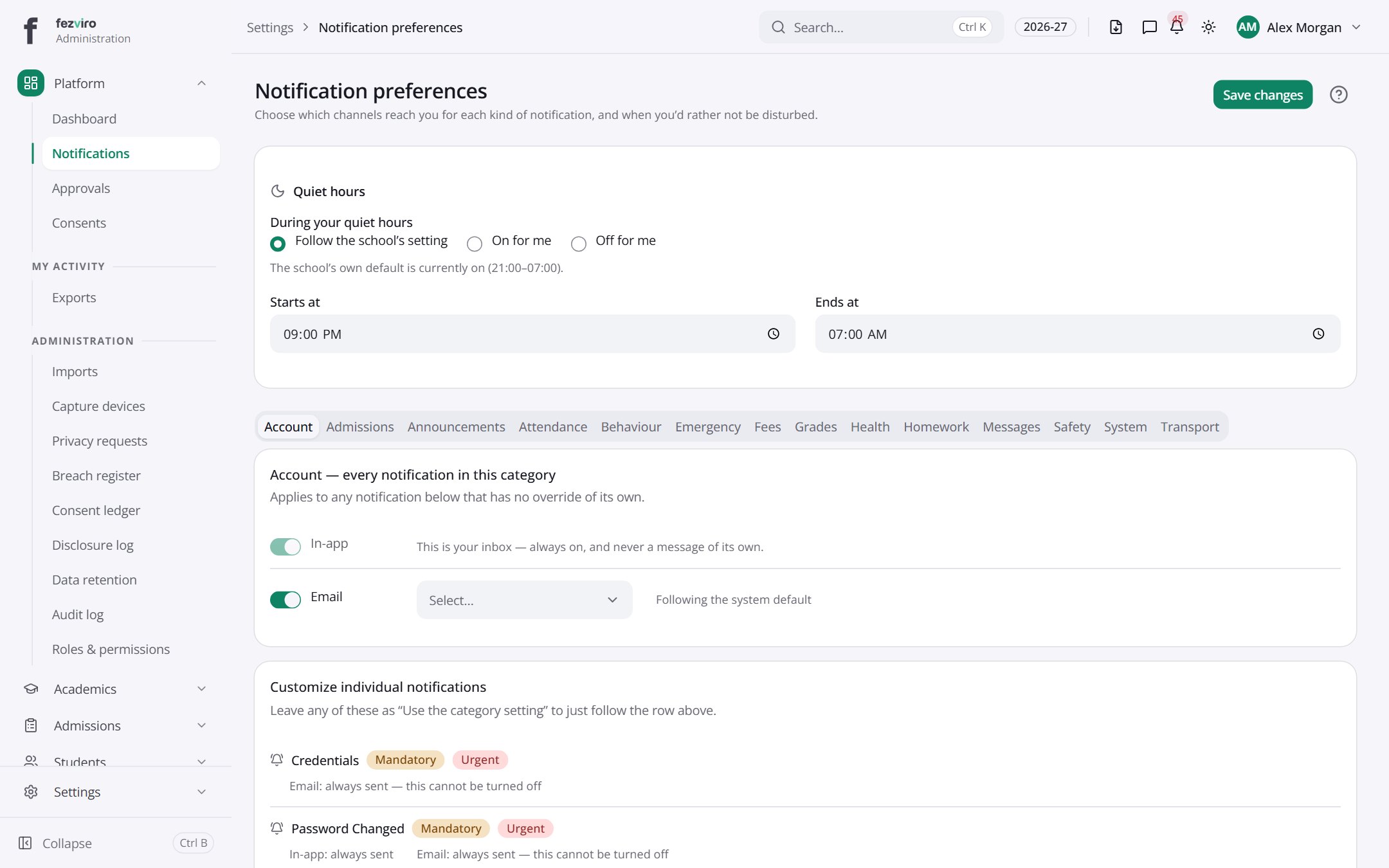
- Tabs along the top switch between views: Account, Admissions, Announcements, Attendance, Behaviour, Emergency, Fees, Grades, Health, Homework. Click one to change what you see.
- Sections on the page: Quiet hours, Account — every notification in this category, Customize individual notifications.
Buttons on this screen
Section titled “Buttons on this screen”- Save changes — lets you change the details.
← Back to Platform & Security overview